85
10-7. Mask and Invert
Mask and Invert can be used for keys and DSKs. KEY1 is used as an example in this section.
10-7-1. Inverting Key and Background
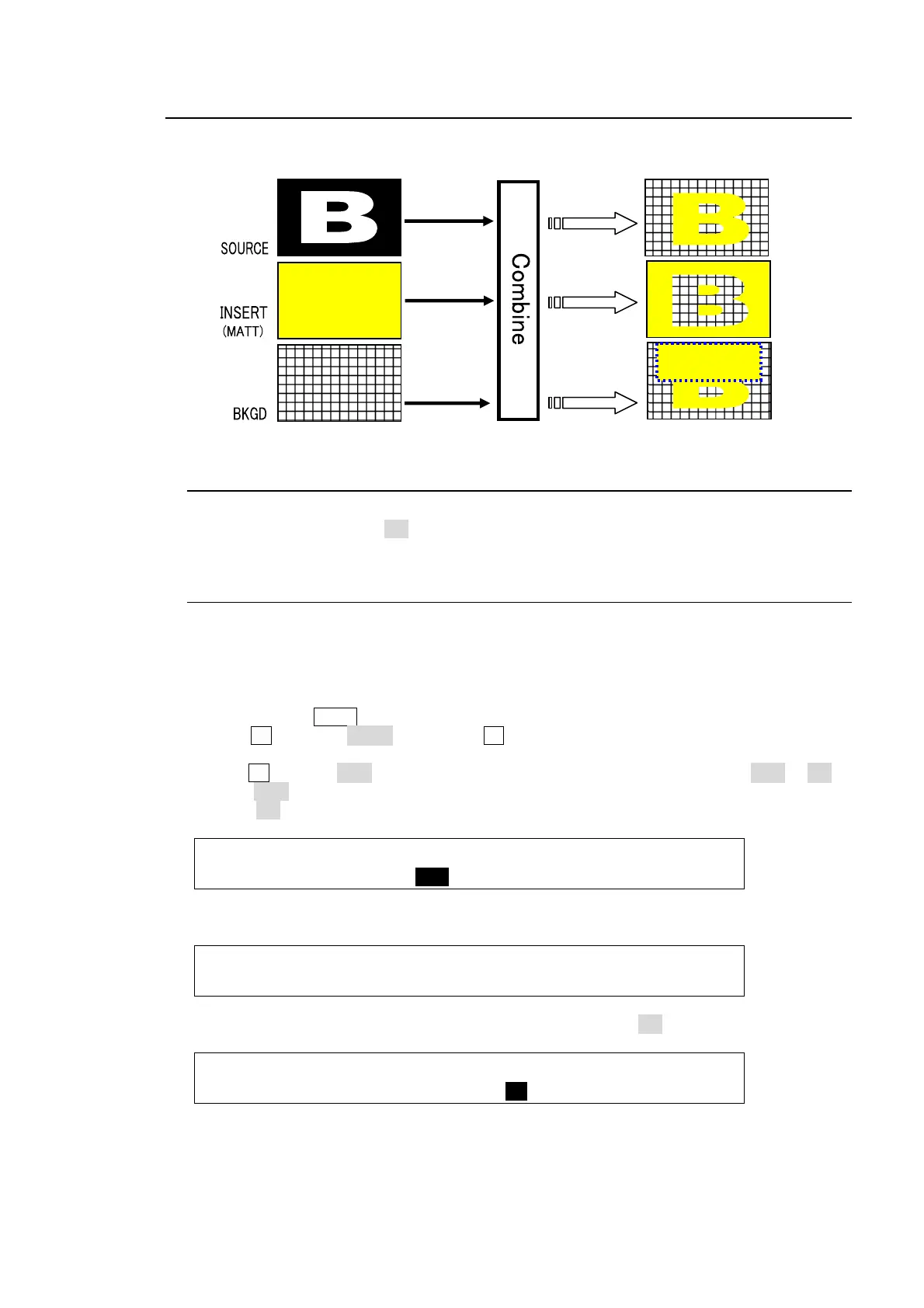
Setting Invert to ON inverts the key image and the background image. Set INVERT in the
[KEY1- INS/SRC] menu to ON. The key signal is then inverted.
10-7-2. Key Masks
BOX Mask
Box-shaped masks can be applied to keys. They can also be inverted so that the keyed area
inside the box becomes invisible.
(1) Create a KEY1.
(2) Quickly press KEY1 twice to display the [KEY1 SETUP] menu.
(3) Turn F1 to select MASK, and press F1 or the page down button to open the [KEY1 -
MASK] menu.
(4) Turn F2 to select BOX on PAGE 1 in the [KEY1-MASK] menu. Set TYPE to AND or OR. If
set to AND, the area where Key Source and Box Mask overlap is used as the key signal. If
set to OR, both Key Source and Box Mask are used as the key signal.
KEY1 : TYPE :MASK :INVERT : : 1/2
MASK : =AND : =BOX : =OFF : :
(5) Set the horizontal and vertical mask width on PAGE 2 in the MASK menu.
KEY1 : BOX MASK POSITION : 2/2
MASK POS:T=0 B=0 L=0 R=0 :
(6) Setting the INVERT item on PAGE 1 in the MASK menu to ON inverts the Box Mask.
KEY1 : TYPE :MASK :INVERT : : 1/2
MASK : =AND : =BOX : =ON : :
Bus ke
BOX(OR)
mask
INVERT



 To Next Page