175
24-6-4. Copying and Clearing Playlists
Clearing Playlists
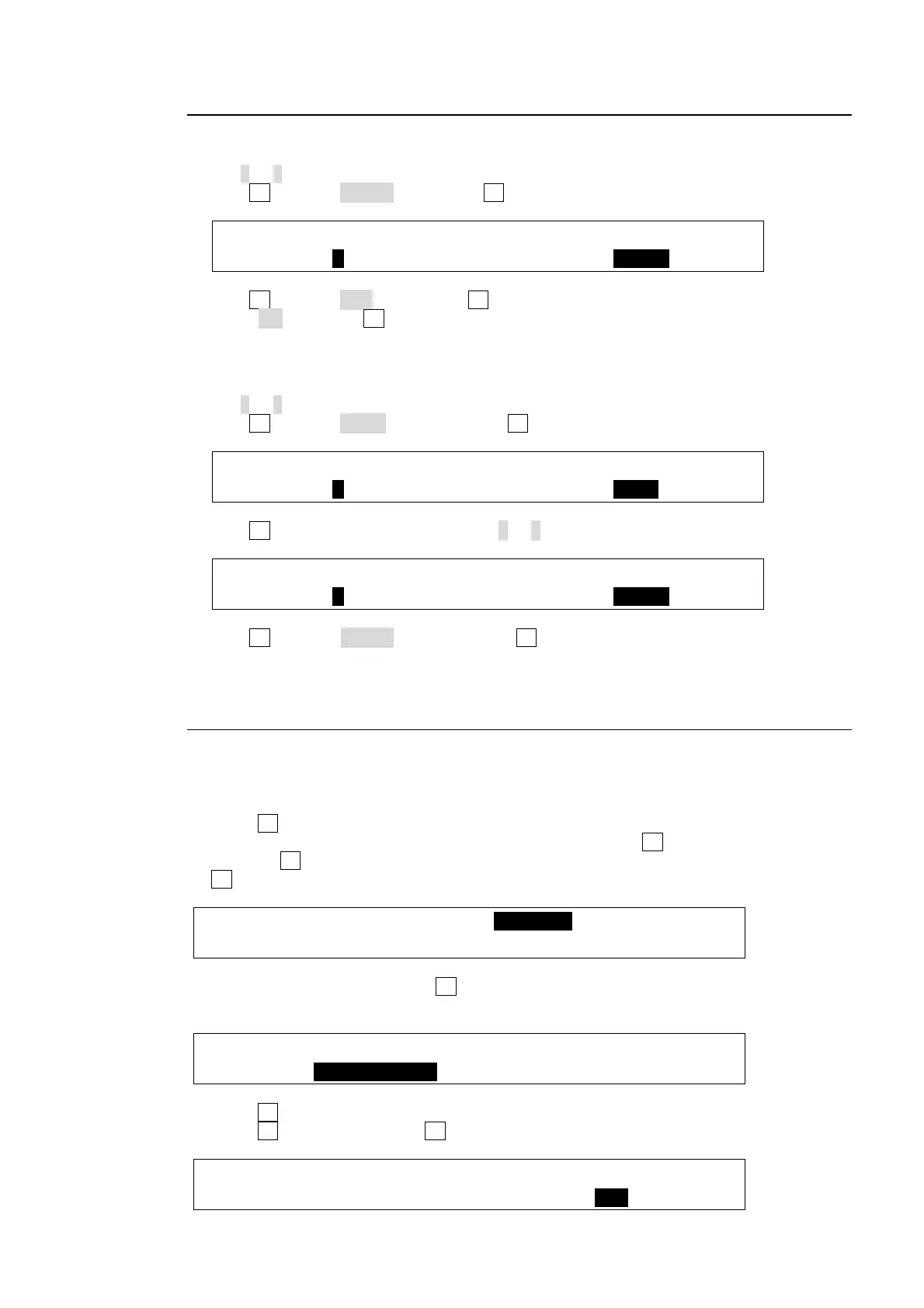
(1) Display Page 5 of the [SETUP- EXT I/F - VTR/VDCP] menu.
(2) Set 1 or 2 under SELECT to select Playlist 1 or 2.
(3) Turn F4 to select CLEAR, then press F4.
EXT I/F :SELECT : :FUNC : 5/7
VTR/VDCP:=1 :>ID SET:>TC SET: >CLEAR:
(4) Turn F3 to select YES. Then press F3 to clear the playlist data. To cancel the operation,
select NO and press F3.
Copying Data between two Playlists
(1) Display Page 5 of the [SETUP- EXT I/F - VTR/VDCP] menu.
(2) Set 1 or 2 under SELECT to select Playlist 1 or 2 for copying data.
(3) Turn F4 to select COPY, and then press F4.
EXT I/F :SELECT : :FUNC : 5/7
VTR/VDCP:=1 :>ID SET:>TC SET: >COPY :
(4) Turn F1 to select a destination (Playlist 1 or 2) for copying.
EXT I/F :SELECT : :FUNC : 5/7
VTR/VDCP:=2 :>ID SET:>TC SET: >PASTE:
(5) Turn F4 to select PASTE, and then press F4. The data is copied from one playlist to the
other.
24-6-5. Creating New Clips (Recording using VDCP)
Recording video and creating new Clips are possible. They are stored in the connected
device. To create a new clip, proceed as follows:
(1) Display Page 7 of the [SETUP- EXT I/F - VTR/VDCP] menu.
(2) Press F3 to change to ID input mode.
(3)To enter a new CLIP ID, set a character for each cell: Turn F3 to select the first cell and
then turn F4 to select a character for it. Repeat this process until the new ID is set. Press
F3 to apply the new ID.
EXT I/F :REC DURATION :ID:NEW0001 : 7/7
VTR/VDCP:=00:00:15:00 :>RENAME :REC :
(4) To set recording duration, turn F1 to enter values. The procedure for setting durations is
almost the same as that for setting time codes (see p104).
EXT I/F :REC DURATION :ID:NEW0001 : 7/7
VTR/VDCP:=00:00:15:00 :>RENAME :REC :
(5) Press F4 to start recording, if DIRECT REC is set to ON.
Press F4 while holding down F1 to start recording, if DIRECT REC is set to OFF.
EXT I/F :REC DURATION :ID:NEW0001 : 7/7
VTR/VDCP:=00:00:15:00 :>RENAME :REC :



 To Next Page