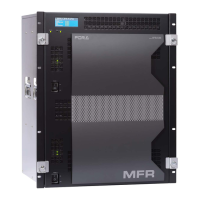
110
15. Picture-in-Picture
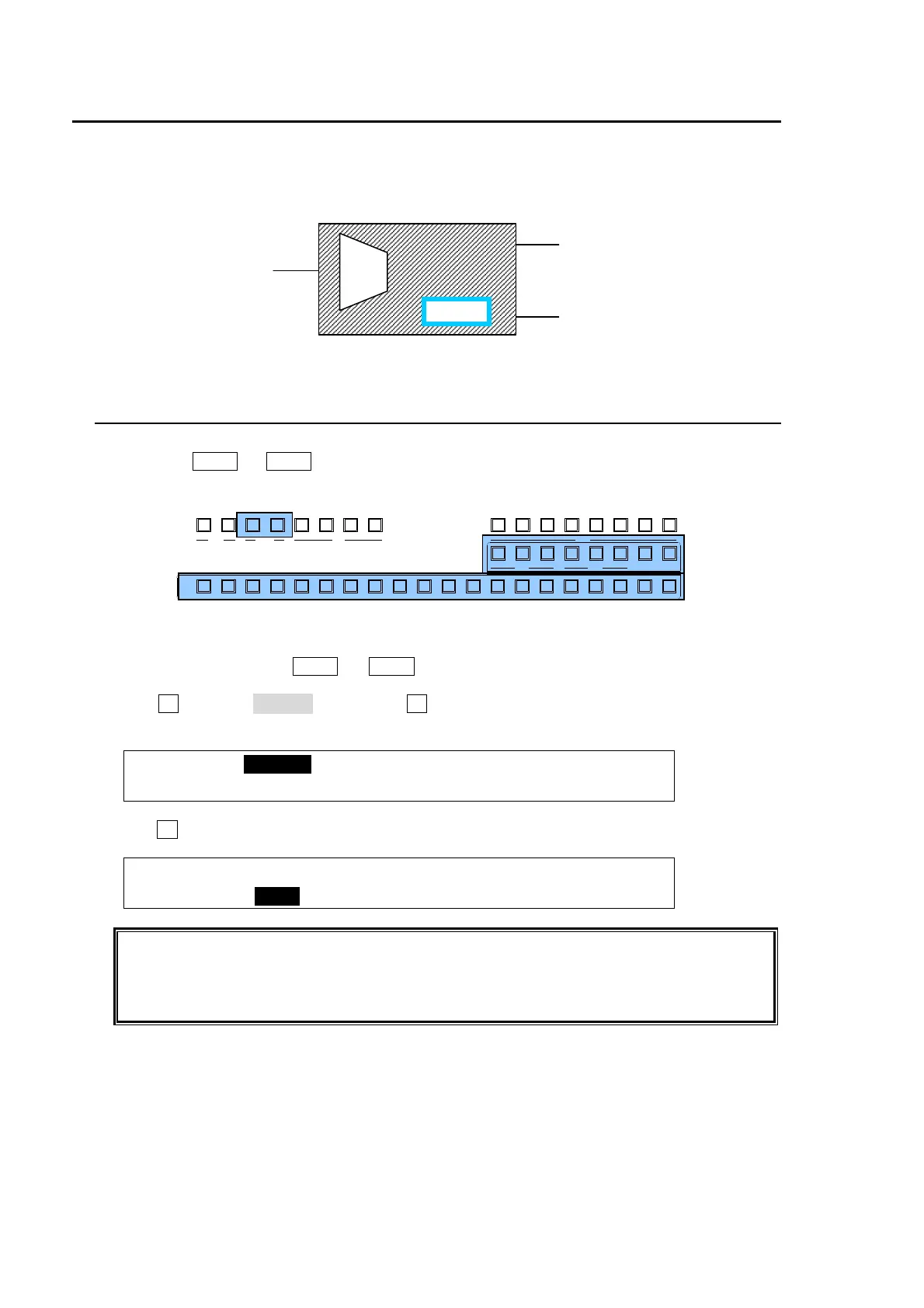
The PIP (picture-in-picture) feature allows any video (sub-screens) to be displayed on full screen
simultaneously. In the switcher, two sub-screens (PinP1 and PinP2) can be inserted on the M/E
program image. The setup for PIP pictures is the same. This section explains how to setup and
display PinP pictures as shown in the figure below (as an example).
15-1. Selecting Video for PinP
To Select Video on the Control Panel:
(1) Press the PinP1 (or PinP2) button in the BUS SELECT block.
(2) Press a desired source bus button in the KEY/AUX bus to select video for the PinP.
To Select Video in the Menu:
(1) Press twice quickly the PinP1 (or PinP2) button in the BUS SELECT to display the PinP1
(PinP2) menu.
(2) Turn F1 to select SIGNAL, then press F1 or the page down button to display the [PinP1-
SIGNAL] menu.
PinP1 :>SIGNAL
SETUP :>POS/SIZE>BORDER >SUB EFF >INIT
(3) Turn F1 to select a video for PinP.
PinP1 :SIGNAL :XPT TRS:ASPECT : : 1/1
SIGNAL : =IN10 : =0 : =16:9 : :
When enabling the PinP Crossfade. (setting XPT TRS to other than 0), just selecting the
next image in the KEY/AUX bus fades to switch the image of PinP. (See section 15-2-2.
"PinP Image Crossfade Transition.")
In HD mode, the aspect ratio of PinP can be selected between 16:9 and 4:3.
AUX
PREV M V1CLEAN MV2
2345 67891011121
KEY/AUX
PGMPREV CLEANPGM
M/E
2345 6781
P/P
DSK
2341
KEYER
212
P IN P
1
13 14 15 16 17 18 19 20
M/E PGM image
<PinP2>
Position changed
Size changed
Cropped on the top and bottom
Blue border added
Background
<PinP1>
Position changed.
Size changed.
Rotation effect
PinP2
PinP1



 To Next Page