L-INX User Manual 128 LOYTEC
Version 4.0 LOYTEC electronics GmbH
data points, BACnet server objects and client mappings. The device is again fully functional
in the network.
6.6 Using the L-INX Configurator
6.6.1 Starting Stand-Alone
Go to the Windows Start menu, select Programs, LOYTEC LINX Configurator and
then click on LOYTEC LINX Configurator. This starts the Configurator and the main
connections screen is displayed.
If the L-INX is not yet connected to the network, go to the Firmware menu and select the
firmware version and model of the L-INX to be configured. If the L-INX is already
connected to the network it is recommended to connect the Configurator online to the
LINX.
To Connect to a L-INX Stand-Alone
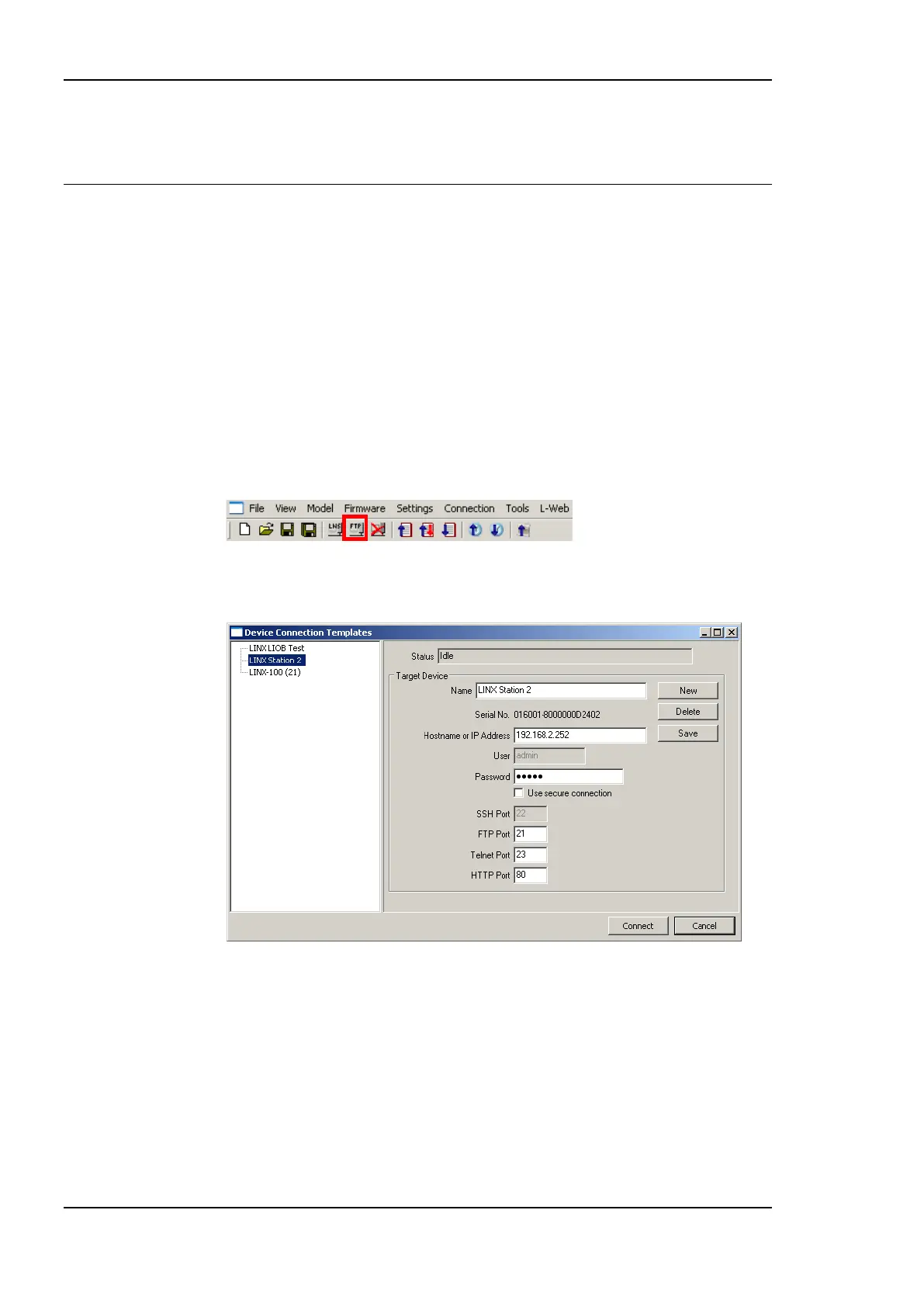
1. Select the FTP connection method by clicking on the FTP connect button
in the tool bar of the main connections window. The connect dialog as shown in Figure
109 opens containing the managed device connection templates.
Figure 109: FTP connection dialog.
2. To add a new device connection, click on New or select an existing connection in the
tree on the left-hand side.
3. Enter the host name or IP address of the device. Enter the admin password. The default
password is ‗loytec4u‘ (older firmware versions used ‗admin‘).
4. Optionally, click on Use secure connection to enable encrypted SSH access to the
device.
5. If your device is located behind a NAT router or firewall, you may change the FTP,
Telnet, SSH, and HTTP ports to your needs for accessing the device.



 To Next Page