L-INX User Manual 130 LOYTEC
Version 4.0 LOYTEC electronics GmbH
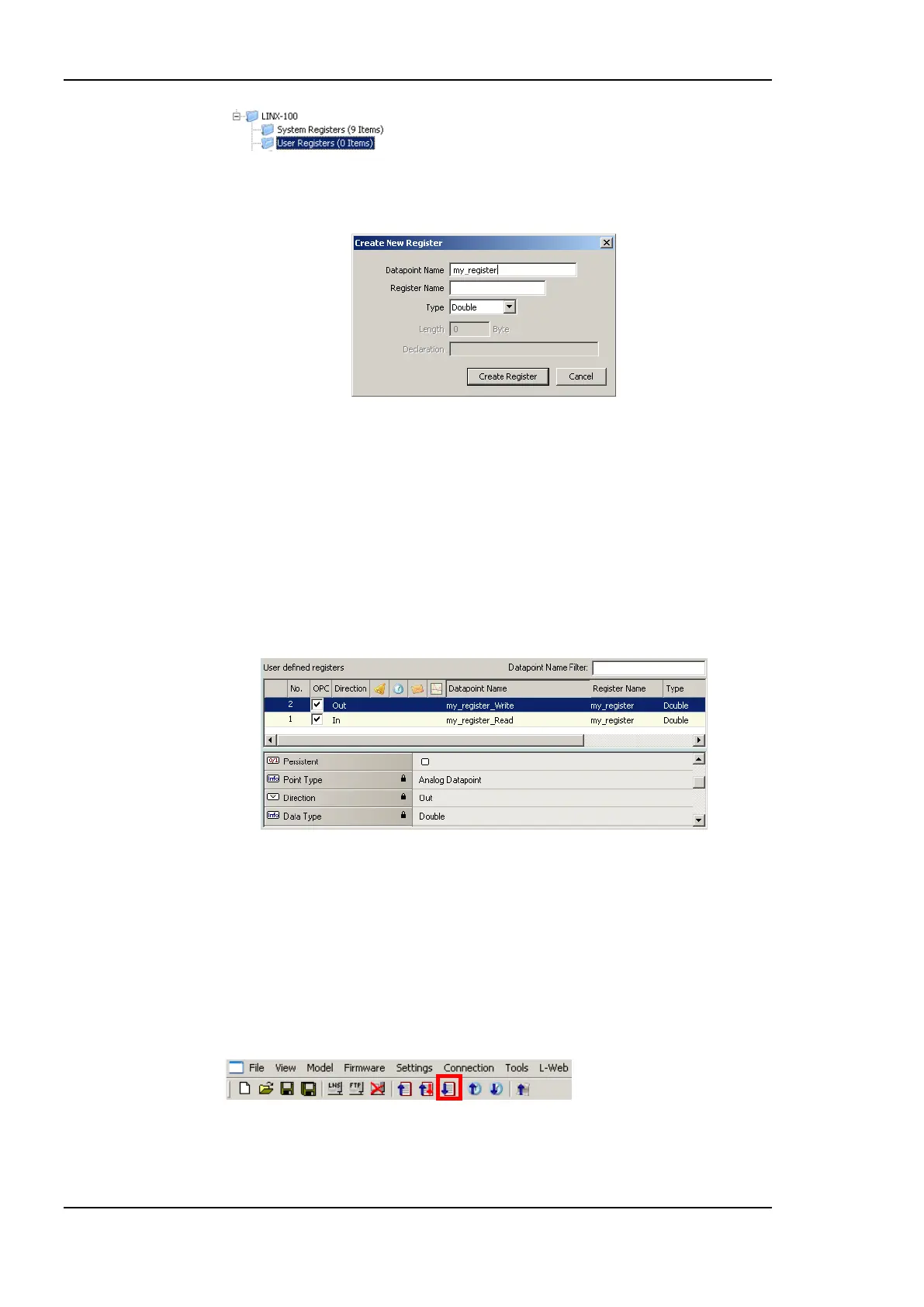
2. Right-click in the data point list and select New Datapoint… in the context menu. This
opens the register creation dialog as shown in Figure 111.
Figure 111: Create a user register.
3. Enter a Datapoint Name for the register. You may leave the Register Name blank to
give the underlying register the same name as the data point.
4. Select a Type. Available are ―Double‖, ―Boolean‖, ―Signed Integer‖, ―String‖, or
―Variant‖.
5. Click Create Register.
6. Two data points now appear for the register, one for writing the register and one for
reading the register as shown in Figure 112.
Figure 112: Manually created user register.
6.6.4 Configuration Download
After the data points have been configured, the configuration needs to be downloaded to the
device. For doing so, the device must be online. If the device is not yet connected to the
network, the configuration can be saved to a project file on the local hard drive.
To Download a Configuration
1. In the main connections window, click on the Download Configuration speed button
in the tool bar of the main connections window. This will open the configuration
download dialog as shown in Figure 113.



 To Next Page