L-INX User Manual 169 LOYTEC
Version 4.0 LOYTEC electronics GmbH
Next state: This is the next, future occupancy state in the schedule.
Time to next state: This part reflects the time in minutes until the next state becomes
active.
To Use a SNVT_tod_event
1. Create a SNVT_tod_event in the data point configuration.
2. Add the SNVT_tod_event to the scheduled data points of a scheduler as described in
Section 6.12.4.
3. All three parts of the SNVT_tod_event are scheduled.
6.12.10 Using the Local Scheduler
Once the setup of the local scheduler is done, it is basically operational. It will immediately
start working based on the configuration data downloaded through the configuration
software. You can verify the daily schedules and values of scheduled data points on the
Web UI (see Section 4.2.18). The local schedule can be altered over the Web UI or over the
network using the underlying networking protocol.
6.13 Local Alarming
6.13.1 Create an Alarm Server
To generate local alarms, an alarm server needs to be created at first. The local alarm
sources will report alarms to that alarm server. The alarm server is the interface to access
local alarms. This can be done over the network or the Web UI.
To Create an Alarm Server
1. Under the port folder, select the Alarm sub-folder to create an alarm server.
2. Right-click in the data point list view and select New Alarm Server ….
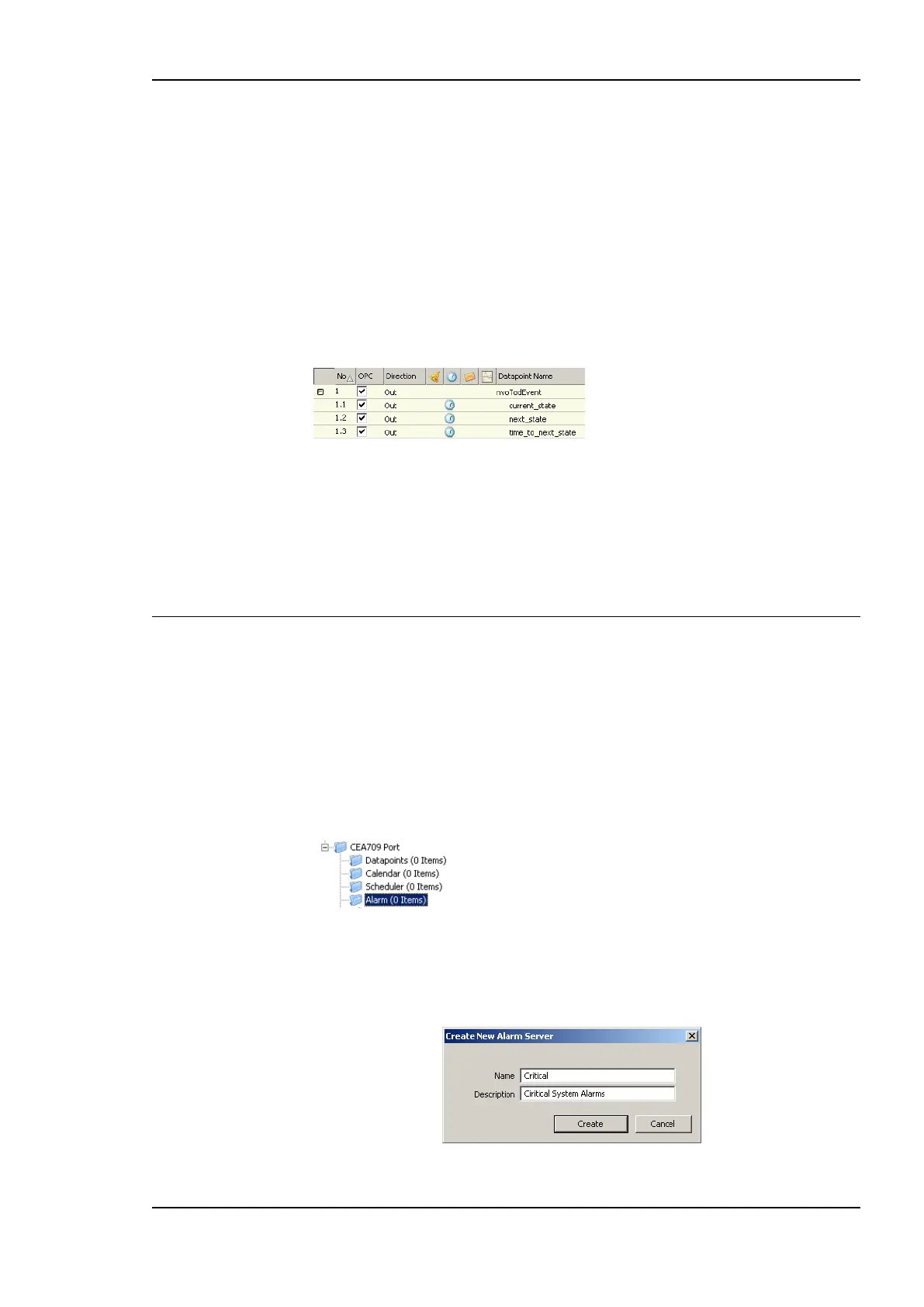
3. In the Create New Alarm Server dialog box (as shown in Figure 143) enter Name and
Description of the alarm server.
Figure 143: Create New Alarm Server dialog box.



 To Next Page