L-INX User Manual 178 LOYTEC
Version 4.0 LOYTEC electronics GmbH
For setting up e-mails, the account information has to be configured on the device, e.g., on
the Web UI (see Section 4.2.15). Then an e-mail template can be created and the trend
object attached as a trigger.
To Create an E-mail Template for Trends
1. Create or configure an e-mail template as described in Section 6.11.1.
2. Change to the Mail Triggers tab.
3. Click the Add… button and select a trend object.
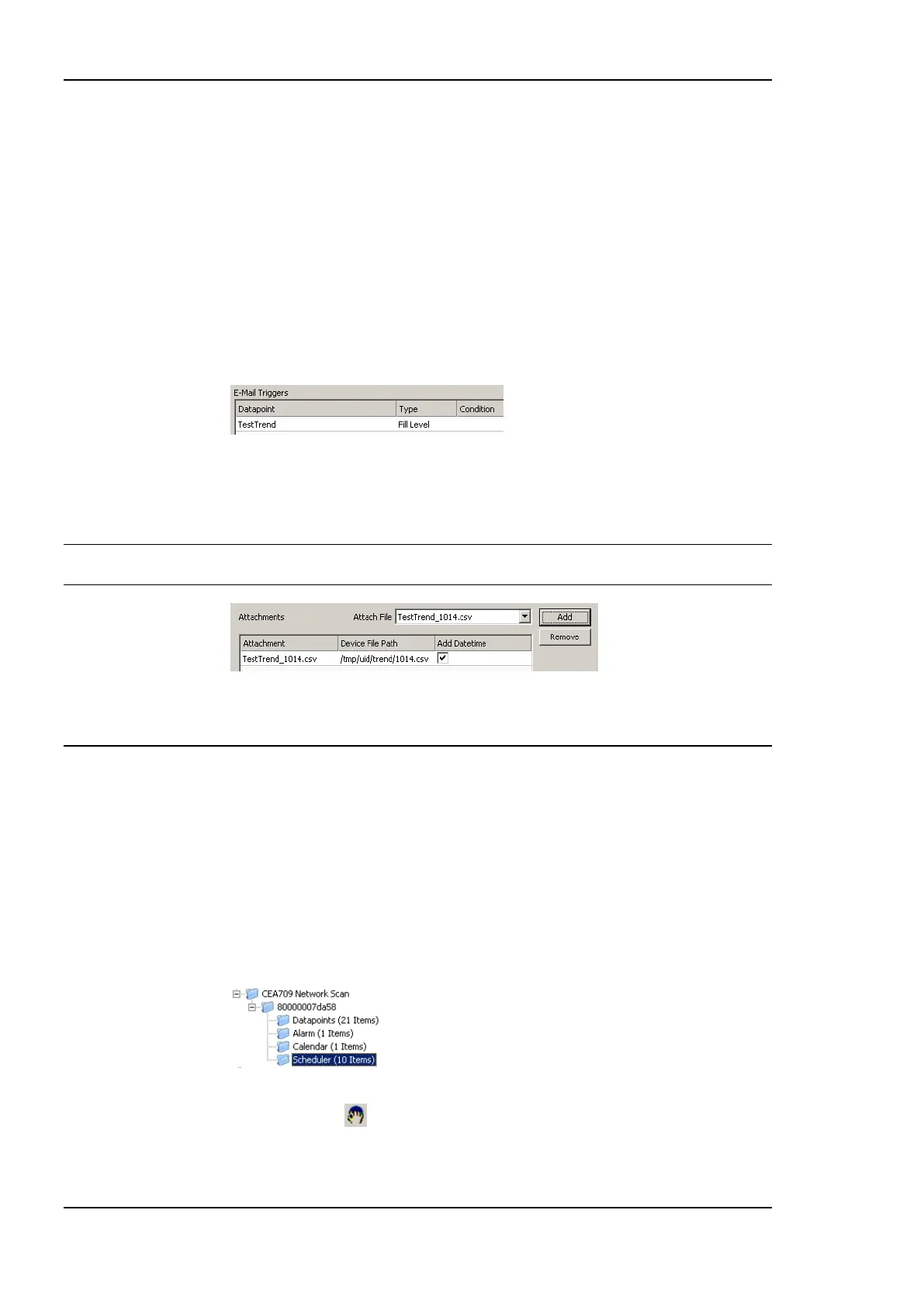
4. In the Mail Triggers list, the added trigger data point appears with the Fill Level
condition.
5. Change to the Attachments tab.
6. Select the trend log CSV file of the trend object in the Attach File drop-down box and
click Add.
Note: ZIP versions of the CSV files are also available. Select those to save transmission
bandwidth and mailbox space.
7. Click OK to complete the e-mail template configuration.
6.15 Remote AST Objects
6.15.1 Remote Scheduler and Calendar
Adding remote access to the configuration of a scheduler and calendar, which is located on
another device, is done by creating remote scheduler and calendar objects. These objects
can be created from data obtained by a network scan.
To Create a Remote Scheduler
1. Execute a network scan, as described earlier in this document. The scan folder is filled
with available schedulers.
2. From the data points in the import folder, select the scheduler objects you are interested
in and click the Use on Device speed button. This creates suitable remote
schedulers and the corresponding calendar objects in the Remote Devices folder.



 To Next Page