L-INX User Manual 164 LOYTEC
Version 4.0 LOYTEC electronics GmbH
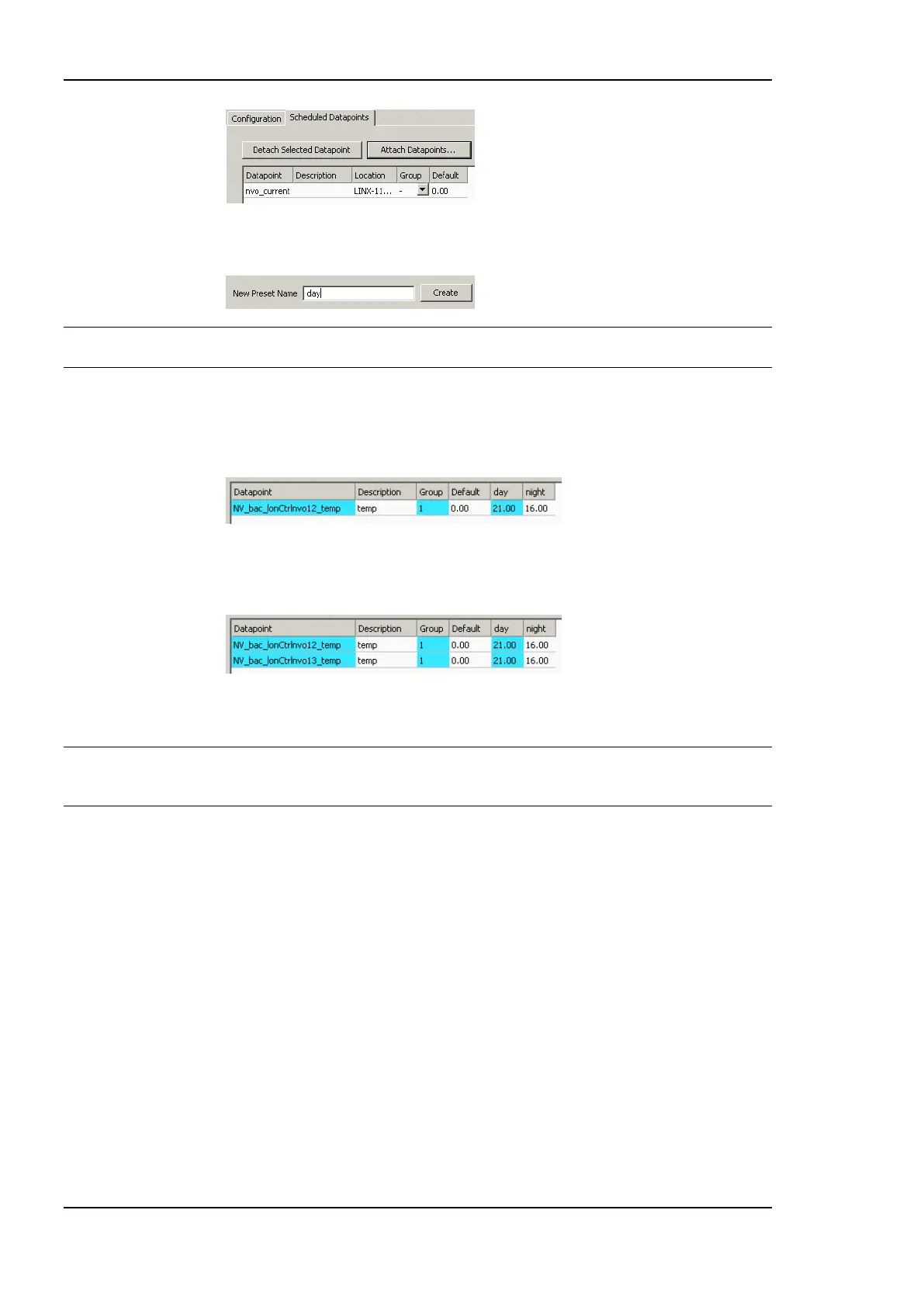
7. Add new value presets by entering a name and pressing the Create button next to the
input field.
Tip! To generate presets automatically for multi-state data points, click the Auto-Create button.
This button is available, if no other presets have been defined yet.
8. For each new preset, a new column will appear in the list. In this column, enter the
desired value for each of the attached points, which will be set when this value template
is scheduled. The user may later edit the values for each preset on the device but cannot
add new value presets unless there is only one line (one value) in the list.
9. If there are multiple output values which belong together, they can be grouped in order
to save space on the device. For each group, the entered value is stored only once, even
if there are more data points in the same group.
10. When done with the point and value setup, switch back to the Configuration tab or
click Save Changes to leave the dialog.
Tip! A shortcut to creating a scheduler object and attaching a data point is to select a data point
in the data point manager, right-click on it and choose Schedule Datapoint from the
context menu. This generates a scheduler and links that data point to it.
6.12.5 Configure Daily Schedules
Once a scheduler is configured with attached data points and value presets, the daily
schedules can be defined. This can be done on the device or over the network at run-time, or
also in the configuration software. A daily schedule defines the time and value sequences in
a 24-hour period starting at 00:00 and ending at 23:59 hours. For each weekday a daily
schedule can be configured.
In addition, daily schedules can be configured for exception days from a calendar, such as
―Holidays‖. An exception day always overrides a normal weekday. If more than one
exception day is used, a priority must be assigned. This is necessary so that the system
knows which schedule to follow on a day which matches more than one calendar pattern.
To Configure a Daily Schedule
1. Open the Configure Schedule dialog and click on the Configuration tab (see Section
6.12.4).
2. Select the day for which to configure a daily schedule.



 To Next Page