L-INX User Manual 275 LOYTEC
Version 4.0 LOYTEC electronics GmbH
For some applications, e.g. for a scene controller, it is necessary to send an update on
request. E.g. every time the input value is updated, the output value is forwarded to the
network, regardless if the value of the output value was changed or not.
For implementing this feature, special vendor blocks are available. First it is necessary to
check if there was an update on a selected input within the last execution cycle of the
running IEC61131 program. That functionality is offered by the function block Update
Notify located in the StandardLibs->Loytec_Support folder. Second, an output must be
forced to send an update even if the value was not changed. The function block Force
Update is used for that functionality, it is located in the StandardLibs->Loytec_Support..
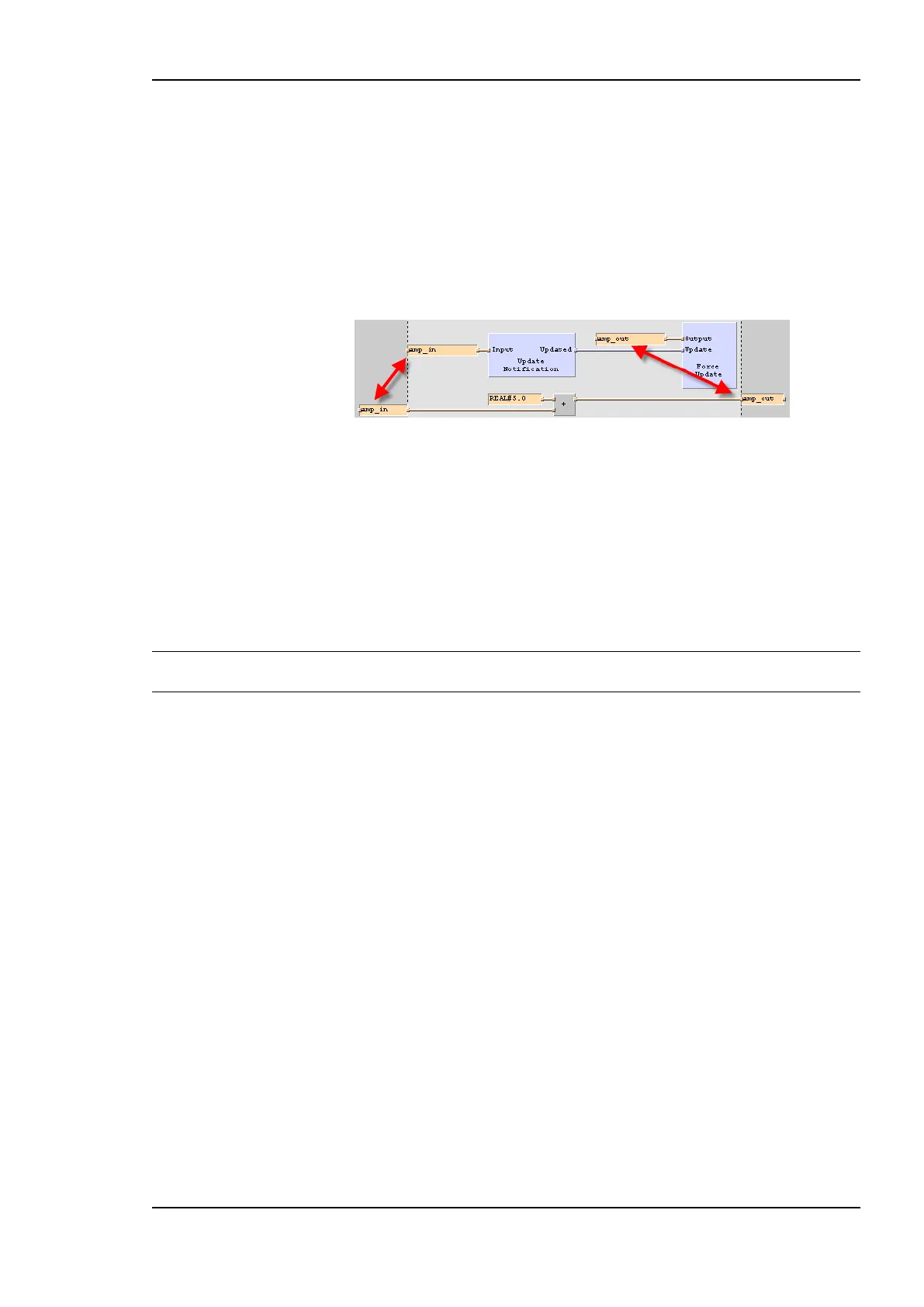
Figure 228: Force update
Figure 228 depicts how to use the force updated functionality. Beside the part of the
IEC61131 program that defines the tasks to perform, lower half of Figure 228, additional
logic for the force update functionality is required. The global input variable that is
monitored for changes is connected to the Update Notification function block. As a result,
the Boolean output Updated goes to TRUE for one program cycle if the value of the
connected variable was updated since the last cycle start. To force the IO driver do send an
update, connect the global output variable to update to the Force Update block. Hence,
every time the Update input of the Force Update block is TRUE, an update of the connected
global output variable is sent at the end of the program cycle.
Important: Every global variable connected to the update notification or force update block, must be
connected via the right terminal.
12.6.2 Using UNVT variables
Similar to the predefined CEA709 data types and the technology converter functions, user
defined network variable data types can be used. The LINX Configurator supports the
developer to generate the type definitions needed for UNVTs and enumerations based on
LONMARK resources files.
Start the L-INX Configurator tool, select the menu Tools, and the command Export NV
resource file. Select the resource file to export, structured text as format and export the file
to a location of your choice.
To import the created type definition file into logiCAD, add a new library to the project.
Right click on the created library, select Export/Import and Start ST-Import. Select the file
to import and check the error-state viewer for the results of the import process.
Using the newly created data types, suitable technology converter function blocks can be
created. For each UNVT type, create a normal function block to convert an input of the
UNVT type to a number of standard IEC61131 data types and vice versa. You may look at
the technology converter blocks for SNVT types which are provided by LOYTEC, to get
ideas how to implement your own converter functions.
12.6.3 Create Your Own Data Type
For special applications, custom IEC61131 compliant data types may be created by the user,
which do not correspond to any CEA709 network type but should still be available as a data
point on the LINX-110 device, in order to access the data point from the web interface or
XML interface and as a possibility to make variables of such custom data types persistent.



 To Next Page