L-INX User Manual 295 LOYTEC
Version 4.0 LOYTEC electronics GmbH
9. Click OK.
10. In the Firmware Update dialog, click Close.
11. The device‘s firmware has now been successfully upgraded.
15.2 Firmware Update via the Console
On L-INX models with the console connector it is possible to upgrade the device over this
interface. To download the firmware via the console interface, the device must be connected
to the RS-232 port (EIA-232) of a PC via its console interface as described in
Section 16.2.1. You will need the LOYTEC serial upgrade tool (LSU Tool), which can be
downloaded from our homepage at www.loytec.com.
Please make sure that the console shows the main menu. Otherwise navigate to the main
menu or simply reset the device.
To Upgrade via the Console
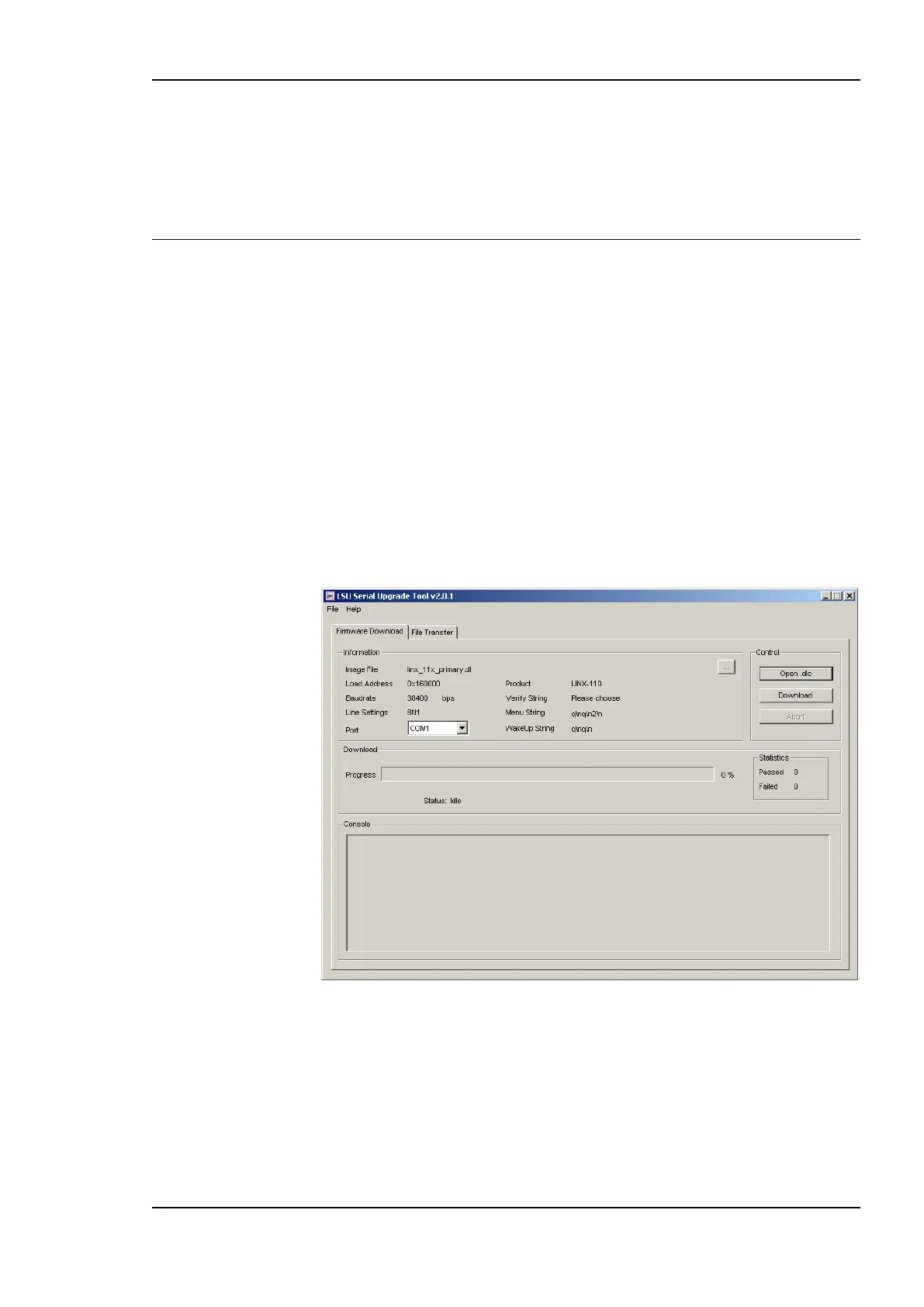
1. Double click on the *.dlc file that comes with the new firmware package. This should
start the LSU Tool and load the firmware image referenced in the dlc file. Please note
that the dlc file and the dl file must be stored in the same folder. The start window of
the LSU tool is shown in Figure 235.
Figure 235: LSU Serial Upgrade Tool in Idle Mode.
2. If the device is not connected to COM1 you can change the port to COM2, COM3, or
COM4. Make sure that the product shown under ―Product‖ matches the device you are
upgrading. Press Download to start the download. A progress bar as shown in Figure
236 can be seen.



 To Next Page