L-INX User Manual 160 LOYTEC
Version 4.0 LOYTEC electronics GmbH
Note, that the behavior of the trigger data point is influenced by the COV properties of the
data point. If the Only notify on COV property is checked, the data point triggers only if its
value changes to the value of the trigger condition. If that property is not checked, the data
point triggers on every write with a value that matches the trigger condition.
The trigger for sending an e-mail can be enabled or disabled altogether by using an enable
data point. This data point must be of type binary. If the value of that enable data point is
TRUE, the trigger conditions are evaluated. If the value of the enable is FALSE, no e-mails
are be triggered.
To Create an E-mail Trigger
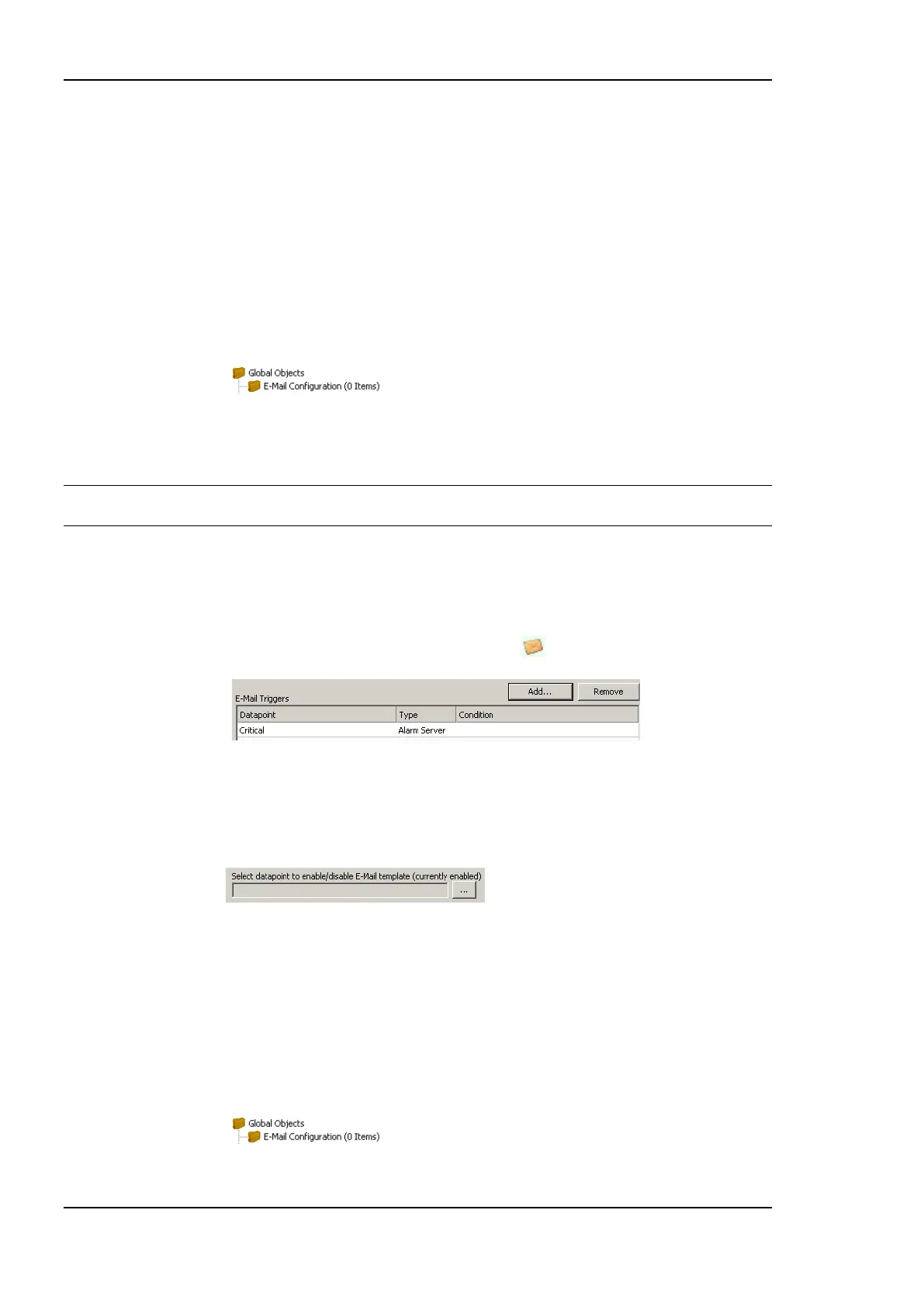
1. Under the Global Objects folder, select the E-mail Configuration sub-folder.
2. Right-click and select Configure E-mail Template … from the context menu.
3. Change to the Mail Triggers tab.
Note: Of course, you can also change directly to the Mail Triggers tab when creating an e-mail
template.
4. Click the Add… button. A data point selection dialog opens.
5. Select one or more data points and click OK.
6. The triggers appear now in the E-Mail Triggers list. The data points that serve as
e-mail triggers also appear with the e-mail icon in the data point list.
7. In the Manage Trigger Conditions you can setup the trigger condition depending on
the trigger data point class.
8. If the trigger condition is depending on the value of an enabling data point, you can add
an enable data point by clicking on the … button.
9. To remove such a trigger enable, click the Remove Enable Trigger button.
6.11.3 Attachments
E-mail templates can be configured to have file attachments. Basically, any file of the
device can be specified as an attachment.
To Configure Attachments
1. Under the Global Objects folder, select the E-mail Configuration sub-folder.
2. Right-click and select Configure E-mail Template … from the context menu.



 To Next Page