L-INX User Manual 225 LOYTEC
Version 4.0 LOYTEC electronics GmbH
To Scan Devices Using the M-Bus Network Management Dialog
1. Select the Baud rate for the device scan. For more information on scanning the M-Bus
network refer to Section 10.7.2.
2. Start the scan by pressing the Scan for Devices button.
3. When the device scan is finished, the devices can be selected for a data scan. Also
multi-select is possible.
4. Select the devices which have to be scanned for data points and press the Scan Device
Data button. This scans all data points of the selected devices. For every device a
folder with the name of the device is created under the M-Bus Network Scan folder.
The data points found are placed in the Datapoints folder of the appropriate devices.
Important: If a device, which is scanned, is already in the device list, the existing device can either be
overwritten; deleting all previously scanned data points of the existing device or the
scanned device can be discarded. A dialog is displayed for this decision.
10.7.4 Manual Configuration of Data Points
It is possible to manually configure M-Bus data points. Manual configuration is done by
specifying all information, the M-Bus device manufacturer provides.
To Manually Create an M-Bus Data Point
1. Click on the M-Bus port Datapoints folder.
2. Right click in the data point list view and select New Datapoint in the context menu.
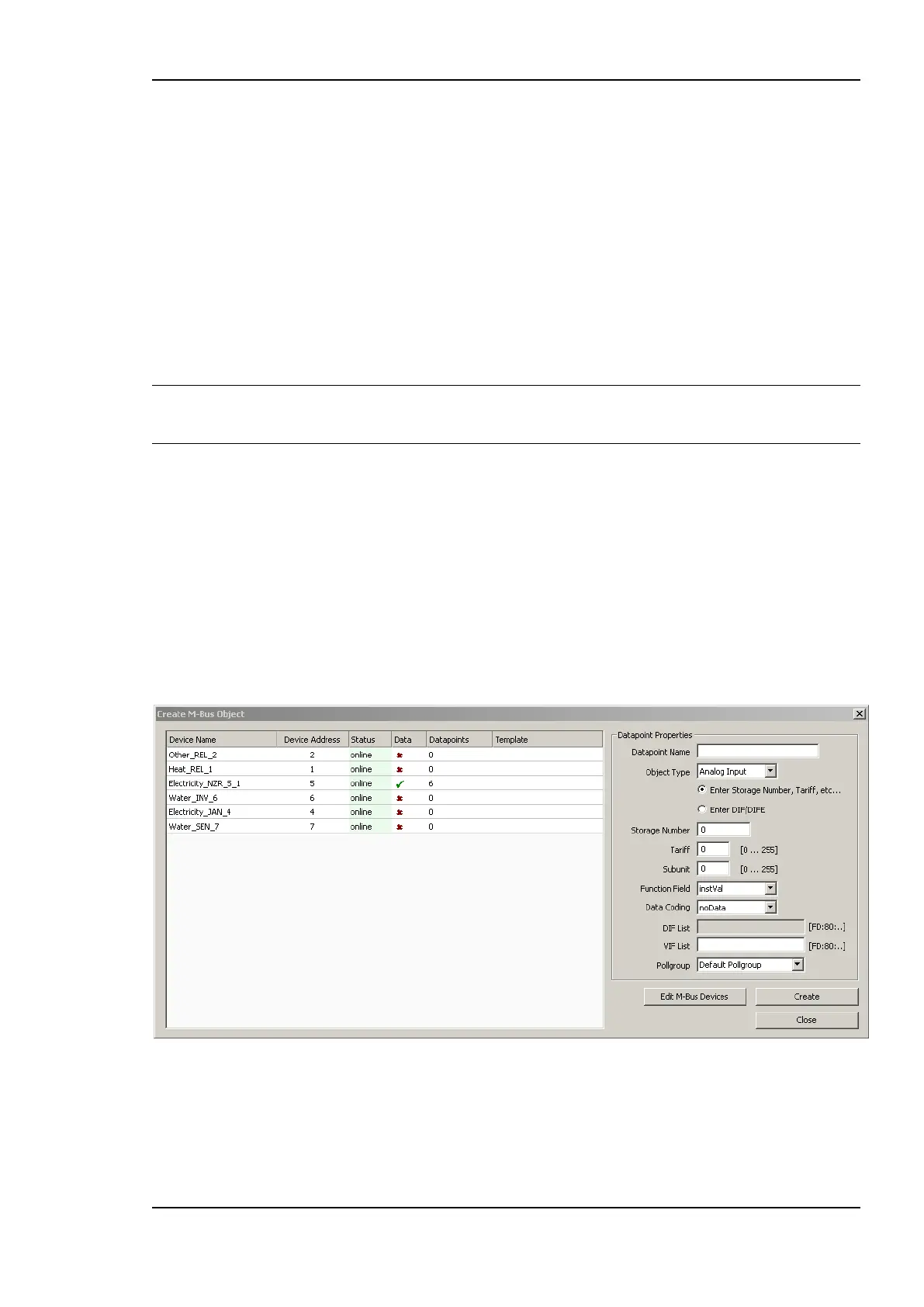
3. This opens the Create New M-Bus Datapoint dialog shown in Figure 175.
Figure 175 Create M-Bus Object dialog.
4. If the M-Bus device which provides the data point is not in the list, it has to be created.
In this case open the Network Management dialog by clicking the Edit M-Bus Devices
button.
5. Create the device in the Network Management dialog and close the dialog.



 To Next Page