L-INX User Manual 249 LOYTEC
Version 4.0 LOYTEC electronics GmbH
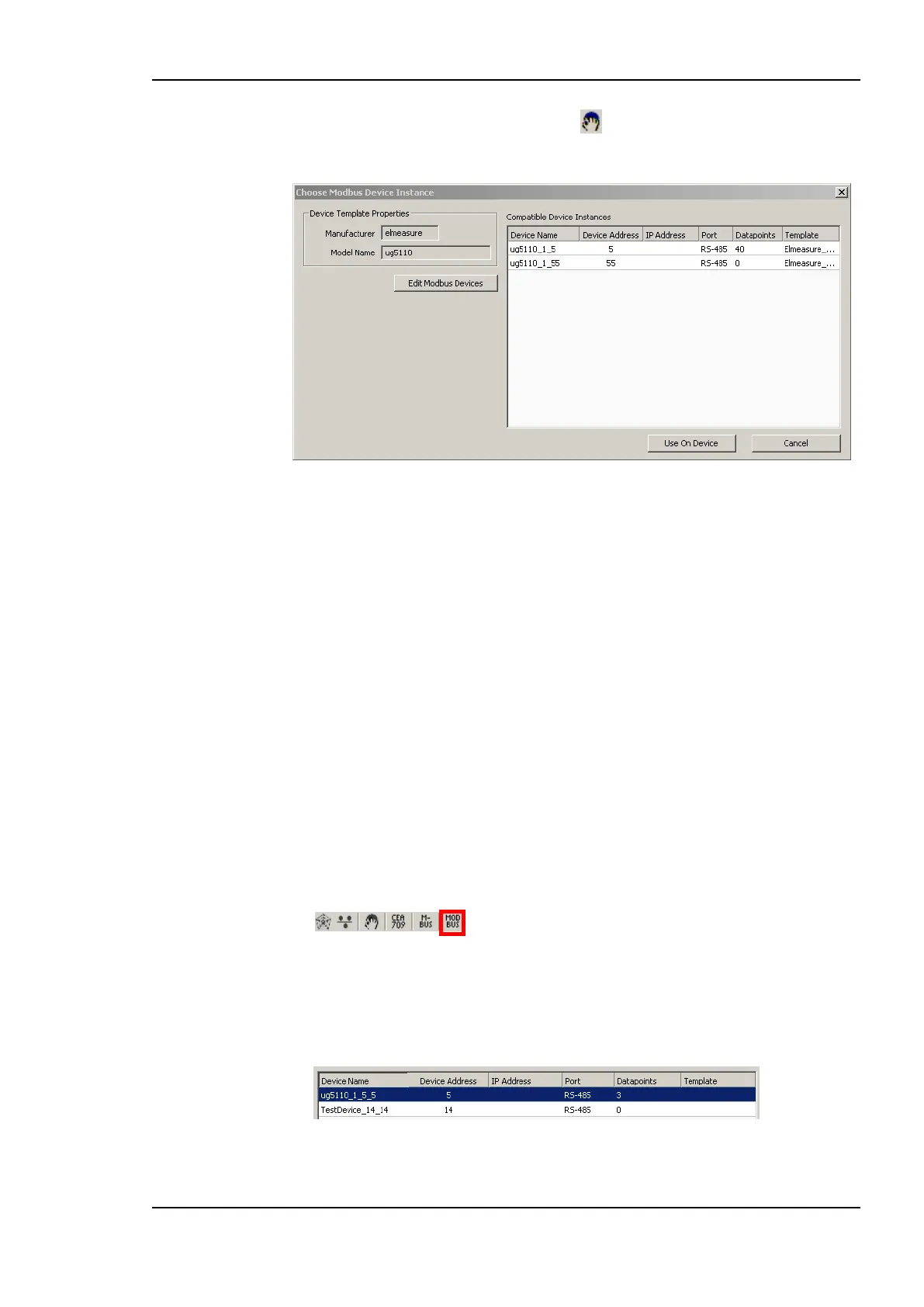
3. Either press on the Use on Device button or right-click and select Use on Device.
This opens the Choose Modbus Device Instance dialog.
Figure 194: Choose Modbus Device Instance dialog.
4. The device list displays all devices which have the same Manufacturer, and the same
Model Name as the template. If no device instance matches the device template, create
one by entering the Modbus management dialog. The dialog can be entered by pressing
the Edit Modbus Devices button. In the management dialog, the device instance can be
either created manually (take care of entering the correct manufacturer and model) or
by simply importing the template again.
5. Select one or more device instances from the list and press the Use On Device button.
This creates for each selected data point and each selected device one data point in the
Modbus Port‘s data point list.
11.5.4 Creating Device Templates
Modbus device templates can be created from a data point configuration. In fact, it is only
possible to create a device template using an existing device or an existing device template
with data points. This device and its data points can either be configured manually or also
imported from a device template itself.
To Create a Modbus Device Template Using Devices
1. Select the Modbus dialog by clicking on the Modbus button
in the tool bar of the Datapoints tab. This opens the Network Management dialog
opens as described in Section 11.5.1.
2. The device list shows all devices of the current configuration. Select the device you
want to export.



 To Next Page