L-INX User Manual 206 LOYTEC
Version 4.0 LOYTEC electronics GmbH
2. Select the L-WEB Projects tab.
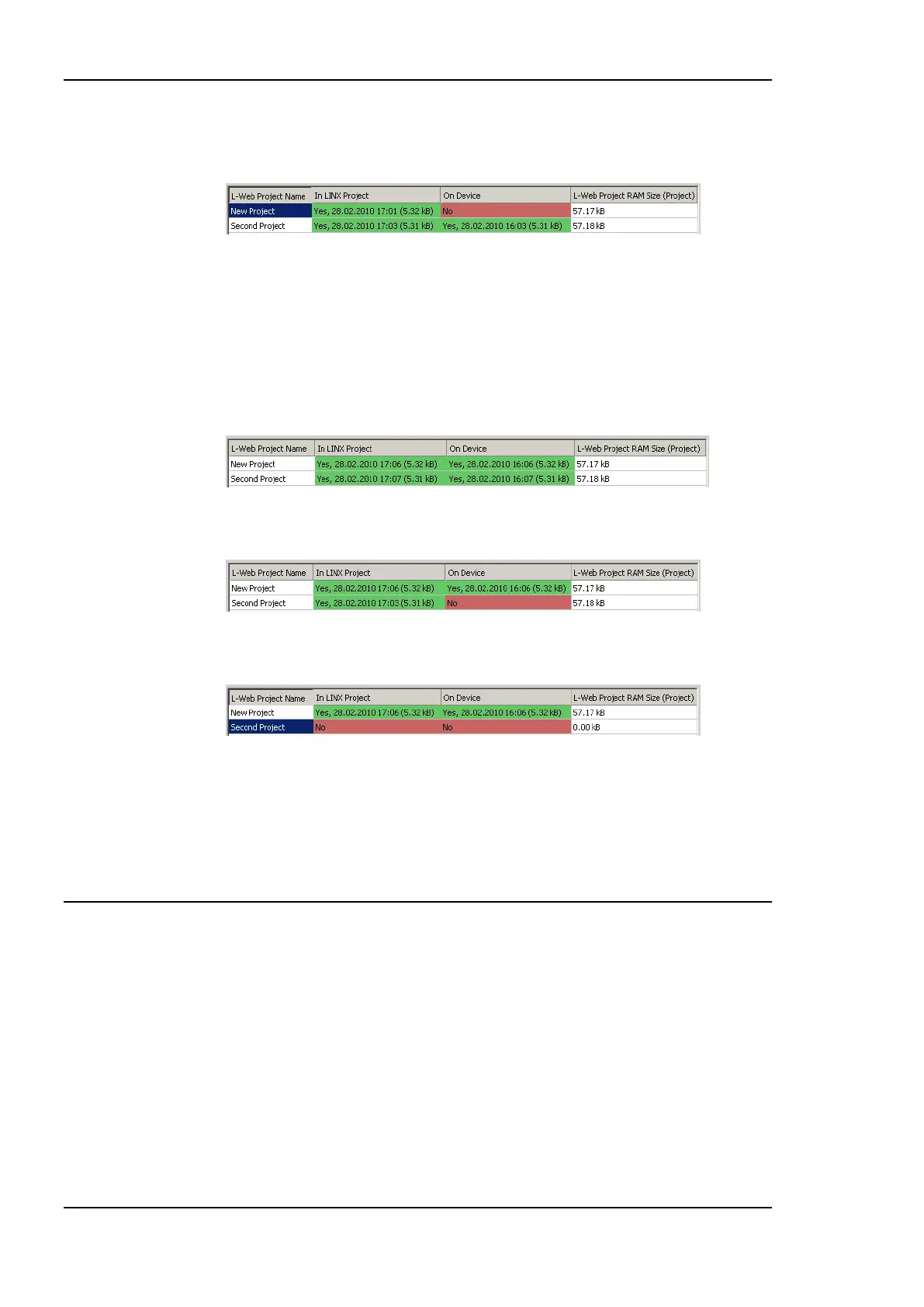
3. Click Detect Projects on Device. This scans for all projects found on the device.
Projects marked as a green Yes in the In LINX Project column are L-WEB projects,
which are part of the current L-INX configuration project. Projects marked as a green
Yes in the On Device column are L-WEB projects, which are also stored on the device.
A red No identifies the L-WEB project to be missing in the project or on the device,
respectively.
4. If you want to download an L-WEB project to the device, which is missing there, select
the project and click Download. After the download the project appears with a green
Yes in On Device.
5. If you want to remove a project from the device, click Remove in the LINX Device
box.
6. If you want to remove the project from the current L-INX project file, click Remove in
the L-WEB Projects on PC box.
7. If you want to export the L-WEB project into a separate L-WEB project file, click
Export… and select a file name in the file requestor dialog.
If you want to import an L-WEB project from a separate L-WEB project file, click
Import… and select the file in the file requestor dialog. The L-WEB project appears in
the project but not on the device.
9.3 Using the OPC Bridge
9.3.1 Software Installation
The LOYTEC OPC Bridge software LOPC-BR800 is installed as a separate application on
a PC. A license for the LOYTEC OPC Bridge software must be purchased separately. With
one software license for the OPC Bridge, multiple L-INX devices can be accessed. With the
OPC Bridge software installed, each configured LOYTEC L-INX device appears as a
separate COM/DCOM server. The OPC Bridge software can be used with LOYTEC L-INX
OPC servers only. The bridge won‘t connect to third-party OPC servers.
System requirements:
Windows XP, Windows 2003 Server, Windows Vista, Windows 7, or Windows 2008
Server.



 To Next Page