L-INX User Manual 145 LOYTEC
Version 4.0 LOYTEC electronics GmbH
3. Click on Finish. The new dynamic NVs now appear in the data point list and can be
edited and used on the device.
6.8 Advanced CEA-709 Configuration
6.8.1 Import Devices from XIF Templates
When working entirely without LNS, nodes on the network can be engineered via importing
device templates from a XIF file. The Configurator provides a XIF device template import
feature. Having devices imported from a XIF file is similar to have devices scanned online
from the CEA-709 network, only their actual node IDs are unknown.
To Import from a XIF Template
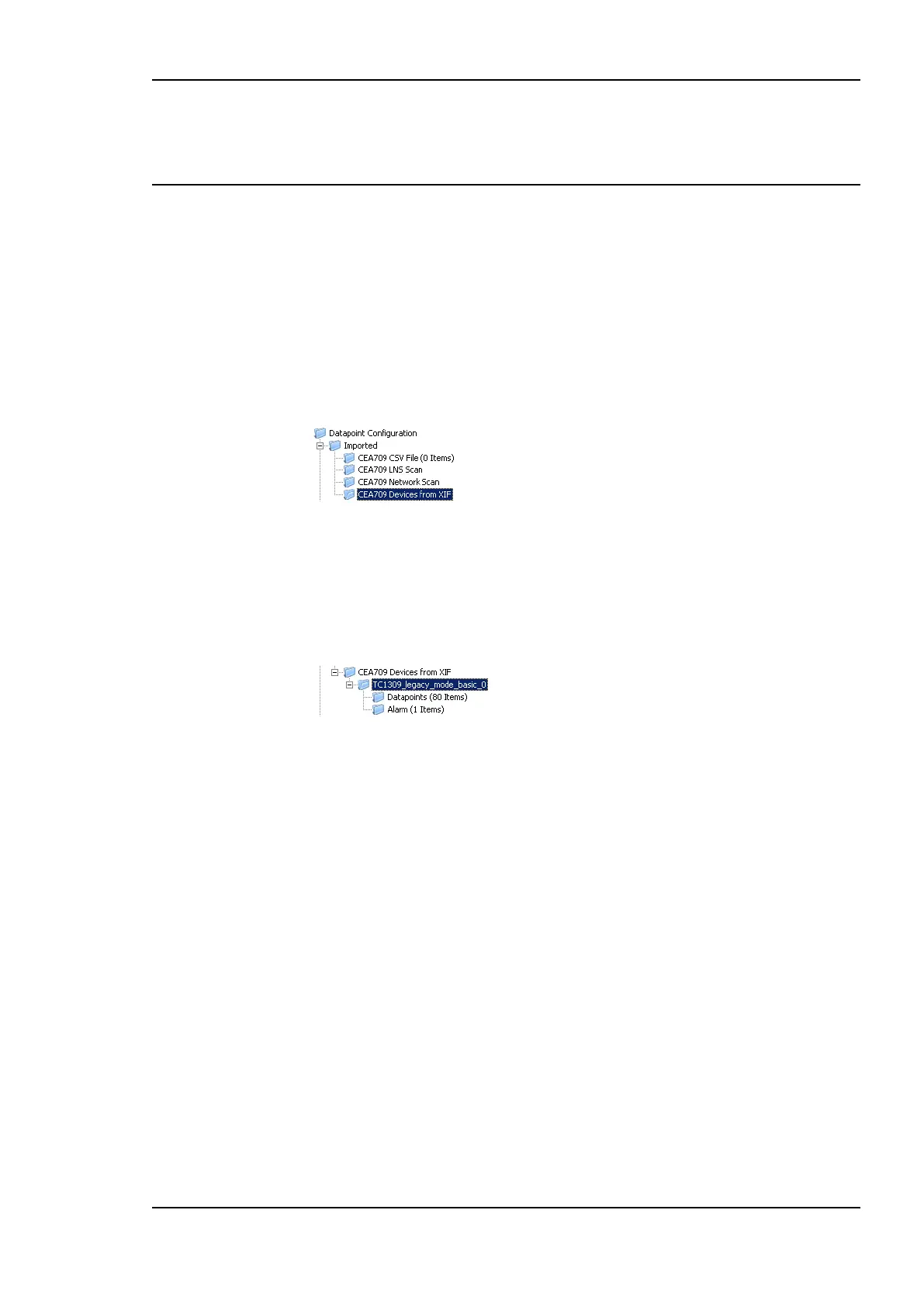
1. Select the folder CEA709 Devices from XIF.
2. Right-click on the folder and select Create device(s) from XIF file… from the context
menu.
3. In the file open dialog select a XIF file to import and click Ok.
4. The imported data points appear as a device sub-folder of the CEA709 Devices from
XIF folder named after the XIF file name.
5. In that folder select those data points, which shall be used on the device and use them
on the device as described in Section 6.7.5.
6. Repeat the import of XIF files for as many nodes as needed. The same XIF can be
imported more than one time, resulting in multiple nodes of the same type in the
CEA709 Devices from XIF folder.
6.8.2 Install Unconfigured Devices
CEA-709 devices must be installed by a network management tool (e.g., LNS-based tool) to
be available for communication. Devices can be imported from a CEA-709 network scan or
from a XIF file. If no network management tool is available, the CEA-709 device manager
must be used to install the unconfigured devices. To install a device the following steps
need to be done:
The imported devices must be assigned to actual devices on the network. This is done
by setting a node ID that corresponds to a node on the network.
The domain information must be written to the device and it must be set configured,
online to be ready for data communication.
To Install Devices
1. Open the CEA-709 management dialog by clicking on the Manage CEA-709 Devices
speed button.



 To Next Page