L-INX User Manual 151 LOYTEC
Version 4.0 LOYTEC electronics GmbH
3. Right-click and select Import File. In the following file selector dialog, choose the
EDE import file and click OK.
4. Now the BACnet EDE File folder is populated with the imported BACnet objects.
6.9.3 Use Imported BACnet Objects
After BACnet objects have been imported (with a network scan or by importing from an
EDE file) the user can select the BACnet objects that the device shall access. When
executing the Use on device the configuration software allocates client mappings on the
device. These client mappings will read or write values from the BACnet objects in the
network.
In an additional step, there can be also server objects allocated on the device. These server
objects can be created automatically from converting a client mapping to a server object.
This is usually done, if the imported BACnet objects shall also be directly modified over the
BACnet network on the device itself.
To Use Imported BACnet Objects on the Device
1. Open the data point manager dialog and select the desired BACnet objects in one of the
import folders.
2. Use the multi-select feature by holding the Shift or Ctrl keys pressed.
3. Click on the button Use on Device in the tool bar.
4. This creates data points in the BACnet Port/Datapoints folder. All data points in that
folder will be created as client mappings. No server object is created automatically in
this case.
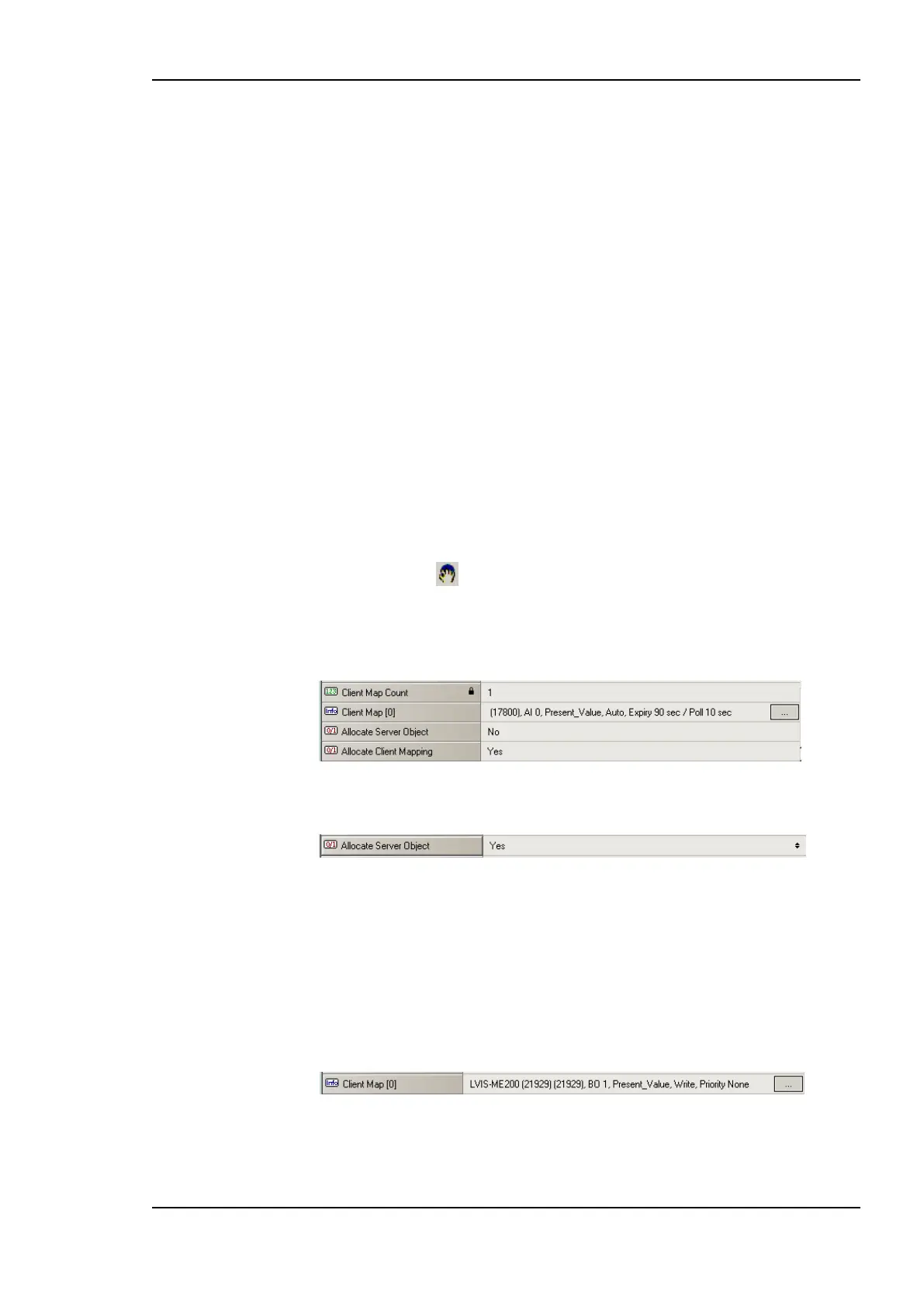
5. To also create server objects select the data points in question using the multi-select
feature. Then edit the property Allocate Server Object and set it to Yes.
6.9.4 Edit a Client Mapping
The client mapping information in BACnet data points can be edited after they have been
created. Usually, this is done to correct the remote BACnet object instance number.
To Edit a Client Mapping
1. Select the BACnet data point that has the client mapping to be edited.
2. On the Client Map property click the … button
3. This opens the Modify Client Mapping dialog as shown in Figure 133.



 To Next Page