L-INX User Manual 153 LOYTEC
Version 4.0 LOYTEC electronics GmbH
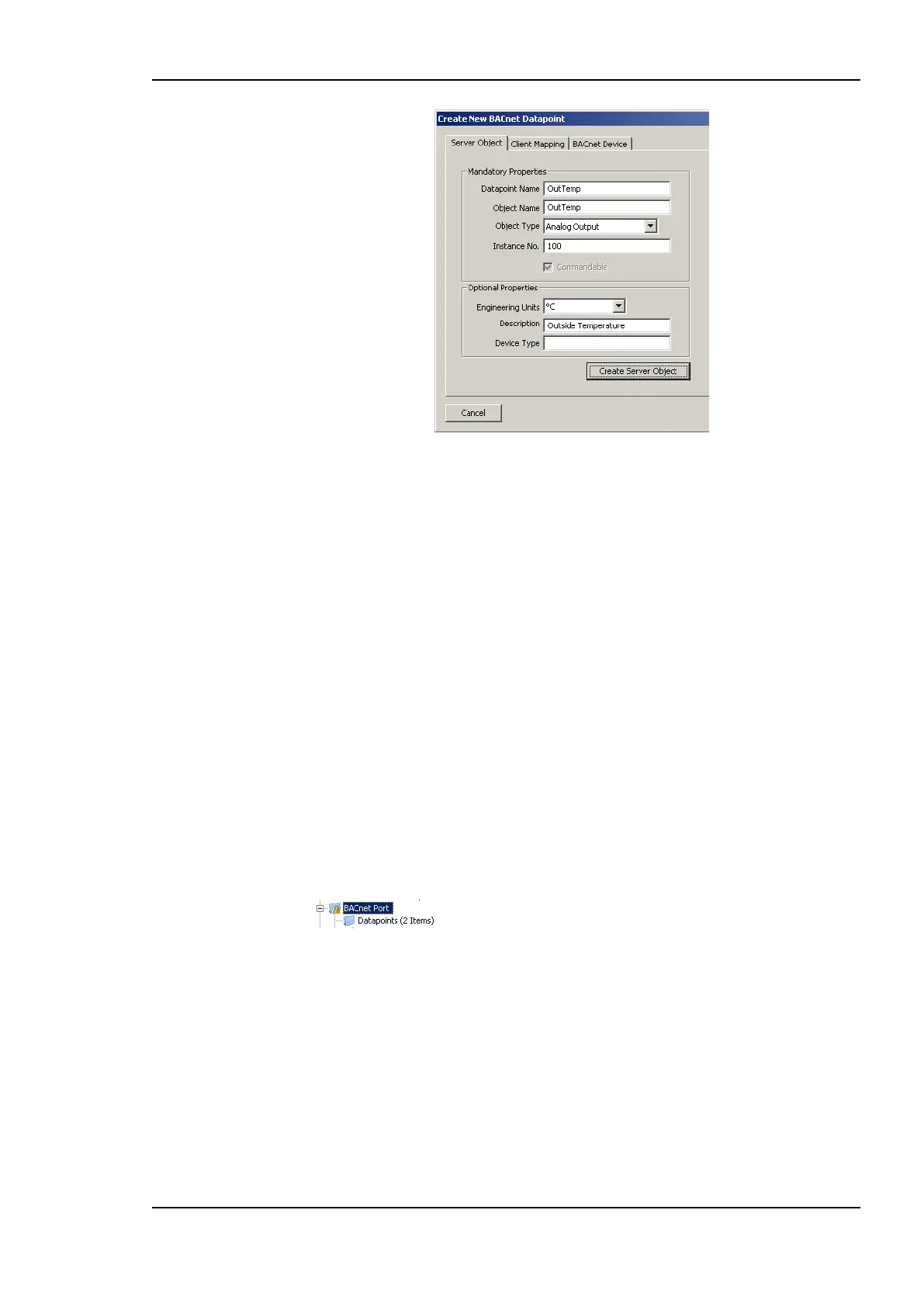
Figure 134: Create a Server Object manually.
3. In the Mandatory Properties enter a Datapoint Name and an Object Type.
Optionally, update the Instance No and select the Commandable check box for value
objects, if the value object shall be commandable from the network.
4. In the Optional Properties you may select Engineering Units for analog objects. For
all object types you can enter the Description. The Device Type can be left empty.
5. Click Create Server Object. The BACnet data point is created and appears in the data
point list.
6.9.6 Export Server Objects to an EDE File
When engineering offline it can be beneficial to hand out the server object configuration of
the device to other parties electronically. For doing so you may export the server object
configuration to a set of EDE files. The set of EDE files consist of the main EDE file, e.g.
myDevice.csv. This file refers to state texts that are exported to a second file named
myDevice-states.csv. For which components are exported in an EDE file, please refer to
Section 13.3.3.
To Export an EDE File
1. Select the BACnet Port folder.
2. Right-click and select Export EDE … in the context menu. This opens the EDE export
dialog to enter the EDE header information as shown in Figure 135.



 To Next Page