L-INX User Manual 227 LOYTEC
Version 4.0 LOYTEC electronics GmbH
12. Usually data points are added to a default poll group. If the data point has to be
member of another poll group than default, the poll group can be selected using the
drop down box.
In the drop down box the previously specified poll groups are shown. If no poll group
is configured only the default poll group is displayed. Refer to section 10.7.7 for more
information on poll groups.
13. Press the Create button to create the M-Bus data point
Tip: After creating a data point, the poll group can be changed in the data points property
view. Also multi-select can be used.
10.7.5 Importing via Device Templates
For some M-Bus devices special templates are available which specify all available data
points of an M-Bus device as well as the device properties. Such templates can be imported
into the configuration.
To import an M-Bus Device Template
1. Right click on the Folder M-Bus Device Templates and select Import device
template from the context menu.
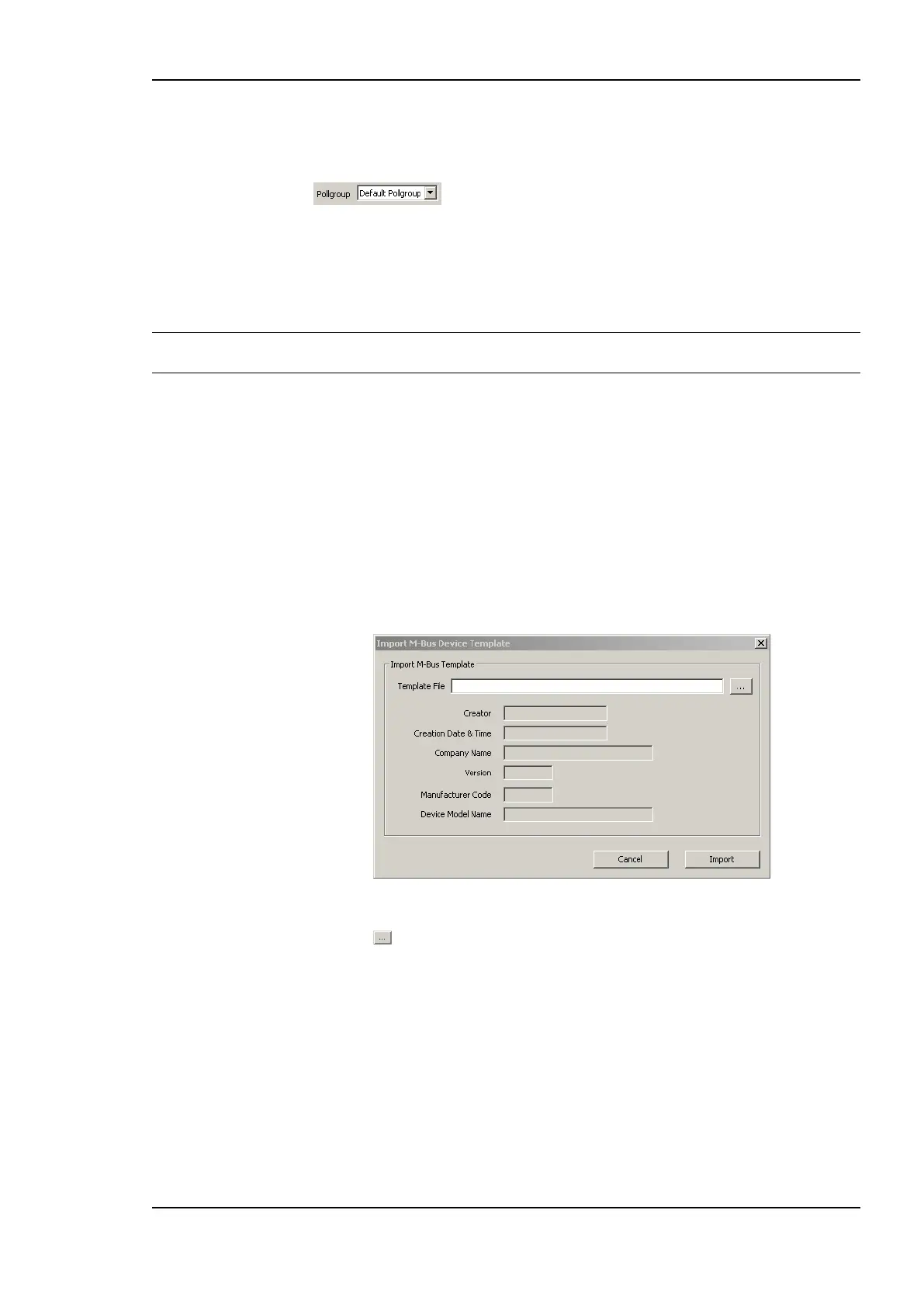
2. This opens the Import M-Bus Device Template dialog shown in Figure 176.
Figure 176: Import M-Bus Device Template dialog.
3. Press the button and select a template file from the Open dialog.
4. After selecting the file, the device information is displayed.
5. Press Import for importing the template or Cancel for closing the dialog without any
changes.
6. When a template is imported, a folder with the name of the device is created. Under
this folder a Datapoints folder containing the data points from the template file is
created.



 To Next Page