L-INX User Manual 129 LOYTEC
Version 4.0 LOYTEC electronics GmbH
6. Click on Save to store that connection.
7. Click on Connect. This establishes the connection to the device.
6.6.2 Uploading the Configuration
To get the current data point configuration of the device, the configuration needs to be
uploaded. This will upload the entire configuration from the device, including data points,
client mappings, and schedules.
To Upload a Configuration
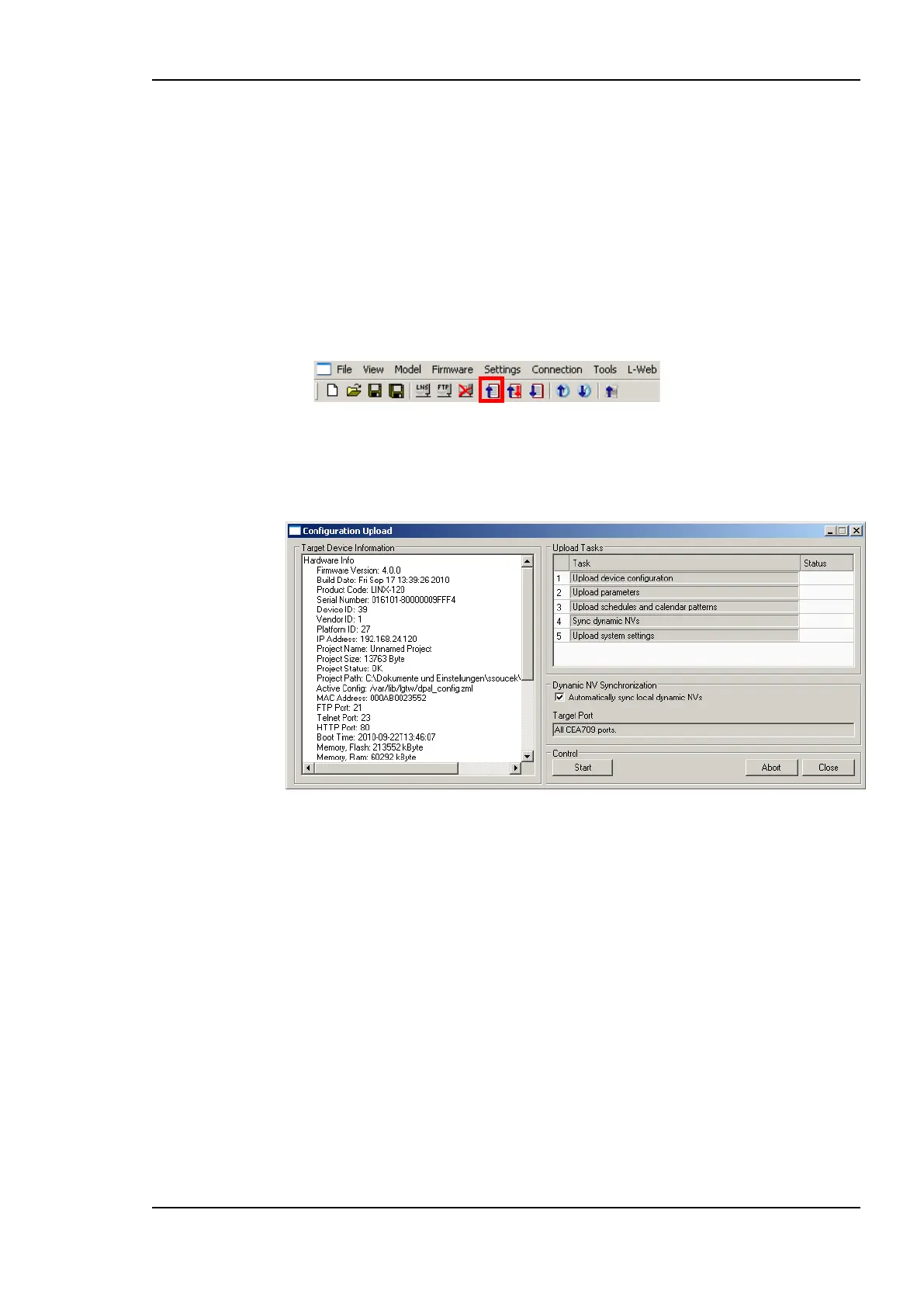
1. Click on the upload button
in the tool bar. The configuration upload dialog opens up as shown in Figure 110.
2. Click on the button Start to start the transfer. This will upload the configuration of all
ports.
Figure 110: Configuration upload dialog.
3. When the project settings of the configuration being uploaded specify to ask, which
specific parameters shall be uploaded, check the needed information and proceed.
6.6.3 Create User Registers
User registers are data points on the device that do not have a representation on the
network. Thus, they are not accessible over a specific technology. A register merely serves
as a container for intermediate data (e.g., results of math objects). Since a register has no
network direction, it can be written and read. Therefore, two data points are generated for
each register, one for writing the register (output) and one for reading the register (input).
To Create a User Register
1. Select the User Registers folder under the device folder.



 To Next Page