L-INX User Manual 208 LOYTEC
Version 4.0 LOYTEC electronics GmbH
2. Connect to the device, which shall be available in the bridge.
3. Select the menu File Export to OPC Bridge Configuration....
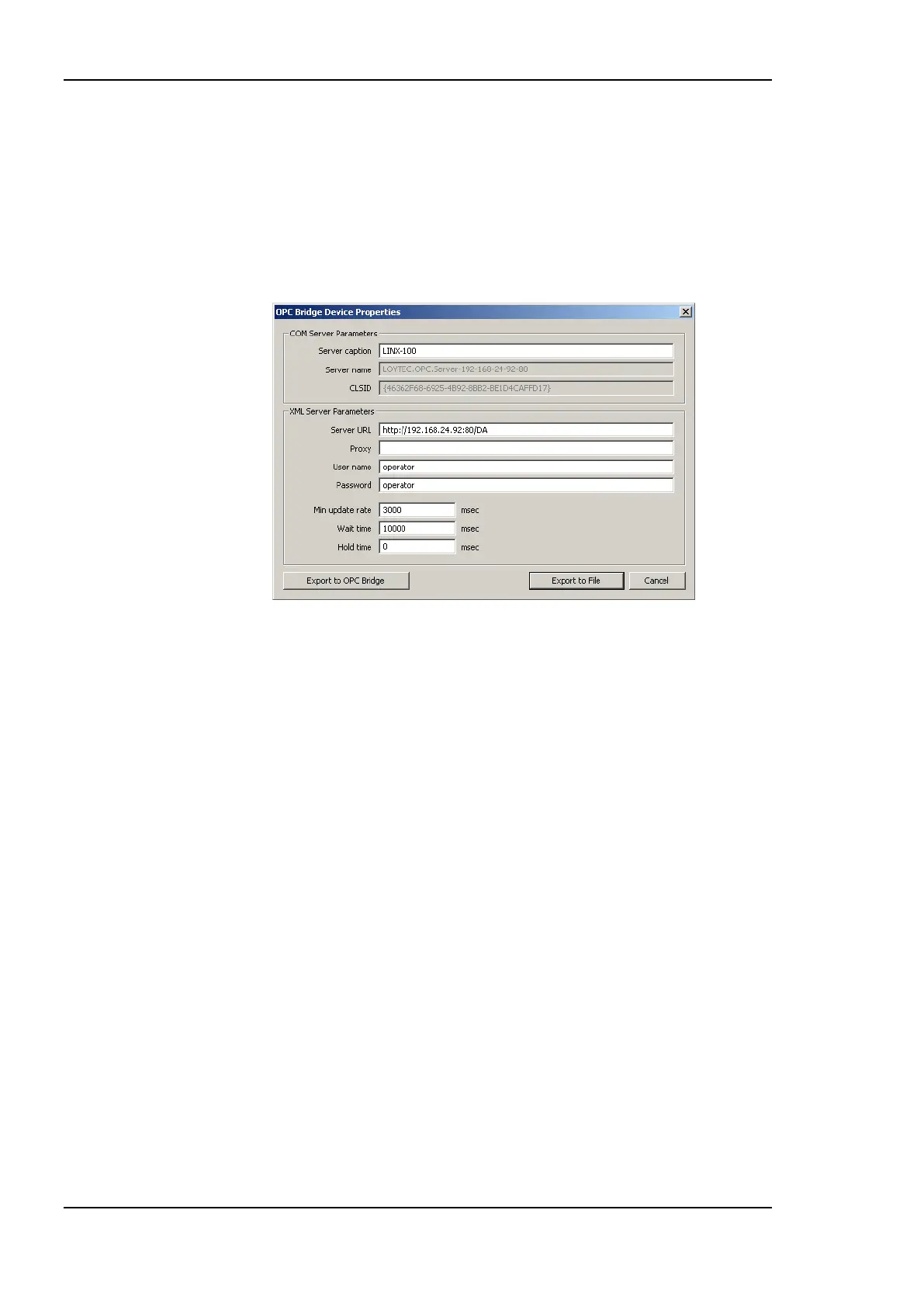
4. In the OPC Bridge Device Properties dialog as shown in Figure 162, add information
which is not default, i.e., Min update rate, Wait time and Hold Time (see Section
9.3.6). If the operator user has a non-default password, enter the password.
5. Click Export to File.
Figure 162: Bridge Export dialog.
9.3.4 Import OPC Servers Using the Configurator
When using OPC server information exported by the Configurator, the exported server
definition must be imported to the OPC bridge. This can also be done using the
Configurator software. The Configurator software must be installed on the same PC as the
OPC bridge for doing so.
To Import a Server Definition
1. Open the Configurator software.
2. Select the menu File Import OPC Bridge Configuration....
3. In the file requestor select the bridge configuration XML file, which has previously
been exported and click OK.
4. The OPC Bridge Device Properties dialog displays the imported bridge information.
5. Click Export to Bridge to add the respective COM server to the bridge.
6. Click Save.
9.3.5 Manually Configure Servers
The OPC bridge configuration can also be edited manually. The same procedure is also
applicable to verify imported OPC server definitions in the bridge software. After adding a
server definition in the bridge software, the device‘s OPC server will be available as a COM
OPC server through the bridge.



 To Next Page