L-INX User Manual 207 LOYTEC
Version 4.0 LOYTEC electronics GmbH
The OPC Bridge software is available on the LOYTEC Software CD or via download from
the LOYTEC Web site www.loytec.com. For installing the software, a registration code
must be purchased.
To Install the OPC Bridge
1. Double click on ‗lopc-br800_1_0_setup.exe‘ and follow the installation steps.
2. When asked, type in the bridge‘s registration code. Click Next.
3. Finalize all remaining installation steps by clicking Next and Finish.
When the installation is complete, the OPC Bridge software is available under Programs
LOYTEC OPC Bridge.
9.3.2 Configure the Bridge Locally
If the bridge software is installed on the same PC where the Configurator software is used to
configure the L-INX OPC server, the server information can be automatically made
available as a COM OPC server. This is done when the L-INX configuration is downloaded
into the device.
To Configure the Bridge Locally
1. Open the Configurator software and configure the device as described in Section 6.6.
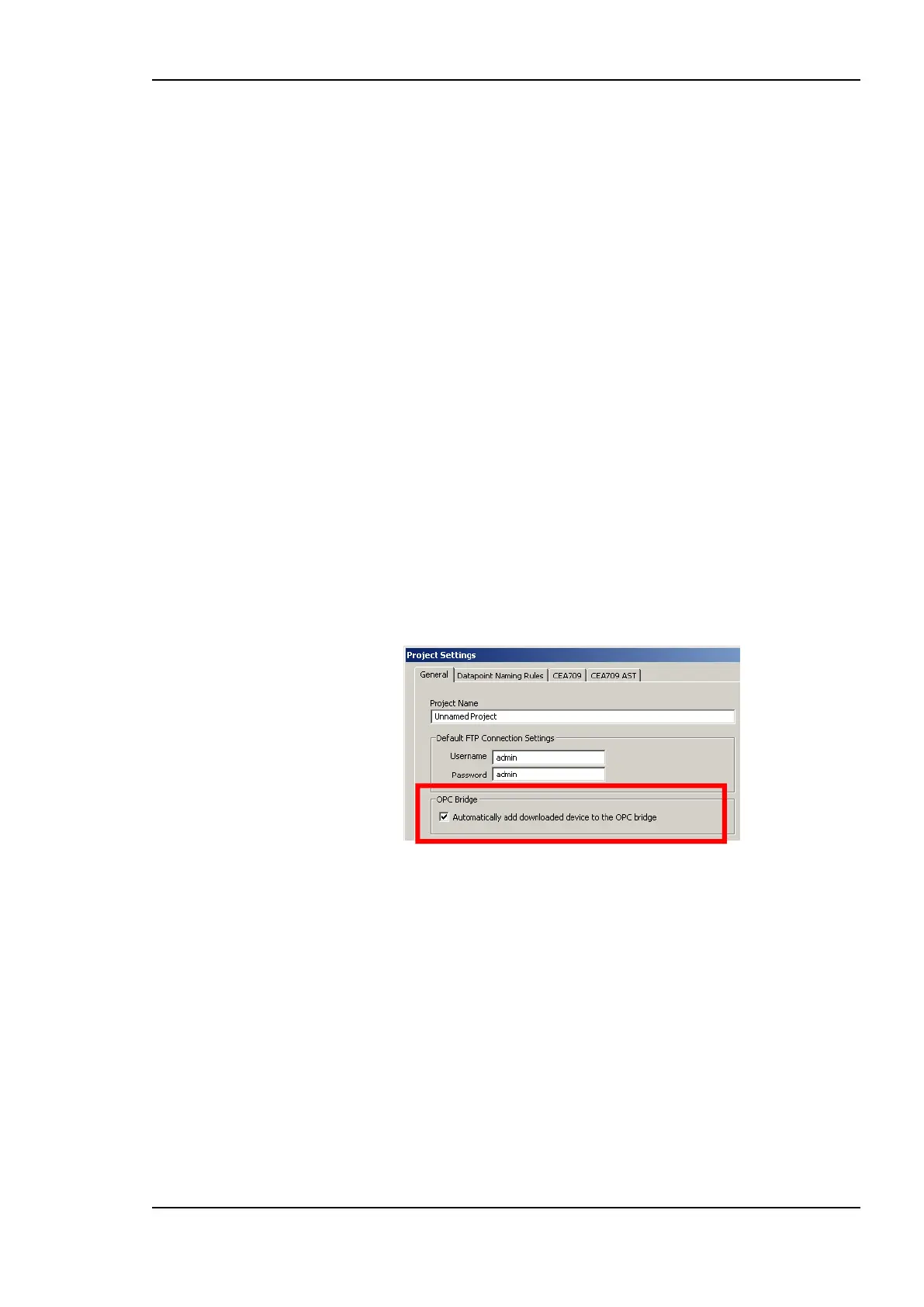
2. In the Configurator menu go to Settings Project settings …. This opens the project
settings dialog on the tab General as shown in Figure 161.
Figure 161: Enable bridge export in the project settings.
3. Put a check mark on Automatically add downloaded device to the OPC bridge.
4. Click OK.
5. Downloading the configuration also makes the OPC server on the device available as a
COM OPC server through the local bridge.
9.3.3 Export OPC Servers for another PC
If the bridge software is not installed locally on the same PC where the L-INX configuration
is created, it must be exported to make the OPC server information available. The exported
file can then be transferred to the OPC bridge.
To Export the Bridge Configuration
1. Open the Configurator.



 To Next Page