L-INX User Manual 221 LOYTEC
Version 4.0 LOYTEC electronics GmbH
3. Either press on the Use on Device button or right-click and select Use on Device.
The selected data points are now available in the Datapoints subfolder of the M-Bus
Port folder.
To Create Filter Templates from a Network Scan
1. Go to the Datapoints folder of the device of the M-Bus scan.
2. Select the desired data points, you wish to create a template from, also multi-select is
possible.
3. Right click on one of the selected data points and select Use as Template. This creates
a folder, containing the selected data points.
To Use data points from a Scan using Filter Templates
1. Right click on the folder M-Bus Network Scan and select either Use on device and
apply single M-Bus filter templates or select Use on device an apply all M-Bus
filter templates. When all filter templates are applied, all matching data points from
the scan are used on the M-Bus port of the device.
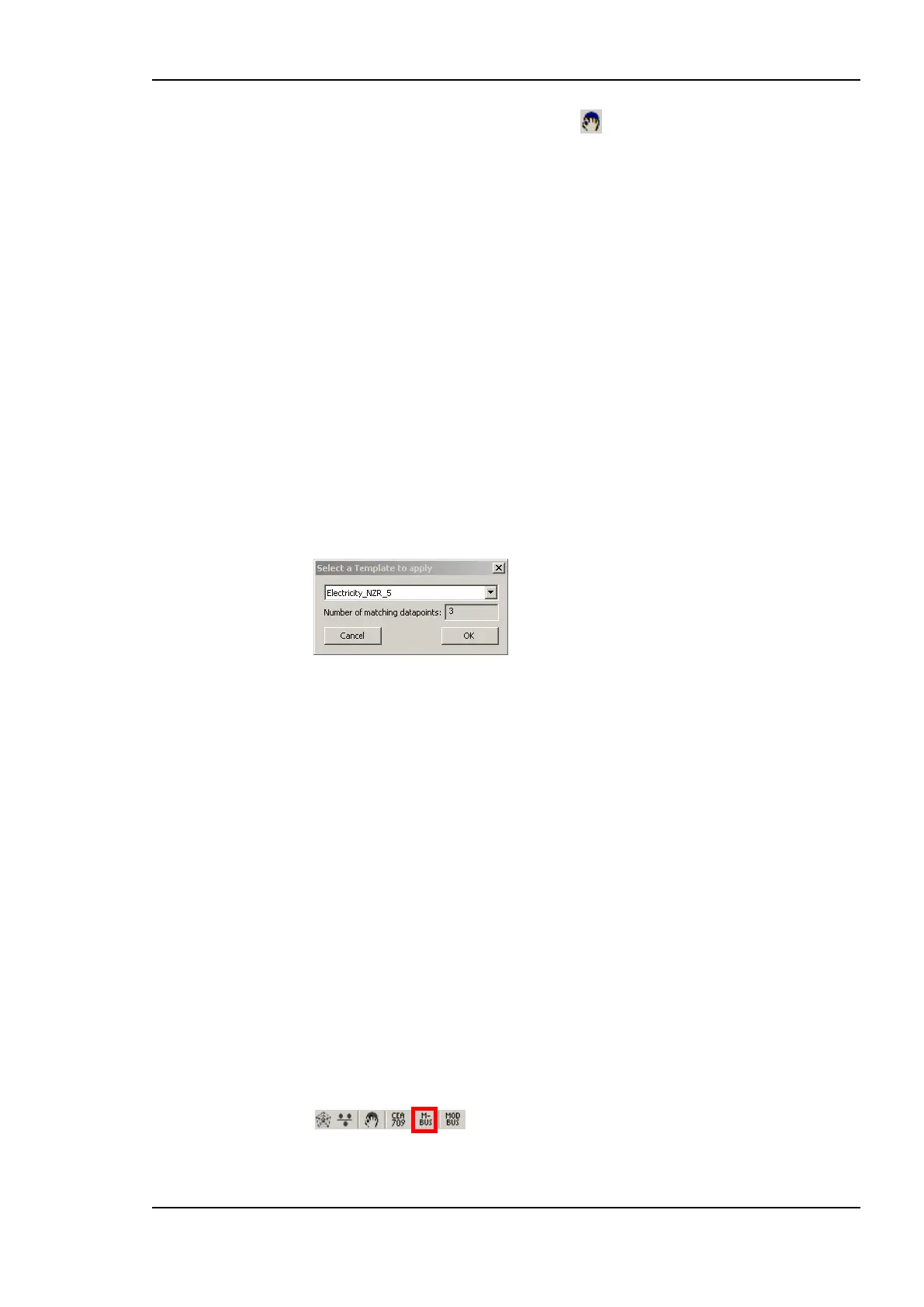
2. When Use on device and apply single M-Bus filter templates is selected, the
following dialog is opened:
3. The drop down box shows all available M-Bus filter templates. As additional
information, when a filter template is chosen, the number of data points is displayed,
which match the template.
4. Select OK to use the data points on the device.
10.7.3 Network Management Functions
This section describes how the M-Bus network management functions can be used. It
describes adding and removing M-Bus devices as well as changing the Baud rate or the
primary address. The tasks can be performed offline as well as online.
The Network Management dialog shown in Figure 173 shows a list of devices. Devices
which have been scanned using a network scan have the status online, devices which have
been created manually or using device templates have the status offline. If a device which is
online also has been scanned for device data, a green checkmark is displayed in the Data
column.
To Start the M-Bus Network Management Dialog
1. Connect to the device via FTP as described in section 6.6.1.
2. Select the M-Bus dialog by clicking on the M-Bus button
in the tool bar of the Datapoints tab. The M-Bus Management dialog opens, showing
the Network Management tab displayed in Figure 173.



 To Next Page