L-INX User Manual 220 LOYTEC
Version 4.0 LOYTEC electronics GmbH
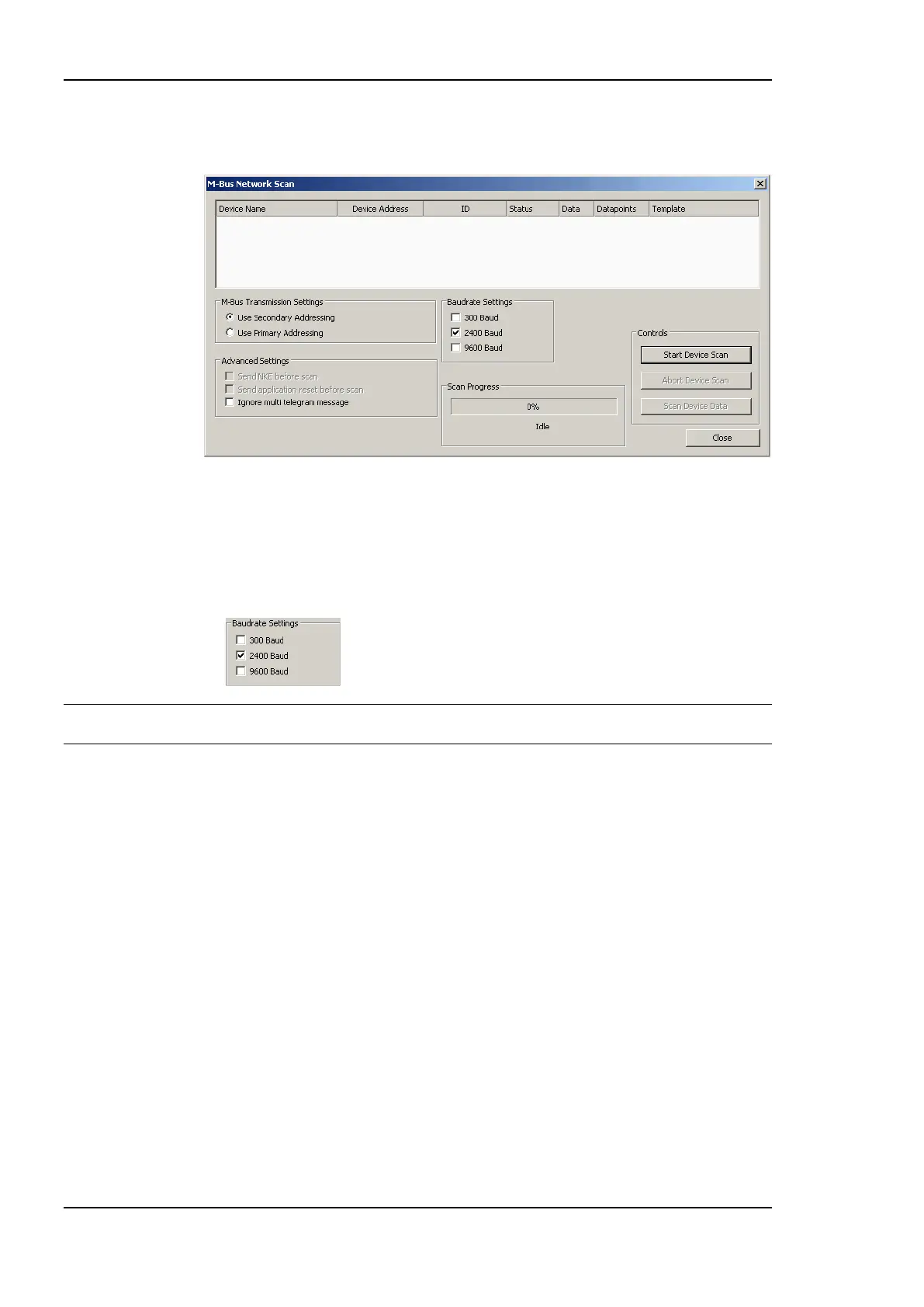
2. Right click on the Folder M-Bus Network Scan and select Scan M-Bus Network.
This opens the M-Bus Network Scan Dialog shown in Figure 172.
Figure 172 M-Bus Network Scan dialog.
3. In M-Bus Transmission Settings choose the address scanning mode. The default is
secondary address scanning. This prevents problems with duplicate primary addresses
of previously uninstalled M-Bus devices.
4. Select all applicable Baud rates for the device scan.
Important: Selecting 300 Baud results in a very slow scan. Aborting the scan is possible using the
Abort Device Scan button
5. Start the scan by pressing the Start Device Scan button. The progress bar shows the
progress of the scan. Under the progress bar, a text displays, which device is currently
scanned. When a device is found, it is displayed in the device list. The name of the
device is automatically created as described in section 10.7.1.
6. The scan can be aborted by selecting the Abort Device Scan button.
7. When the device scan is finished (either aborted or ended), the devices can be selected
for a data scan. Also multi-select is possible.
8. Select the devices which have to be scanned for data points and press the Scan Device
Data button. This scans all data points of the selected devices. For every device a
folder with the name of the device is created under the M-Bus Network Scan folder.
The data points found are placed in the Datapoints folder of the appropriate devices.
To Use Datapoints from a Scan
1. Go to the Datapoints folder of the device of the M-Bus scan.
2. Select the desired data points, also multi-select is possible.



 To Next Page