(00292)H 4 - 79
Displays the free space in the drive, the file size after saving and the number of frames
available for saving.
If selecting the file format (AVI, JPEG) to compress the image, the “Compression Ratio” is
used to calculate the file size. The size of the saved file is the value of the “Compression
Ratio” for the file size created without compression.
When starting to save, the size of the saved file is shown in “Saved Size (Target)” and HXLink
determines whether or not there is free space is sufficient.
Caution The file size subject to the “Compression Ratio” is a target. The actual file size
varies according to the CODEC used for compression.
Set the folder for the download, the file name and the frame to save/relative time and then click
"Save" to download.
With multi trigger recording, designate the block and download the continuous range displayed
on the slider bar. Refer to page 8-14 for details.
Depending on the frame counter display settings, the setting format for the save range can be
either the frame or the relative time.
■ Batch Downloads
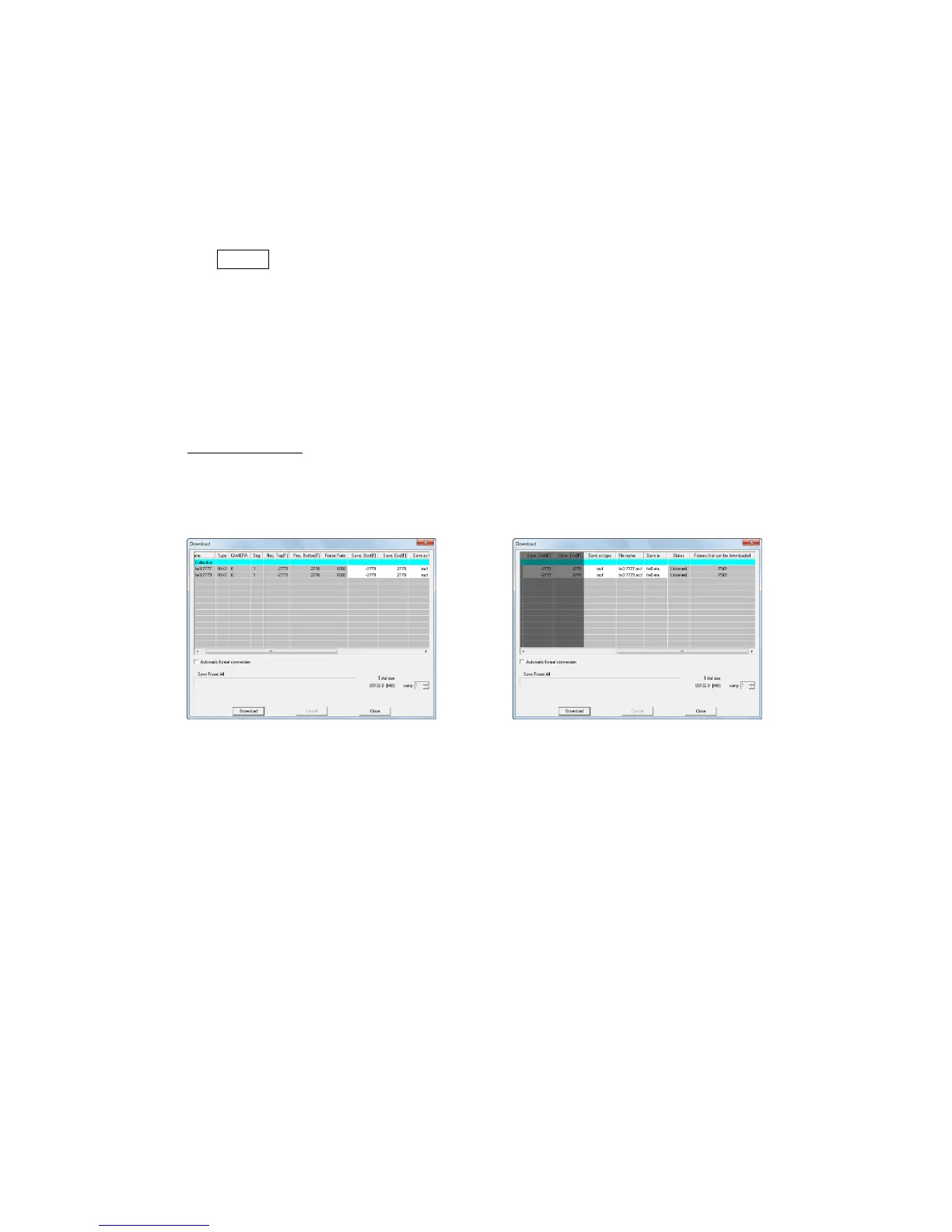
Any of the following methods can be used to display the "Download" dialogue (list) and
perform batch downloads.
・ Click "Download".
・ Click "Download" from the file menu.
“Download” Dialogue
Download settings for all of the connected cameras and segments can be made in "Batch".
Download settings for the selected camera and segment can be made in the camera row.
The range can be designated by the frame/relative time. Areas not shown in gray can be set.
With burst recording, the download range can be set by the frame number or the relative time
from the frame input for the burst signals.
With multi trigger recording, the download range can be set by the frame number or relative
time using the trigger frame for each block as the standard. With multi trigger batch
downloads, download the range designated for all of the blocks.


 To Next Page