4 - 4 (00292)H
4.2 Camera Connection
■Connection Procedures
・ When connecting fx cameras, confirm that the connections between
the camera-PC "100B-TX (Ethernet) / FCAL (fiber channel) / Gbit
(1000BASE-T)" and the settings menu connection method match.
・ Confirm that the camera and PC are properly connected.
・ Confirm that the camera is operational.
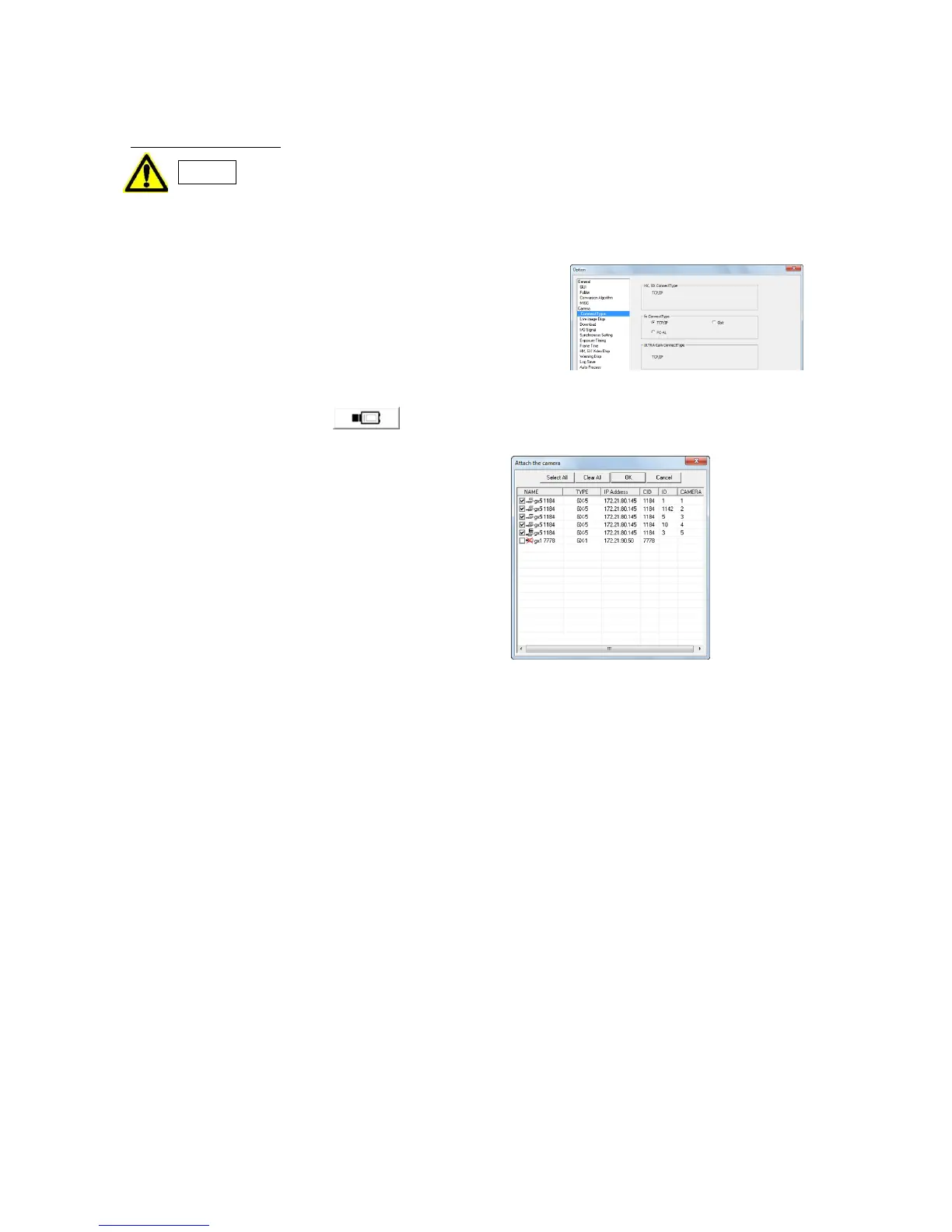
HX, GX, Q camera and ULTRA Cam connections are set by
TCP/IP but if connecting to an fx camera, first select the
camera connection method with the "Connection Type" tab in
the "Options" dialogue of the "Settings" menu.
Select "TCP/IP Connection" if 100B-TX (Ethernet),
"FC-AL Connection" if FCAL (fiber channel) or "Gbit
Connection" if Gbit (1000BASE-T).
Click "Connect Camera" on the Item Toolbar to start connecting to the camera.
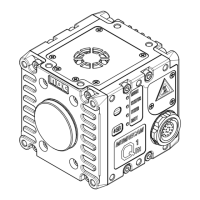
The "Connect Camera" dialogue is displayed,
and the HX, GX, Q camera connected to the PC
and the FX camera and ULTRA Cam registered
nickname, model, IP address, CID, camera head
ID and camera head number are displayed.
With the MEMRECAM GX-5/GX-5F, the DRP
CID (individual identification number) where
connected to the computer and the camera head
ID and camera head number (the DRP port
number for the connected camera head. For
HR-CAM, the connected port or the port number,
whichever is the smallest) where the camera
head is connected is displayed on the "Connect
Camera" dialogue list.
The camera heads with the current camera
configuration settings are displayed on the list.
If the camera heads with the camera
configuration settings are registered with the
camera, the camera head nickname is displayed
in the "NAME" column. Refer to page 4-8 for
the Camera Configuration Settings.
If there is a 0 in the ID column of the GX-5/GX-5F DRP, it indicates the camera head is not
connected to the GX-5/GX-5F DRP.
If there is only one camera registered and communication has been established with the registered
camera, the "Connect Camera" dialogue is not displayed, but the following page is displayed.
However, for DRP (RX-5/RX-5G (RMunit/PMunit/PM3unit), GX-5/GX-5F) with multiple
camera heads, even if only one camera is registered, the "Connect Camera" window is displayed
without an automatic connection.
Cameras that can be connected will be displayed at the top of the list, and there will be a check in
the box to the left of the list.
For "fx camera not connected to a PC" or "fx/GX/HX/Q camera used on another PC", there will
be a red X on the camera just before the nickname.
Uncheck any boxes where there is a check on camera not connected. Click "OK" to start connecting the
cameras checked.


 To Next Page