(00292)H 13 - 3
13.2 Coordinate Measurement
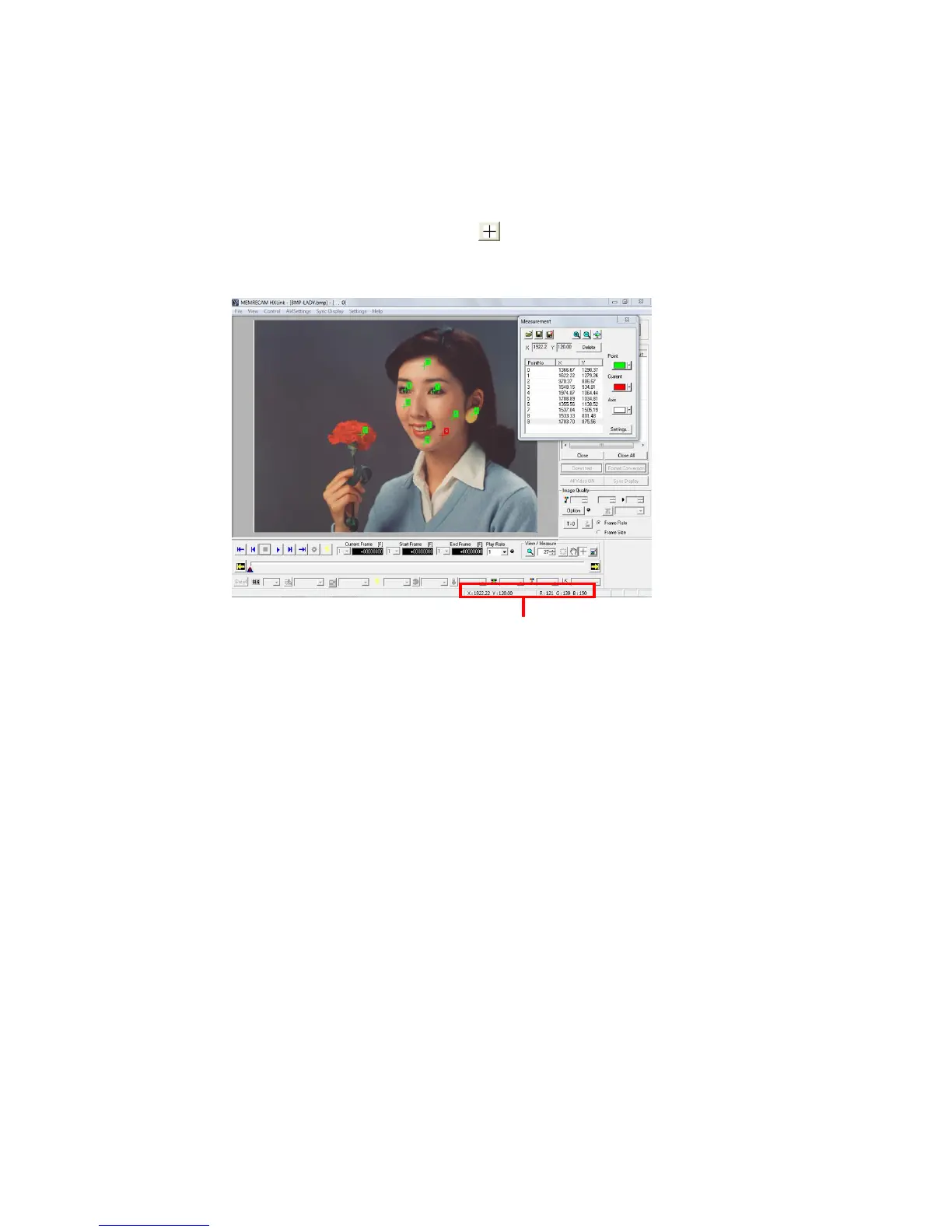
When an image is shown and the cursor is moved on the monitor, the X, Y coordinates and RGB
values for the image cursor position are shown on the status bar.
During the initial stage when the item is opened, the origin point position for the X and Y
coordinates is set to the bottom left corner of the image.
Click the coordinate measurement button to display the coordinate measurement dialogue,
where measurement of the X and Y coordinates can be performed on a maximum of 10 points per
frame.
Left click the mouse at the desired measurement point on the monitor and a cross shaped cursor
and the point number is shown, and the points and their coordinate points are added to the list in
the coordinate measurement dialogue.
Click the right mouse button to specify the origin point position in advance to display the coordinate
axis for the X and Y axis.
Set the origin point position and origin points from subsequently specified coordinate point data
become references.
To change the measured coordinate point data, after selecting the point to change on the list of the
coordinate measurement dialogue, left click the mouse on the coordinate point to change.
The color of the coordinate axis and coordinate point data can be changed with the button on the
right side of the coordinate measurement dialogue.
Additionally, the currently selected coordinate point data (current point) can be set for a different
color.
The measured coordinate point data and origin point position can be saved as coordinate point
files (CSV).
Load a saved coordinate point file to superimpose the coordinate point data on the image.


 To Next Page