9 - 10 (00292)H
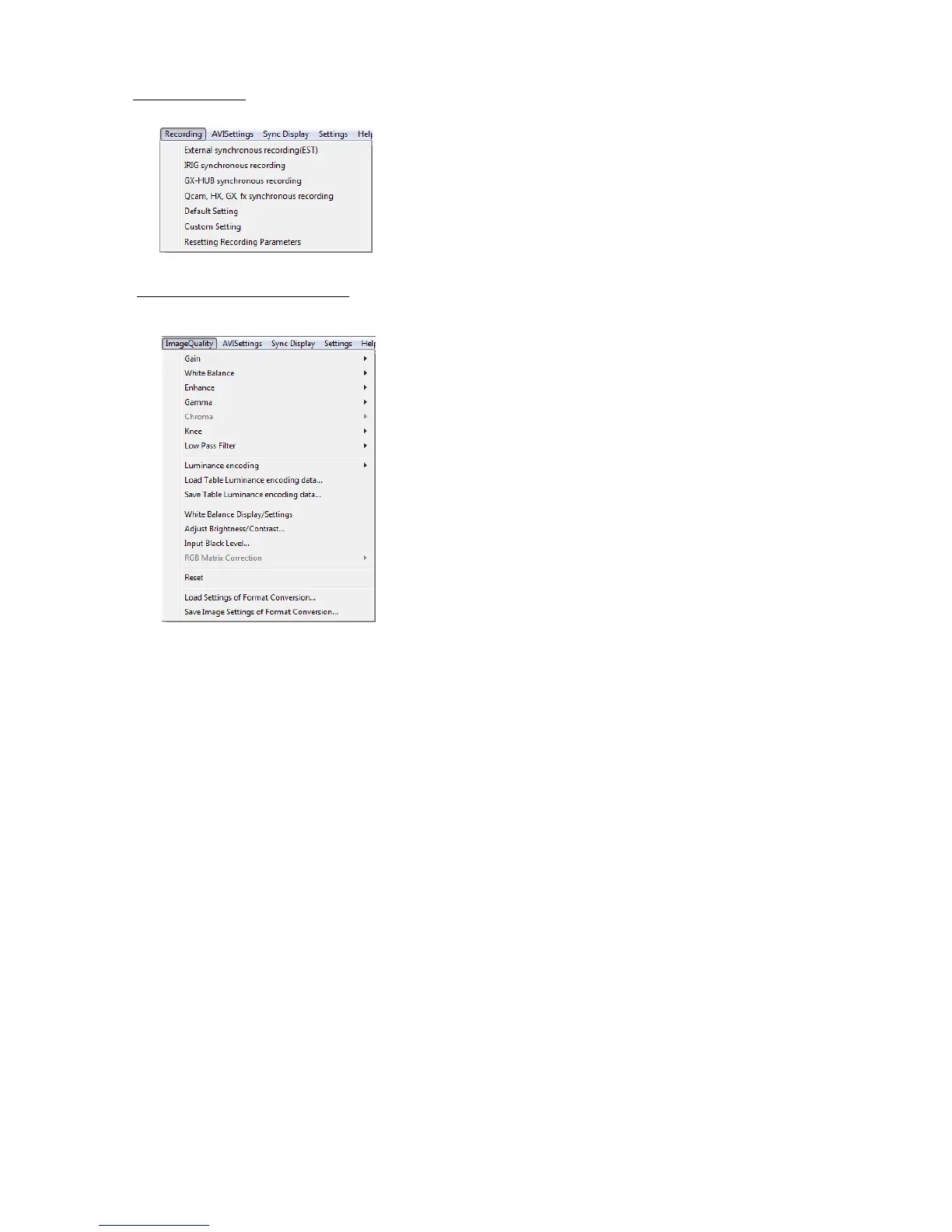
■ Recording Menu
The recording menu is shown only when cameras are selected.
Different sync settings for each recording method and
input/output signal settings can be batch set from the recording
menu for all of the connected cameras.
Refer to page 8-25 for details.
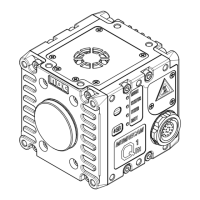
■ Image Quality Adjustment Menu
The image quality adjustment menu is shown only when MCFF/CIF files are selected.
・ Image Quality Adjustment Items
Adjusts the image quality of the MCFF image.
Gain/white balance/enhance/gamma/chroma/knee/low
pass filter/luminance
・Show/Set White Balance
Shows the “White Balance” window.
Shows a histogram of the brightness for the displayed
image to adjust the image contrast and brightness.
・Adjust Input Black Level
Shows a histogram of the brightness for the displayed
image to adjust the black level of the input data.
・RGB Matrix Correction
Corrects the RGB matrix of the image data.
・Reset
Disables the image quality adjustment performed with
the HXLink, and uses the image quality settings saved
in the MCFF file.
Refer to page 5-11 for details of image quality adjustment.


 To Next Page