7 - 22 (00292)H
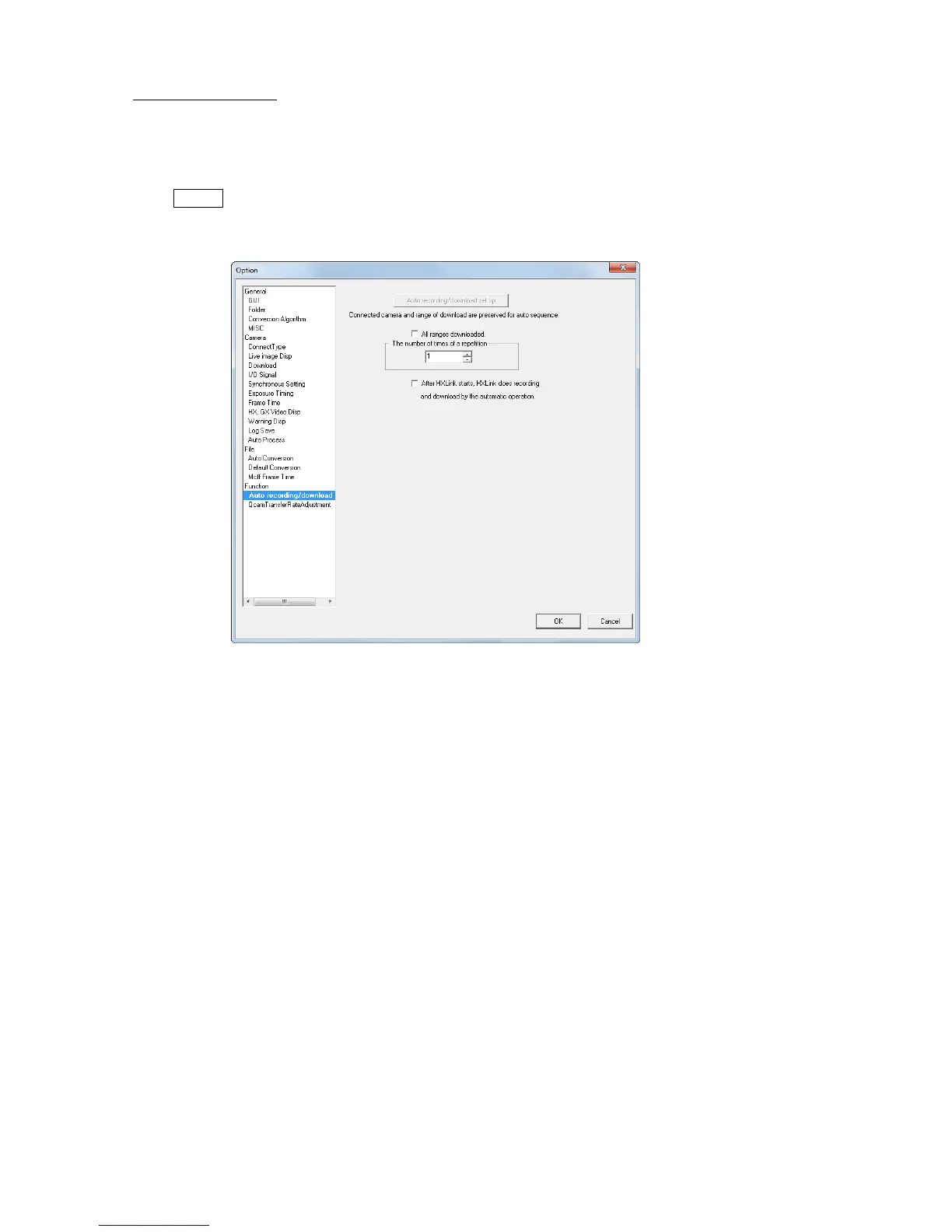
■ Camera Auto Control
Settings relating to auto control of the cameras.
If the camera auto control is enabled, camera connection, recording and downloading is
automatically performed after HXLink startup.
・ If not using camera auto control, make sure to remove the check from
“Automatically Record and Download at Startup”.
・ Camera auto control saves image data in the format specified in “Default
Download Format” under the “Camera Live Display・ Download” tab of options.
Auto Record of Download Settings
Click to load the camera CID and download range from the
connected cameras and save as the auto control conditions. With
camera auto control, click to record with the same conditions
(camera and download range) as performing auto recording.
Click to set the camera auto control conditions and the amount of
disc space required for auto control is calculated, and if there is
not enough free space in the download destination drive, a
warning is displayed. If a warning is displayed, but the auto
control is performed, the recording and download is performed
for the free space in the download destination drive.
Download Entire Range Check to download all of the images recorded.
Remove the check to specify the download range loaded from
the camera in “Auto Record of Download Settings”.
Repeat Frequency for Record of Download Control
Specifies the repeat frequency for auto control.
Auto Record of Download at Startup
Enables camera auto control.
Camera auto control is performed at the next HXLink startup.
Check this item and the camera for auto control must be set
with “Auto Record ・ Download Settings”.


 To Next Page