(00292)H 4 - 97
■ Partitioned Saved MCFF
With the GX series camera DRP, a single scene larger than 4GB is saved on USB media by first
partitioning into multiple MCFF files less than 4GB.
This is due to the fact that the FAT32 used by the GX series as the USB media file format cannot
create files larger than 4GB.
With HX series cameras, the same operation applies when using FAT32 file formatted USB
media.
, , ,
When saving to USB, if the save file name is “MCFF0000.MCF”, the two partitioned MCFF file
names saved will be as follows.
First MCFF file name MCFF0000.MCF
Second MCFF file name) MCFF0000-V2.MCF
“-Vn”is added to the second and subsequent partitioned file names (n is 2~16).
HXLink opens the partitioned saved MCFF as a single scene that can be converted into
AVI/TIFF/BMP/JPEG. With HXLink, once the partitioned saved MCFF is opened, a MCFF file
that can be linked within the same folder is opened, automatically linking as a single scene. The
following limitations apply.
・ Cannot be converted to the MCFF format.
・ T=0 Setting/Frame number setting is not possible.
・If more than the maximum number (20 files) of MCFF are opened simultaneously, they
cannot be opened as a single scene. Open one file as a single scene, but files exceeding
the maximum cannot be opened.
■ Auto Download Function
Function that automatically downloads images recorded when recording has been completed and
saves the MCFF file.
To set the auto download, first connect a camera, test record and download, and then perform one
of the following.
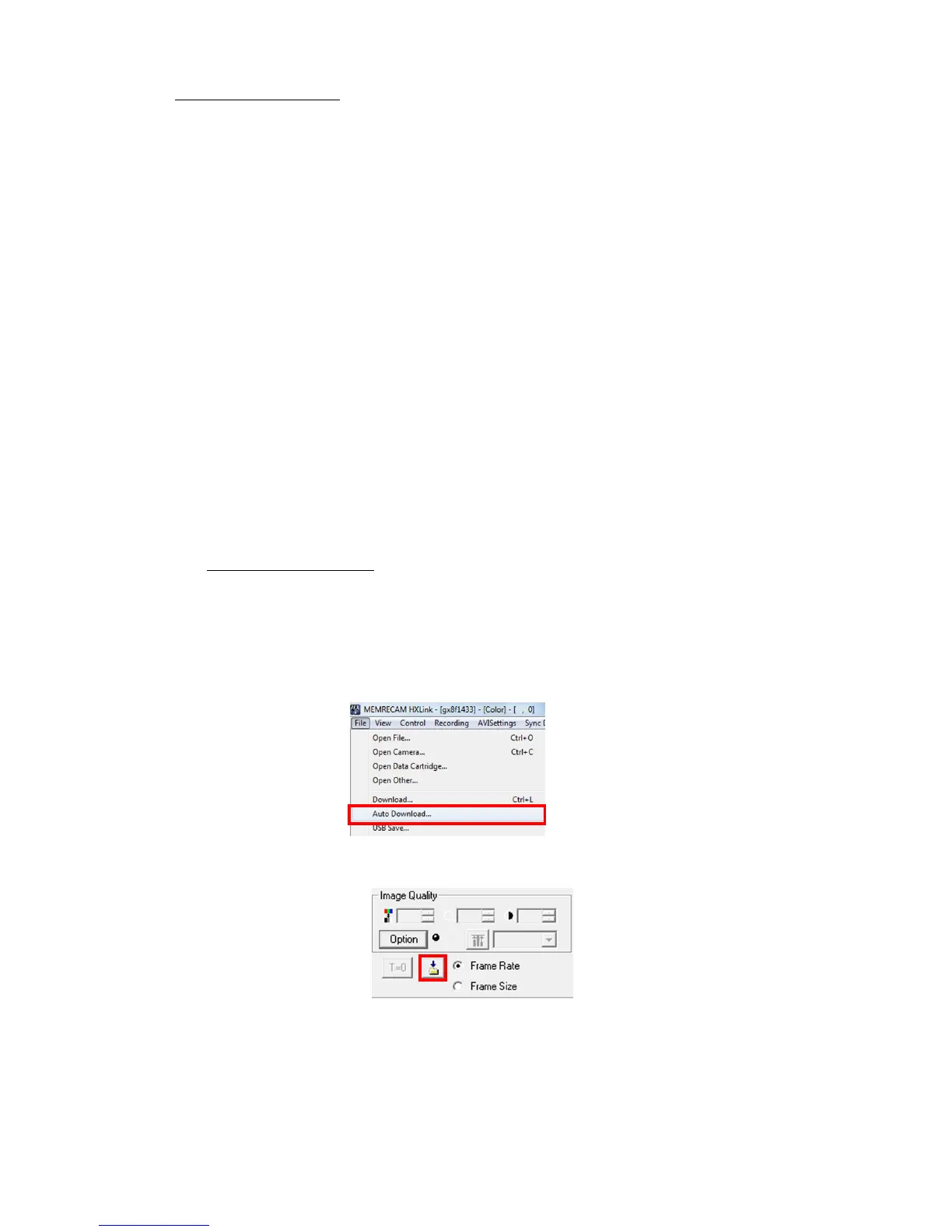
・Select a camera in the "Item List" and click "Auto Download" in the “File” menu.
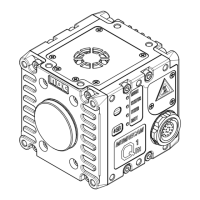
・Click "Auto Download" on the “Item Toolbar”.(Expert Mode only)


 To Next Page