(00292)H 3 - 17
■Camera Parameters Toolbar (Expert Mode Only)
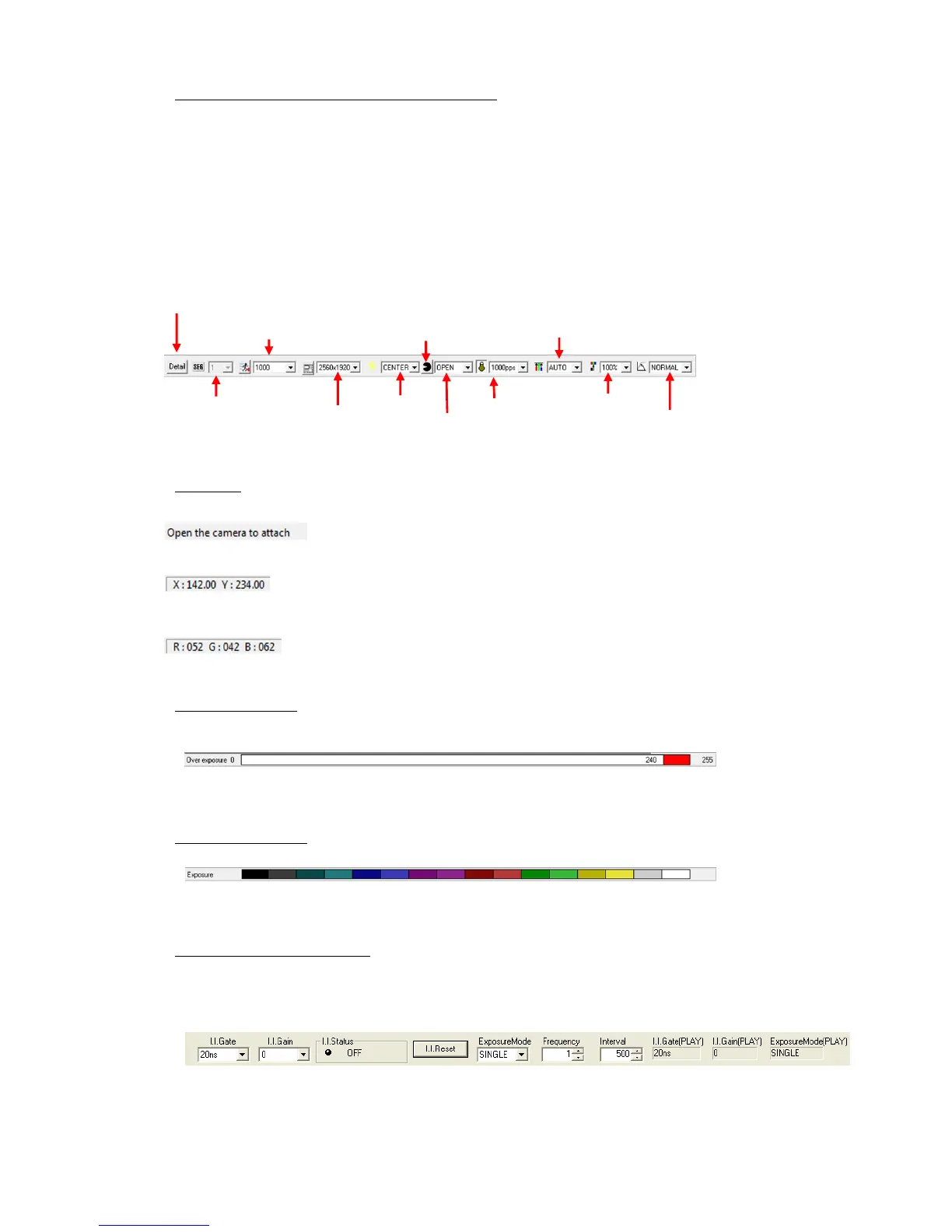
Sets the camera recording and playback parameters with the "Camera Parameters Toolbar"
buttons or pull down menu.
Once the PC and camera connections have been established, the "Camera Parameters Toolbar" is
enabled.
If the camera is in the VIEW mode, the recording parameters and playback parameters during
READY can be set.
The values of the parameters displayed are the setting values for the camera selected on the item
toolbar.
If the parameters are set with the camera parameter toolbar, all of the cameras are batch set.
[Camera Parameters Toolbar]
■Status Bar
If there is a cursor on the toolbar, displays detailed information for
that button / display.
If there is a cursor on the image monitor, the location of the cursor is
shown.
If there is a cursor on the image monitor, the RGB value for the image at
that location is shown.
■ Overexposure Bar
Displays the threshold value for the overexposure display.
Refer to page 3-27 for overexposure.
■ Exposure Color Bar
Displays the luminance and color when the exposure color is displayed.
Refer to page 3-27 for overexposure color display..
■I.I. Toolbar (fx RX-6, RX-6G)
Controls the RX-6 I.I. camera and verifies information.
This I.I. toolbar is shown and used only for a RX-6 I.I. camera connection.
Refer to the MEMRECAM fx RX-6 I.I. camera user's manual for I.I. toolbar details.


 To Next Page