(00292)H 5 - 11
5.3 Adjusting the Quality of Camera Image Files
Use the "Adjust the Image Quality" menu for images displayed on the image monitor in the
MCFF format and CIF format to adjust the quality of the images displayed.
In the expert mode, use the “Item Toolbar” to set the chroma, brightness, contrast and white
balance.
Image quality adjustment applies to images displayed on the image monitor and images with
converted formats, and does not impact MCFF image files.
To convert the format after adjusting the quality of MCFF images, convert the quality adjusted
image to the formats of AVI, TIFF or the like and then save.
Previously specified image quality parameters can be applied to image display and
conversion.
Click "Options" in the “Item Toolbar” or open the "Options" dialogue from the "Settings"
menu to specify file conversion files (FCV) for automatic conversion settings.
Refer to page 7-20 for details.
When specifying the file conversion files for automatic conversion settings, "Auto Apply"
turns green and once the camera image file (MCFF) is opened, the conversion files specified in
the automatic conversion settings are automatically applied.
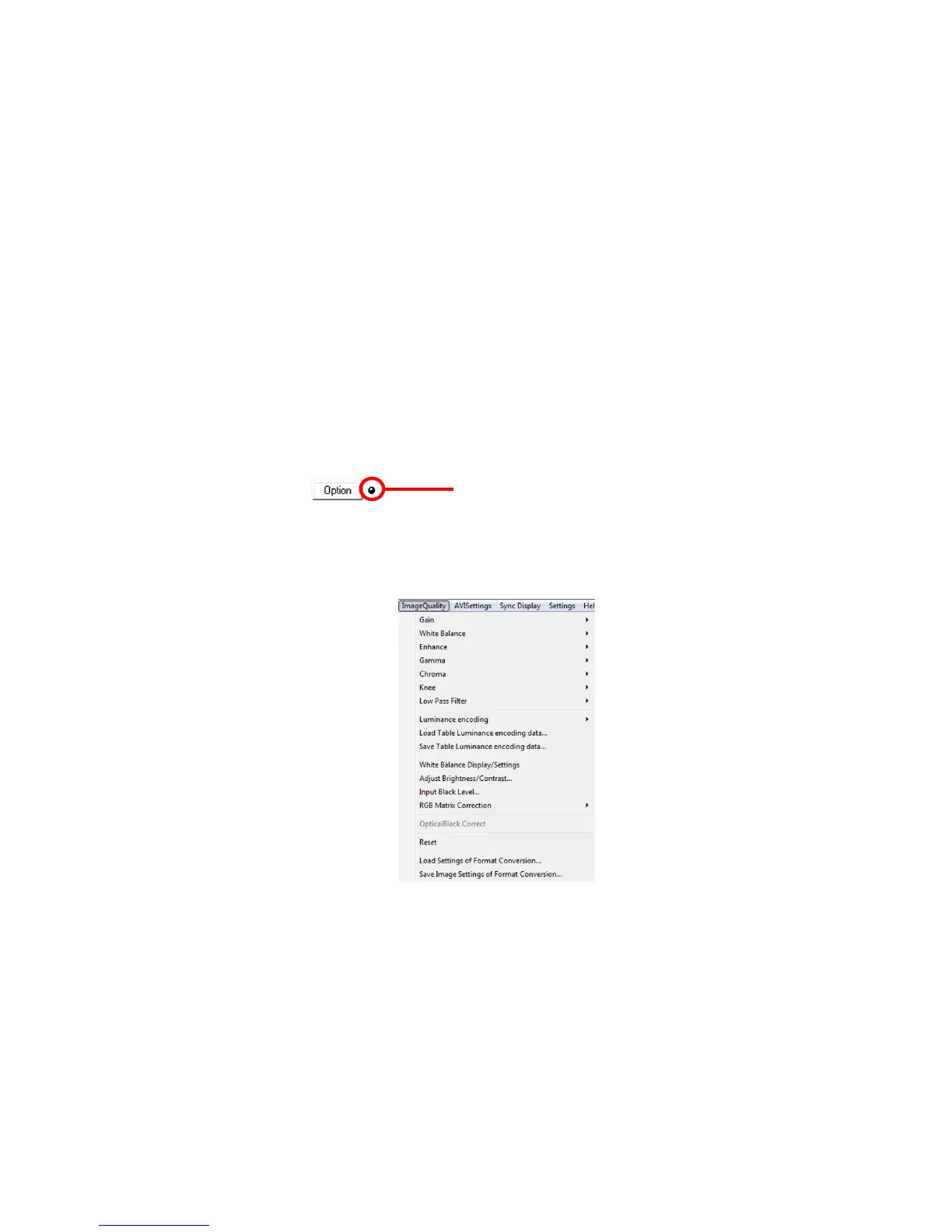
Details of image quality adjustment can be set from the "Adjust the Image Quality" menu
below.
"Adjust the Image Quality" menu


 To Next Page