2 - 12 (00292)H
■Install HXLink Application
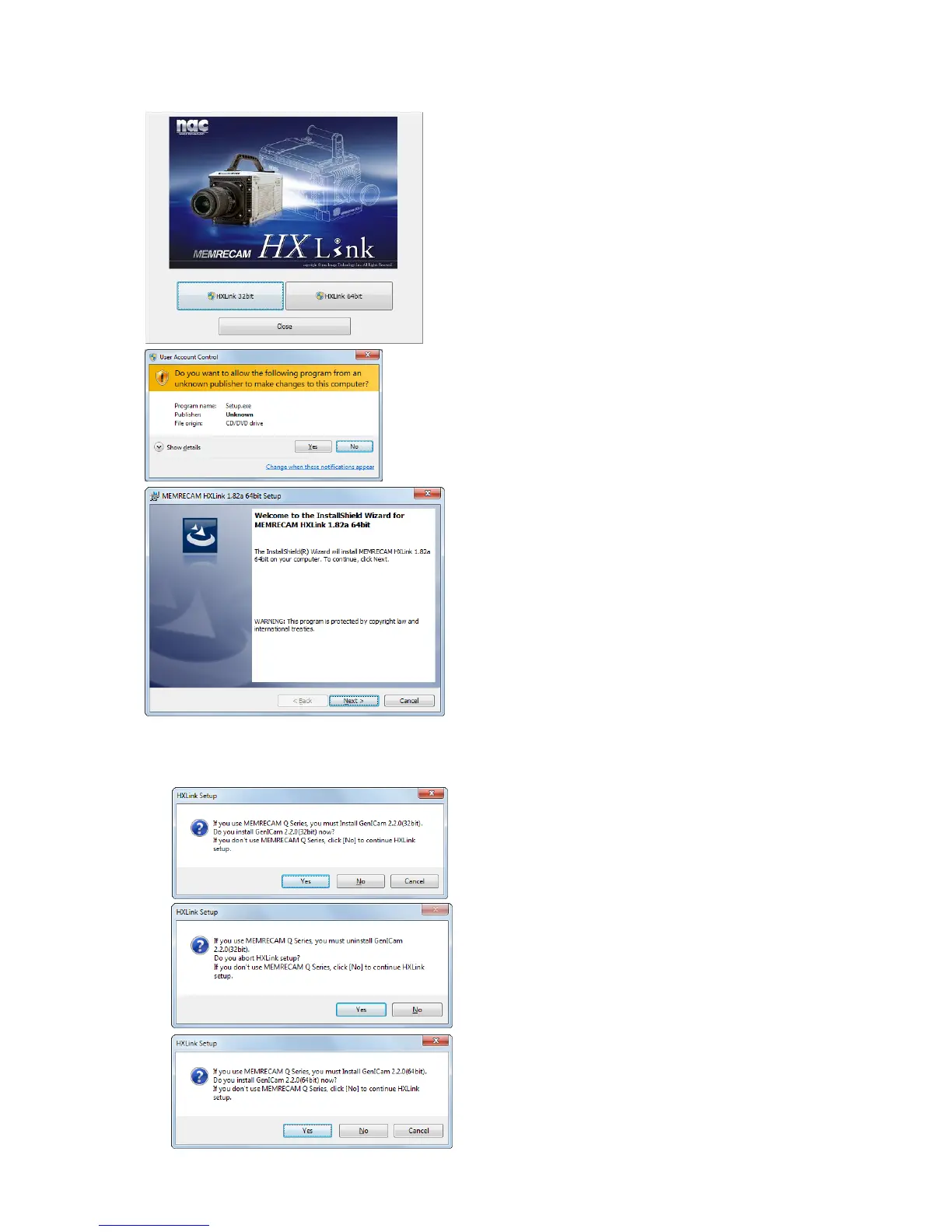
Displays the launcher by double-clicking the
Launcher.exe of HXLink installer.
Click the button of HXLink 32bit version /
64bit version to install.
Click "Yes", and then continue with the
installation.
Upon starting the installation, "Welcome
to the MEMRECAM HXLink Setup"
appears.
Click "Next" to start the installation.
When environment for using Q camera is not prepared, the following either warning can be
displayed. If you do not use Q camera, click “No” and continue HXLink installation
Case1: In 32bit OS,
Click “Yes” to install GenIcam 32bit.
Follow the wizard instructions to finish
GenIcam installation and continue
HXLink installation.
Case2: In 64bit OS,
GenIcam 32bit is unusable.
Click “Yes” to stop HXLink installation
and uninstall GenIcam 32bit.
Refer to 2-24 for details of uninstallation
GenIcam.
Case3: In 64bit OS,
Click “Yes” to install GenIcam 64bit.
Follow the wizard instructions to finish
GenIcam installation and continue
HXLink installation.


 To Next Page