(00292)H 14 - 3
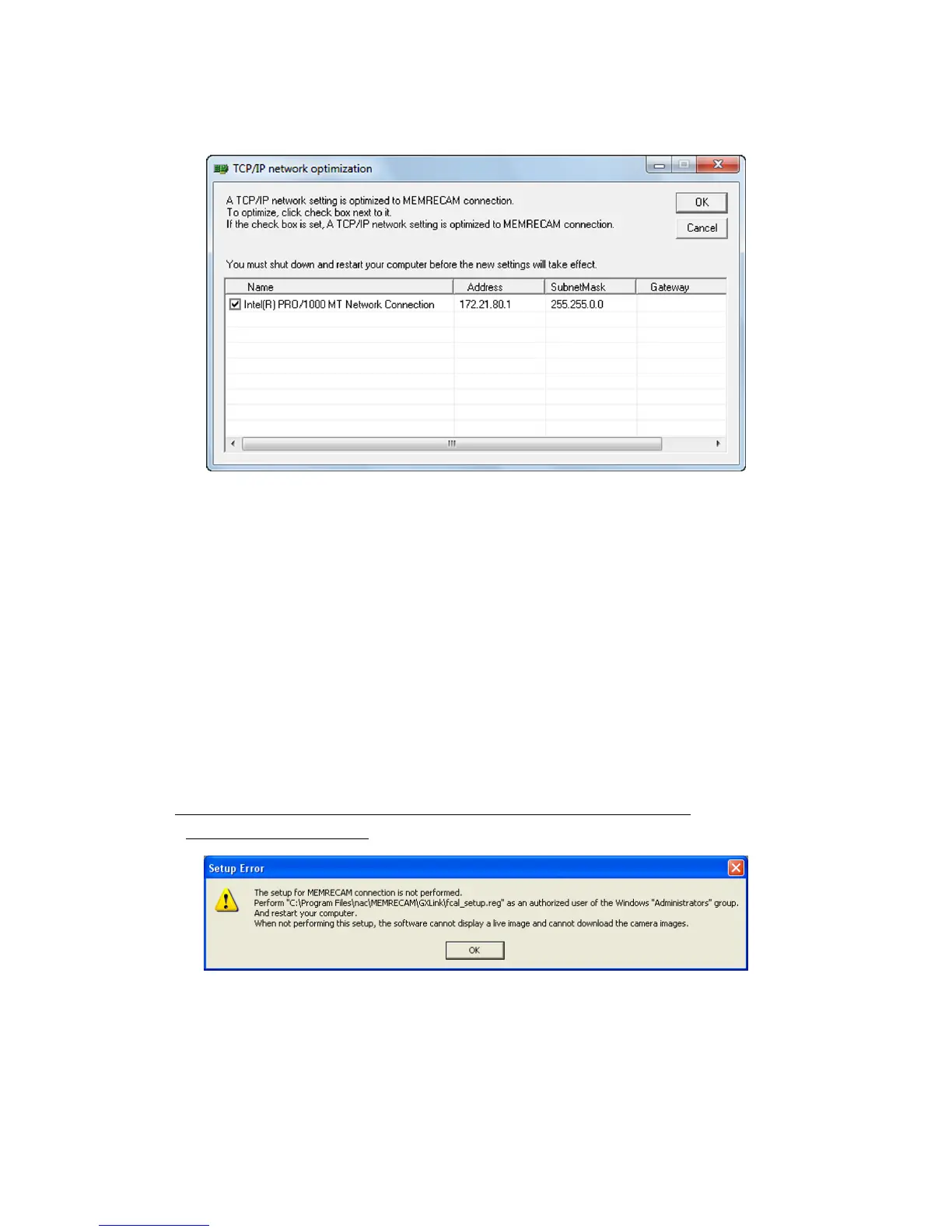
Next, click “TCP IP Network Optimization” in the Windows Start Menu → Programs →
MEMRECAM HXLink.
Check only the network in use and then click “OK”. Then, reboot the computer.
This operation sets the optimal value for the network settings.
If the error still remains after rebooting,
remove the setting file "NicConfig.ini"(*1), re-try "TCP IP Network Optimization",
and reboot the computer.
(*1) "NicConfig.ini" is in "C:¥Program Files¥nac¥MEMRECAM¥Tools" folder,
if nothing is specified at HXLink installation.
In condition of Windows 64bit edition and HXLink operated under 32bit edition,
"NicConfig.ini" is in "C:¥Program Files (x86)¥nac¥MEMRECAM¥Tools" folder.
■“Error Settings” message appears when the camera connection button is pressed
(during FC-AL connection)
If this message is displayed, execute the <fcal_setup.reg> file created in the folder where the
HXLink programs are installed (different from the OS) and then reboot the computer.
This operation sets the optimal value for the FC-AL host adapter settings.


 To Next Page