3 - 20 (00292)H
3.3 Display
■ Zoom Display
Specify the zoom display for designating a point, designating a rectangle and designating the
magnification using the mouse.
Click the "Zoom Tool" to switch to the zoom mode. In the zoom mode, the cursor is shown as a
magnifying glass, and the mouse operation enables a zoomed display of the designated point or
rectangle.
Click the "Zoom Tool" again to cancel the zoom mode.
・ For zoom designating a point, use the mouse to click on a central point of the image on the
image monitor.
Left click the mouse for an enlarged display and right click for a reduced display.
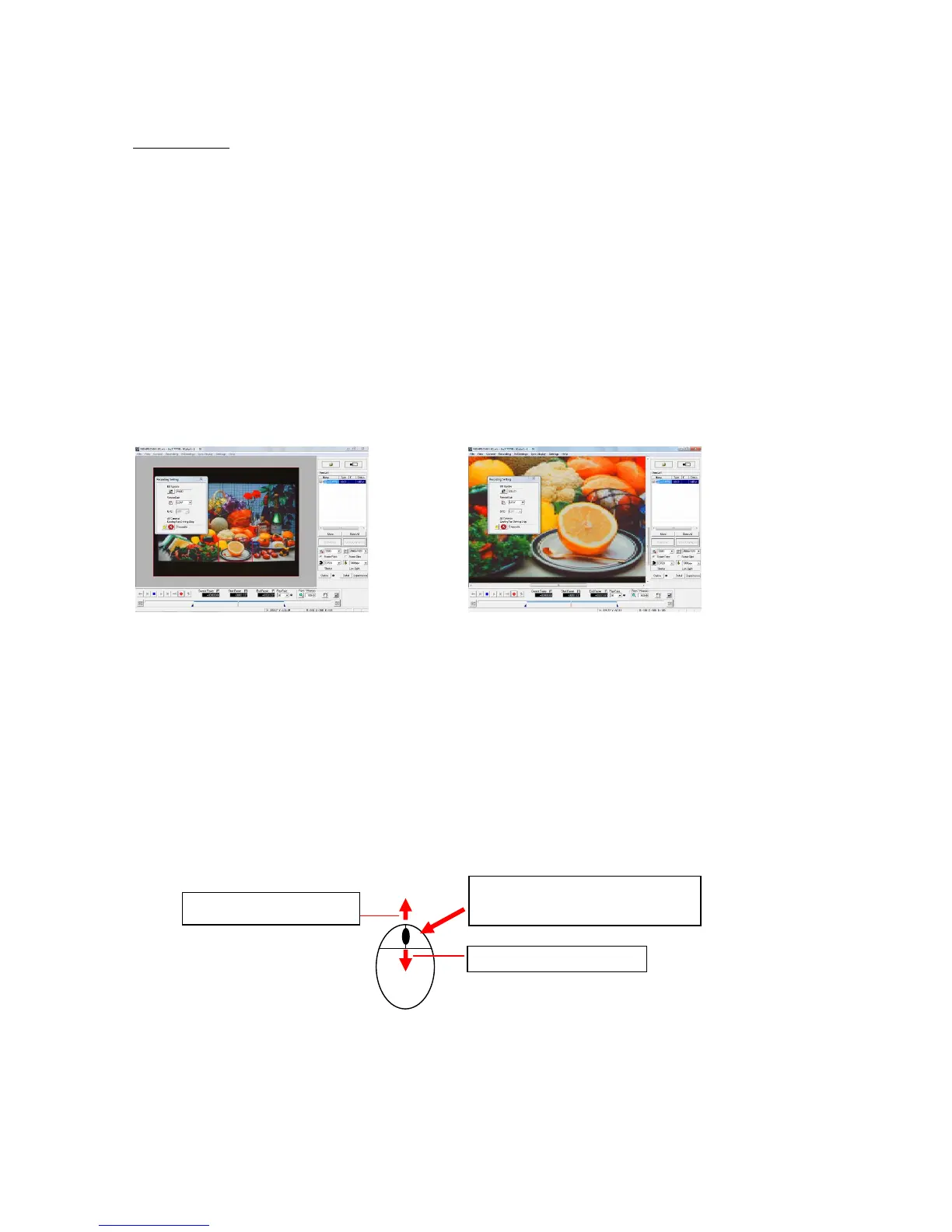
・ For zoom designating a rectangle, use the mouse to click and drag to designate a rectangle
in the area of the image monitor to be zoomed.
The sides of the rectangular area designated will be enlarged for display on the image
monitor.
Rectangle is specified Zoom display
・ For zoom designating the magnification, input a numerical value for the zoom
magnification.
When enlarging an image using zoom, the displayed image can be scrolled using the hand tool
or the scroll bar on the image monitor.
To return the zoomed image to the original magnification, input 100 (%) for the zoom
magnification or select "Actual Size" in the "View" menu.
・ Use the wheel on the mouse to zoom and scroll the image by operating the wheel while
viewing on the monitor.


 To Next Page