(00292)H 7 - 3
■GUI Settings
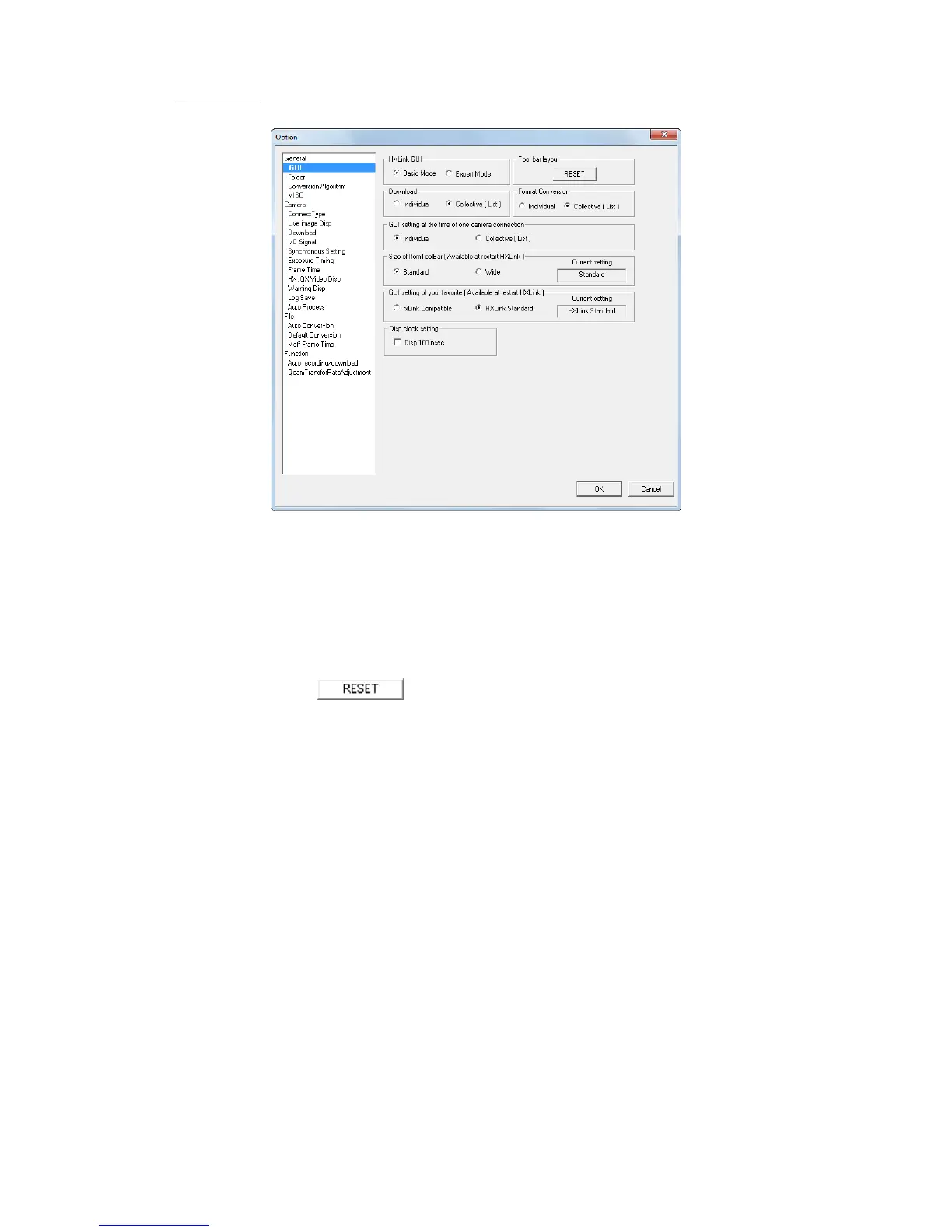
Settings for the HXLink GUI.
・Selects the operational mode in the HXLink GUI.
Basic Mode Performs basic operations.
Expert Mode Performs detailed operations.
The F12 key on the keyboard can be used to switch between the "Basic Mode" and the
"Expert Mode".
・Click RESET on the initial settings on the toolbar to return to the initial
settings toolbar display.
・Select from individual or batch conversion (list) in the dialogue displayed while downloading or
during format conversion.
Individual Conversion "Save As" dialogue for a single camera.
The range for downloading ・ format conversion is shown on the
slider bar.
Batch Save/Batch Conversion (List)
Dialogue in list format to batch download or convert the format of
MCFF files.
With multi trigger recorded images, the range for downloading ・
format conversion is specified for each block.
Refer to page 8-14 for details.
・GUI Settings When 1 Camera is Connected
Click "Detailed Settings" in the control menu or "Detailed Settings" on the item toolbar or
camera parameters toolbar to select the window displayed.
Camera Details (Individual)
Uses the "Camera Details" dialogue for one camera.
List of Camera Settings (List)
Uses the "List of Camera Settings" window in the list format.


 To Next Page