Online Services
183
7
Processing e-Confirmation Items Using your Weighing
Platform
If you plan to use the eConfirmation service frequently, it is recommended you use of
a handheld scanner to scan the tracking labels. The handheld scanner option is com-
patible with the use of a weighing platform.
For information about the optional scanner, please contact your Customer Service
representative.
How to Process eConfirmation Items using the WP
How to Process
eConfirmation
Items using the
WP
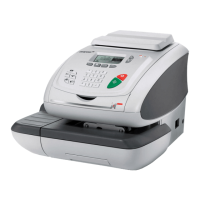
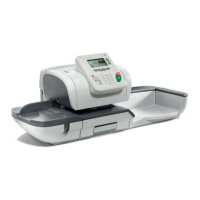
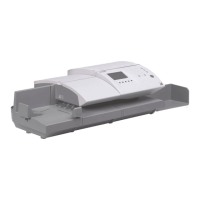
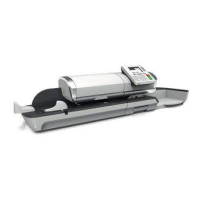
The weighing platform must be connected to your mailing
machine. Using your weighing platform to send a package and
request eConfirmation service is simple:
1 Place the eConfirmation label on the package.
2 Place your package on the WP.
(If needed, first remove all items from the WP and rezero
your weighing platform – see
How to Set to Zero the
Weighing Platform
p.208).
3 Select the rate corresponding to the package to send (see
How to Select a Rate
p.64).
If the rate requires a zip code, a specific screen is displayed
to capture the Zip code.
4 Add an eConfirmation service.
In the eConfirmation screen, check the PIC number (tracking
number) or scan it. The machine automatically suggests the
next PIC number.
If the displayed PIC number does not match your label, use
the [C] key to clear numbers (right to left), then enter the
correct PIC number.
5 Enter or modify the Sender ID information on the SenderID
screen. This sender ID will enable you to easily identify the
package record in an email notification or on the tracking web
site. The Sender ID can be up to 31 characters. This is an op-
tional step.
6 Validate the rate and return to the home screen.
7 Press to start.
8 Press to print a tape, or insert item in the machine.
Use the labels in order to avoid typing the full PIC number each
time. If you have a scanner, scan the PIC number - this is fast,
easy, and reliable.
OMEGA1_US.book Page 183 Vendredi, 1. octobre 2010 10:46 10



 To Next Page