R&S
®
ZVA / R&S
®
ZVB / R&S
®
ZVT Annexes
Increasing the Monitor Resolution
Operating Manual 1145.1084.12 – 30 1124
Click Properties in the context menu of the Windows desktop. In the Settings tab, press the
Advanced button, select the Intel Graphics Technology tab and press the Graphics Properties
button.
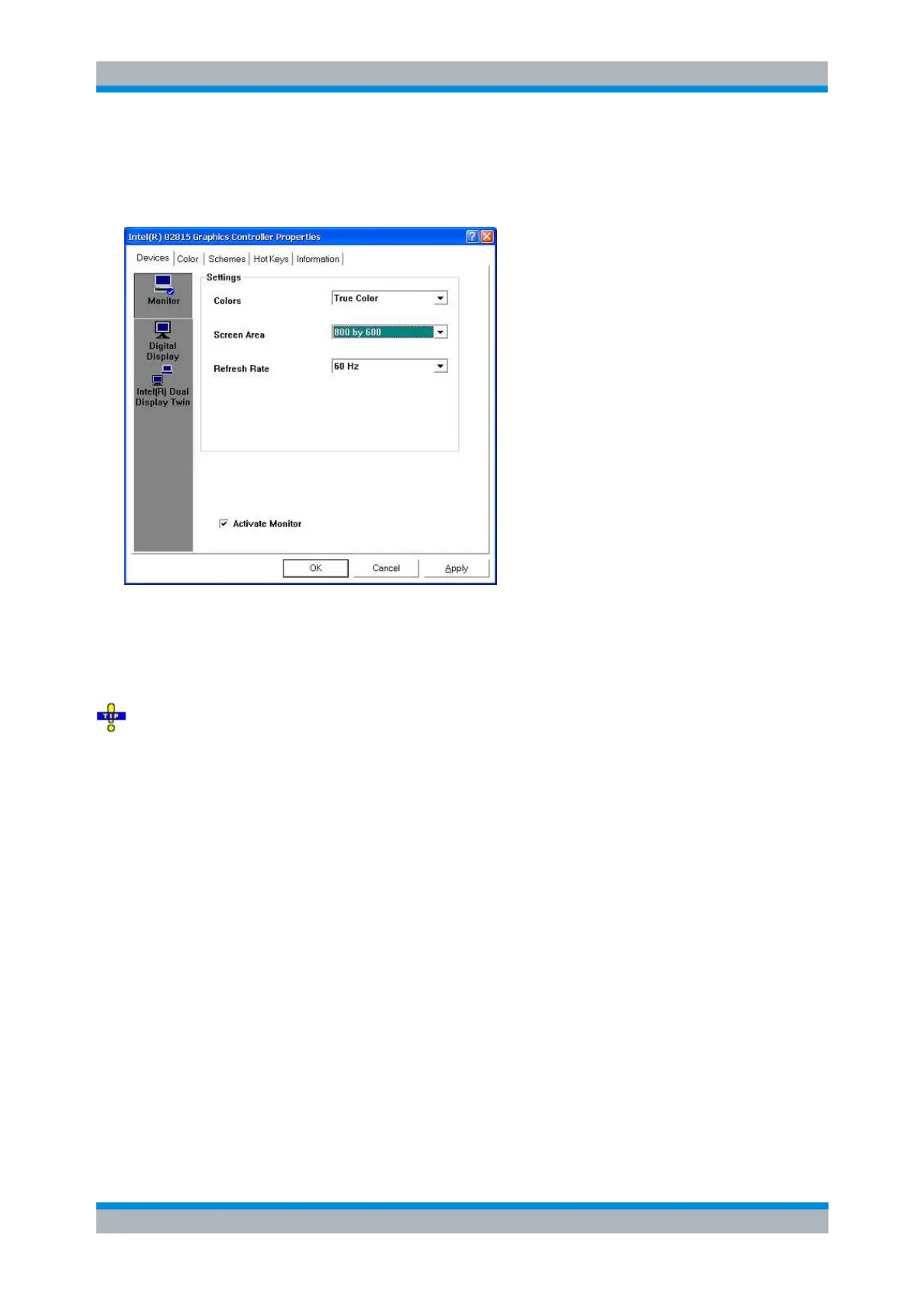
5. Select Monitor, select the Activate Monitor check box and then press OK.
The internal LCD-Display will be turned off and the external monitor should display the instrument screen
with the internal resolution of 800 by 600 pixels.
6. Confirm this change in the next dialog opened. Press OK to close the Controller Properties dialog.
After connecting the external monitor, select Display – Display Config – Hardkey Bar at the NWA GUI
to display the analyzer's hardkeys together with the menus, softkeys and the diagram areas. This allows
you to control the instrument very comfortably with the mouse.
Connecting and Activating the Monitor (Windows 7)
Under Windows 7 it is safe to connect or disconnect an external monitor during the measurement. An
external keyboard and a mouse is recommended.
1. Connect a monitor or LCD display to the analog VGA connector (labeled MONITOR) at the rear
panel.
2. Switch on the monitor.
3. Press CTRL + ALT+ F12 on your external keyboard to start the Intel Graphics Control Panel and
select the Display button.
If the keyboard shortcut does not work, click Graphics Properties in the context menu of the
Windows desktop.


 To Next Page