R&S
®
ZVA / R&S
®
ZVB / R&S
®
ZVT System Overview
Screen Elements
Operating Manual 1145.1084.12 – 30 24
With a combination of the previous methods, using the hardkey bar (front panel key bar, activated
via Display – Config./View).
The active menu is the menu containing the last executed command. If the softkey bar or hardkey bar is
displayed (Display – Config./View – Softkey Labels on), then the active menu is indicated on top of the
softkey/hardkey bar.
When you select a command in a new menu the softkey bar is updated to reflect the new active menu
with all commands. You can continue operation using the softkeys.
Overview of menu functions
The Control menu provide standard Windows functions to control windows.
The File menu provides standard Windows functions to create, save, recall or print setups, to copy
the current screen and to shut down the application.
The Trace menu provides all trace settings and the functions to create, select, modify and store
different traces. In addition the menu provides the marker, search and limit check functions.
The Channel menu provides all channel settings and the functions to create, select, modify and
store different channels.
The Display menu provides all display settings and the functions to create, select, modify and
arrange different diagram areas.
The System menu provides functions to reverse operations, return to a defined instrument state,
retrieve information on the instrument and access service functions. Besides, it configures the
remote control operation, starts the Measurement Wizard and provides print options.
The Window menu provides standard Windows™ functions to arrange different windows on the
screen.
The Info menu provides information and selftest options for service purposes and troubleshooting.
The Help menu provides assistance with the network analyzer and its operation.
Menu Structure
All menus show an analogous structure.
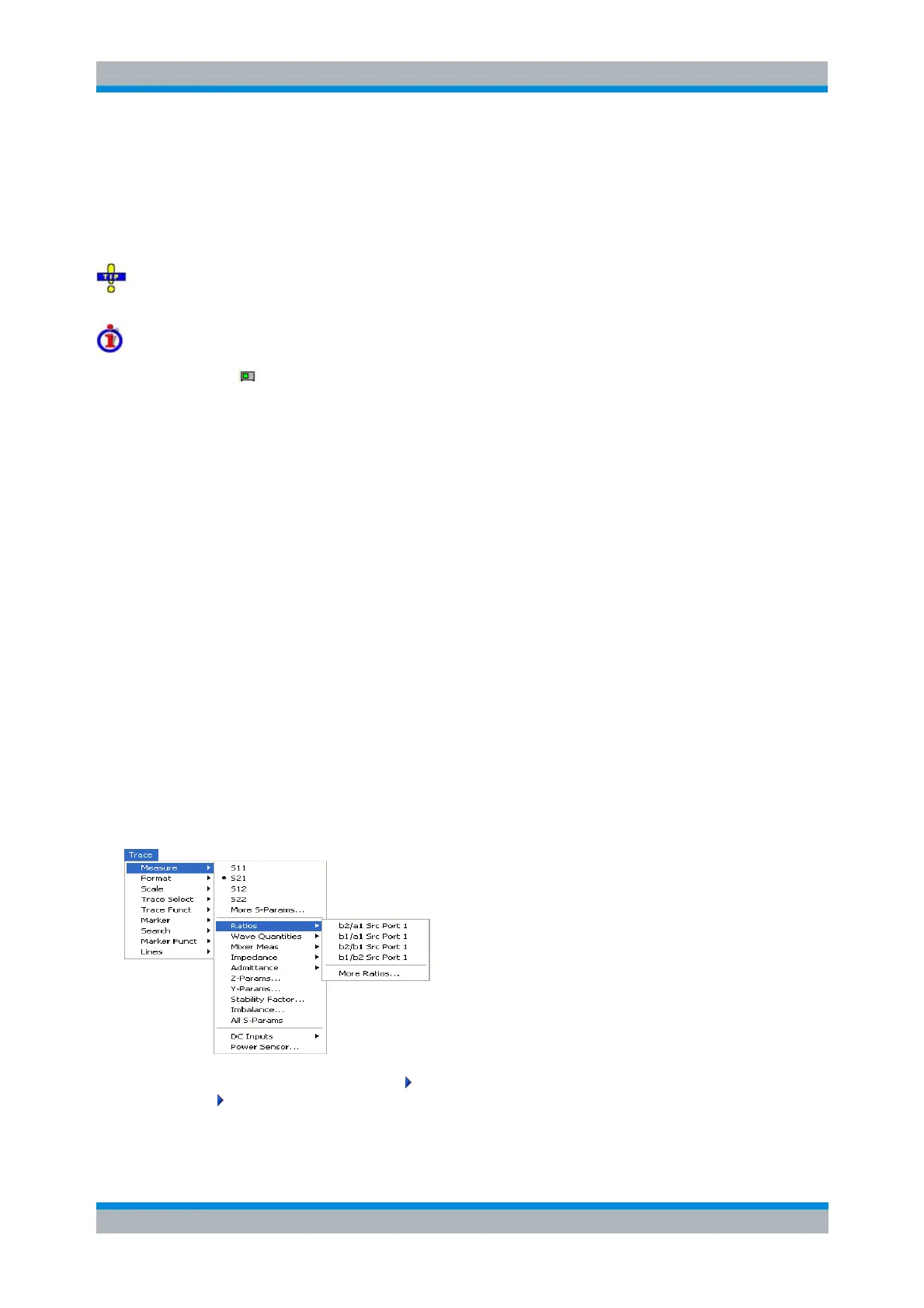
A menu command with a right arrow expands a submenu with further related settings. Example:
Measure expands a submenu to select the quantity to be measured and displayed.
A menu command with three dots appended calls up a dialog providing several related settings.


 To Next Page