R&S
®
ZVA / R&S
®
ZVB / R&S
®
ZVT GUI Reference
Channel Menu
Operating Manual 1145.1084.12 – 30 423
Channel Select
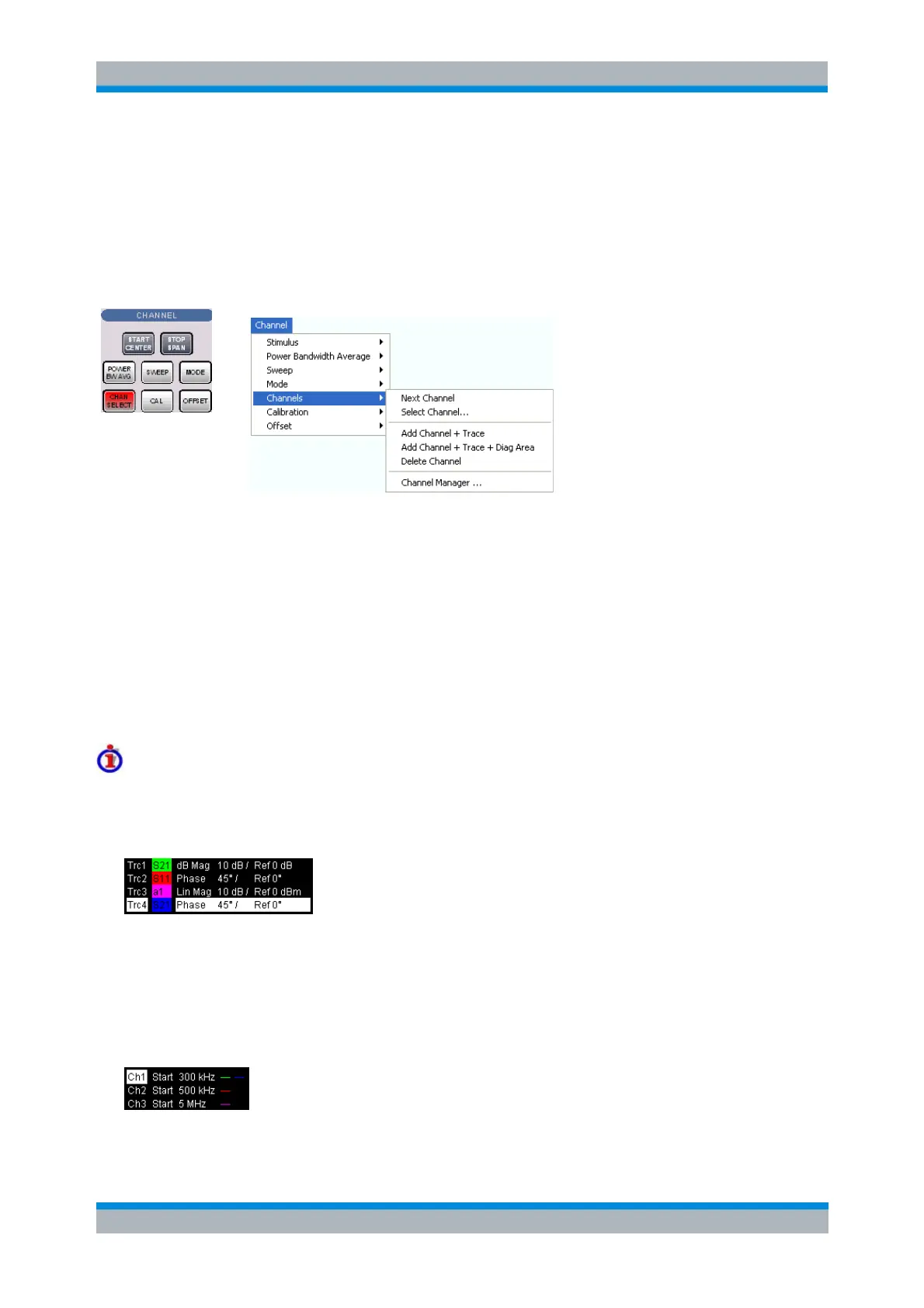
The Channel Select submenu provides functions to create and delete channels and select a channel as
the active channel.
Next Channel selects the next channel as the active channel (disabled if only one channel is
defined).
Select Channel opens a box to select an arbitrary channel of the active setup as the active
channel (disabled if only one channel is defined).
Add Channel + Trace creates a new channel and a new trace in the active diagram area.
Add Channel + Trace + Diag Area creates a new channel and a new trace in a new diagram area.
Delete Channel deletes the active channel.
Channel Manager opens a dialog to perform the previous actions systematically, rename
channels.
Active and inactive traces and channels
A window can display several diagram areas simultaneously, each with a variable number of traces. One
of these traces is active at each time. The active trace is highlighted in the trace list on top of the active
diagram area (Trc 4 in the figure below):
A mouse click onto a trace in the list selects the trace as the active trace. Alternatively, use the functions
of the Trace – Traces menu.
The active channel is the channel which belongs to the active trace. The channels of all traces in a
diagram area are listed at the bottom of the diagram, together with the Stimulus values and the display
colors of all traces. The active channel is highlighted (Ch1 in the example below, with two associated
traces).
A mouse click onto a trace in the trace list selects the channel associated to the trace as the active


 To Next Page