R&S
®
ZVA / R&S
®
ZVB / R&S
®
ZVT System Overview
Screen Elements
Operating Manual 1145.1084.12 – 30 23
Screen Elements
This section describes the operating concept of the network analyzer, including the alternative navigation
tools for mouse and hardkey operation, the trace settings, markers and diagram areas. For a description
of the different quantities measured by the analyzer refer to the Measured Quantities section.
Navigation Tools of the Screen
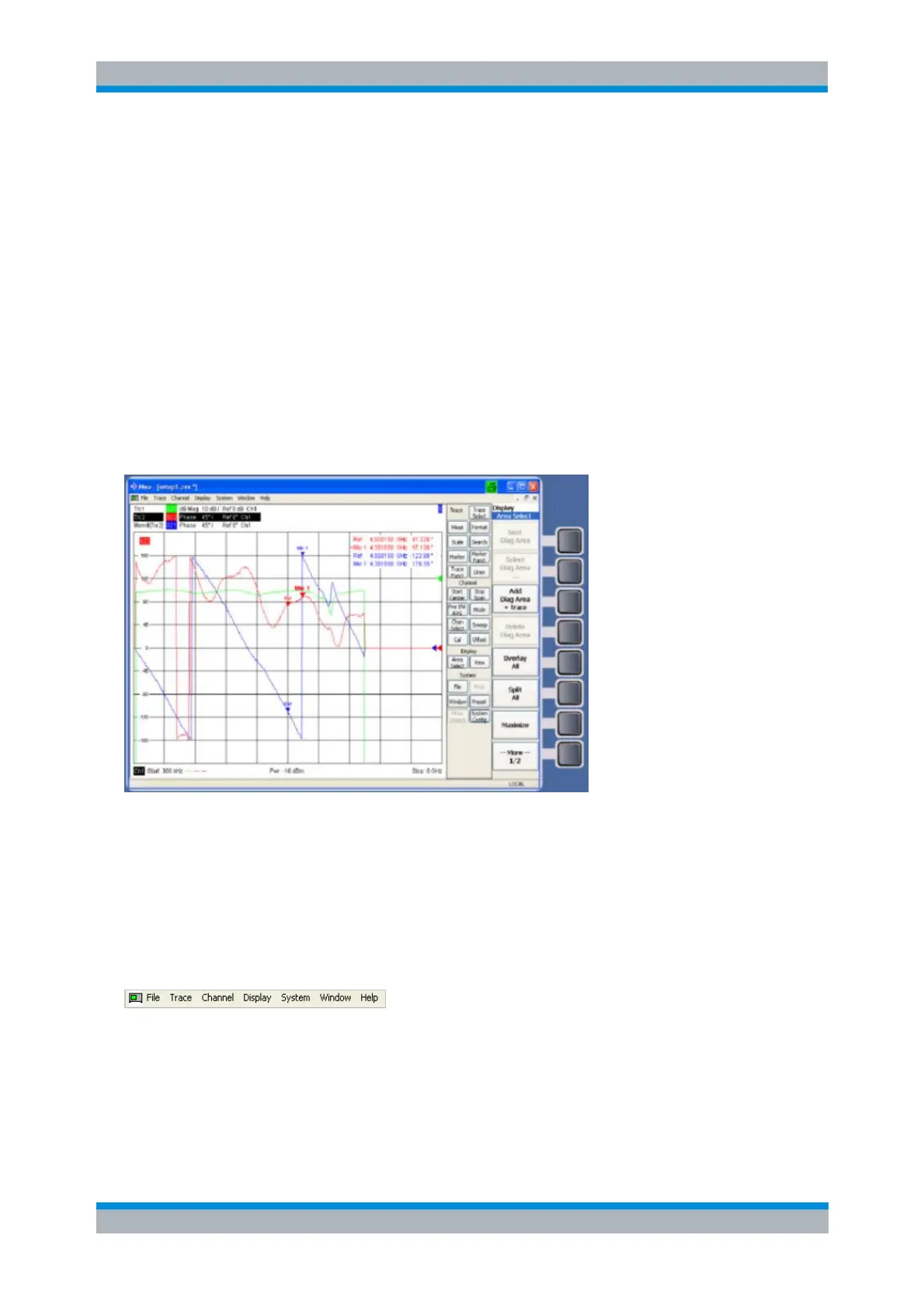
The main window of the analyzer provides all control elements for the measurements and contains the
diagram areas for the results. There are several alternative ways to access an instrument function:
Using the menus and submenus of the menu bar (provides all settings)
Using the softkeys of the softkey bar (alternative to the previous method)
Using the hardkey bar (preselection of the most important menus)
Refer to section Display Elements to obtain information about the results in the diagram area.
Refer to section Display Menu in the reference chapter and learn how to customize the screen.
Menu Bar
All analyzer functions are arranged in drop-down menus. The menu bar is located across the top of the
diagram area:
Menus can be controlled in different ways:
With a mouse, like the menus in any Windows application. A left mouse click expands a menu or
submenu. If a menu command has no submenu assigned, a left mouse click opens a dialog or
directly activates the menu command.
Using the front panel keys.


 To Next Page