R&S
®
ZVA / R&S
®
ZVB / R&S
®
ZVT GUI Reference
Control Menus
Operating Manual 1145.1084.12 – 30 95
5 GUI Reference
This chapter explains all functions of the analyzer and their application. It is organized according to the
menus/softkey groups of the user interface.
The topics in this chapter can be called up directly using the HELP key or the Help buttons in the dialogs.
For a general overview of the analyzer's capabilities and their use refer to the System Overview.
Control Menus
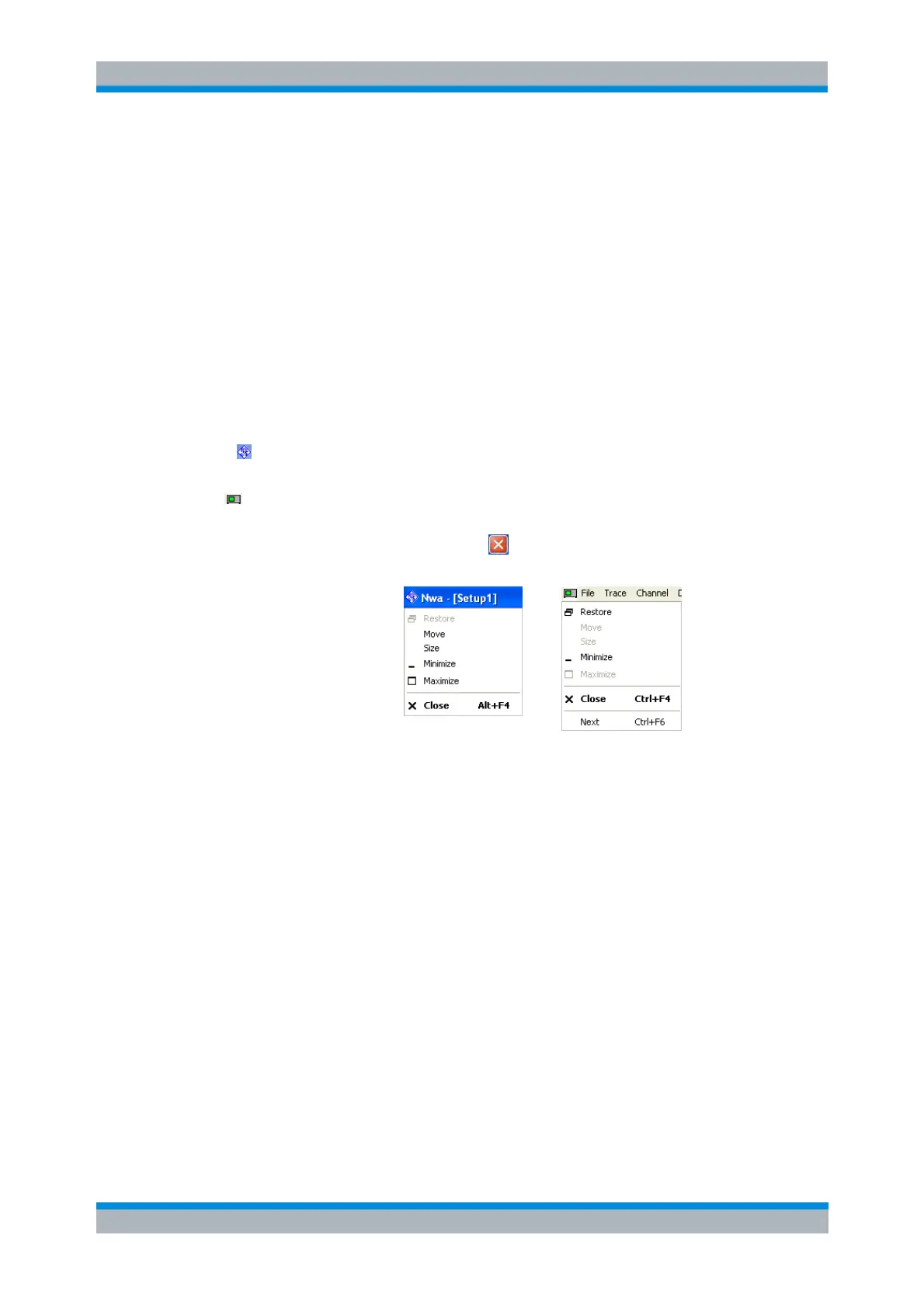
The Control menus provide standard Windows™ functions to control windows. The analyzer provides two
types of Control menus with analogous function:
Clicking the icon opens the Control menu for the main application window. To access this icon
the Title Bar of the main application window must be open.
Clicking a icon opens the Control menu for an individual setup window. If a setup window is
maximized, the icon is placed to the left of the File menu.
Double-clicking a control icon is the same as clicking the icon or the Close menu command.
(No direct access via front panel keys)
The Control menu contains the following functions:
Restore returns the active window to its size and position.
Move displays a cursor symbol to moves the active window within the available space.
Size displays a cursor symbol to size the active window.
Minimize reduces the active window to an icon.
Maximize enlarges the active window to fill the available space.
Close closes the application.
Next switches to the next open setup window.
Restore
Returns the maximized or minimized active window to its size and position. Restore is available after a
Maximize or Minimize command only.


 To Next Page