R&S
®
ZVA / R&S
®
ZVB / R&S
®
ZVT System Overview
Screen Elements
Operating Manual 1145.1084.12 – 30 25
Example: More S-Parameters... opens a dialog to select S-parameters for multiport
measurements or mixed mode S-parameters.
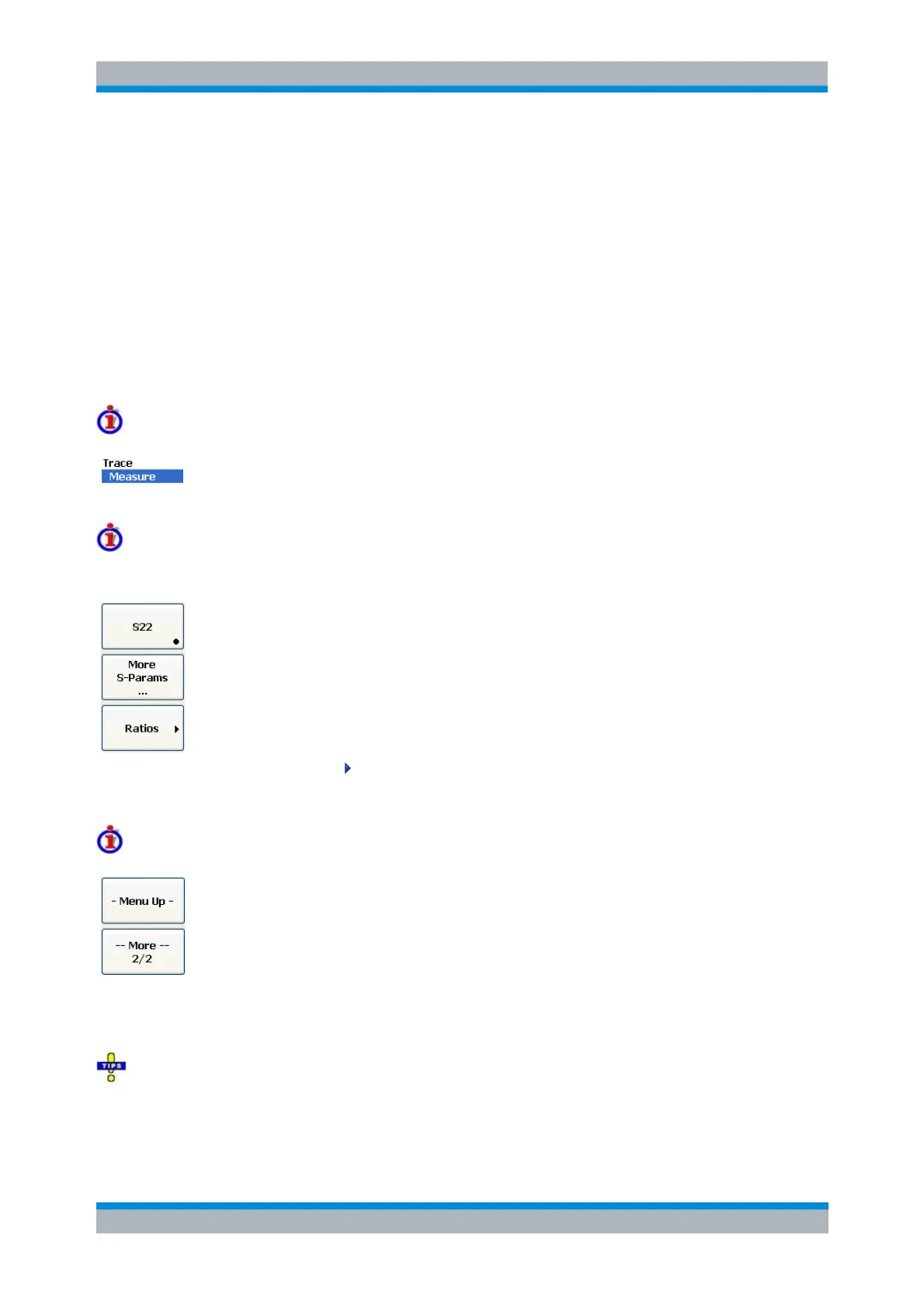
A menu command with no arrow or dots directly initiates an action. Example: S21 selects the
forward transmission coefficient S
21
as measured quantity.
A dot preceding the menu command indicates the current selection in a list of alternative settings.
Example: In the figure above, S
21
is selected as measured quantity.
Softkey Bar
The softkey bar displays the commands of the active menu so that they can be activated by hitting the
associated keys on the front panel. It consists of three elements:
Heading
The heading shows the two lowest level menu commands in the current branch of the
menu tree. The lowest-level command appears on a shaded background.
Function softkeys
Up to 8 softkeys, each corresponding to a command of the active menu. The function of
the softkeys and their labels are strictly equivalent to the corresponding menu commands.
A large dot in the lower right corner indicates the current selection in a list of
alternative settings.
Three dots indicate that the softkey calls up a dialog providing several related
settings.
A right arrow indicates a submenu with further related settings.
A softkey with no arrow or dots directly initiates an action.
Navigation softkey (optional)
Softkey no. 8 or softkeys no. 7 and no. 8 are reserved for navigation:
More 1/2 and More 2/2 toggle between two groups of softkeys which belong to the
same menu. The softkeys are provided whenever the active menu contains more
than 7 commands.
Menu Up activates the higher-level menu and is provided in all menus except the
top-level one listing the main menus in the menu bar.
The softkey bar is automatically updated when the active menu is changed.
You can hide the softkey bar and gain screen space for the diagram areas if you use a mouse to
control the analyzer (see Display – Config./View). All settings are accessible from the menus listed in the
menu bar across the top of the screen. Moreover, you don't have to display the softkey bar permanently in
order to make use of its functionality. Hitting any of the keys associated to the softkey bar will make it


 To Next Page