R&S
®
ZVA / R&S
®
ZVB / R&S
®
ZVT System Overview
Screen Elements
Operating Manual 1145.1084.12 – 30 35
The two types of dialogs are easy to distinguish:
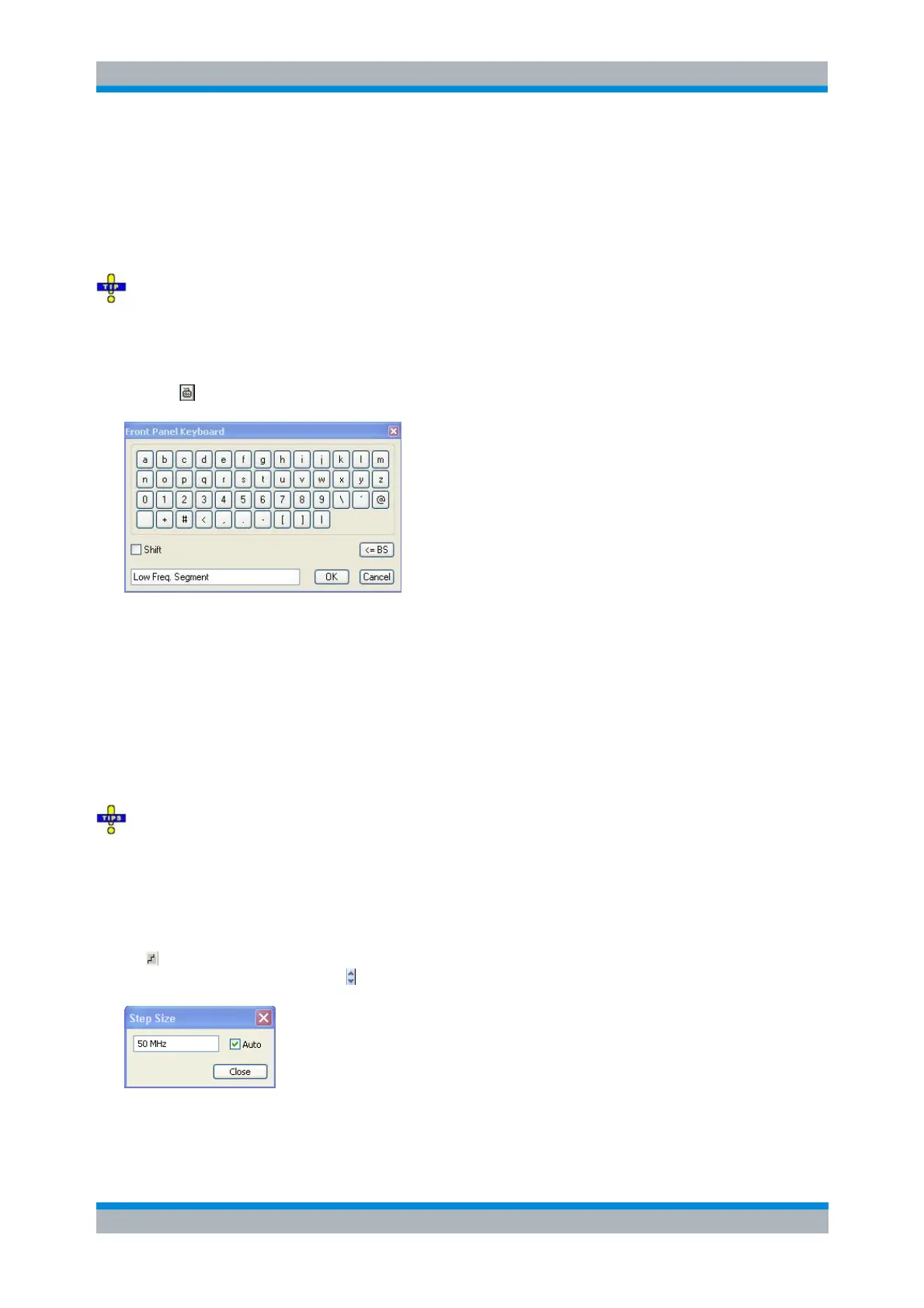
Dialogs with immediate settings provide a Close button but no OK button. Example: Step Size
dialog.
Dialogs with confirmed settings provide both an OK button and a Cancel button. Example: On-
screen keyboard.
You can also cancel an immediate setting using System – Undo!.
On-Screen Keyboard
A keyboard symbol next to a character input field opens the analyzer's on-screen keyboard.
The on-screen keyboard contains two sets of characters plus the following additional controls:
Shift changes between the two character sets containing lower case letters/numbers and upper
case letters/special characters, respectively.
<= BS deletes the current string in the alphanumeric input field.
OK applies the current selection and closes the keyboard. The current string is written into the
input field of the calling dialog. See also Immediate vs. Confirmed Settings.
Cancel discards the current selection and closes the keyboard. The input field of the calling dialog
is left unchanged.
The on-screen keyboard allows you to enter characters, in particular letters, without an external
keyboard; see Data Entry. To enter numbers and units, you can also use the DATA ENTRY keys on the
front panel of the instrument.
Step Size
A step symbol next to a numeric input field opens the Step Size dialog to define an increment for data
variation using the Cursor Up/Down buttons in the dialogs or the rotary knob.
The input value for the step size takes effect immediately; see Immediate vs. Confirmed Settings.


 To Next Page