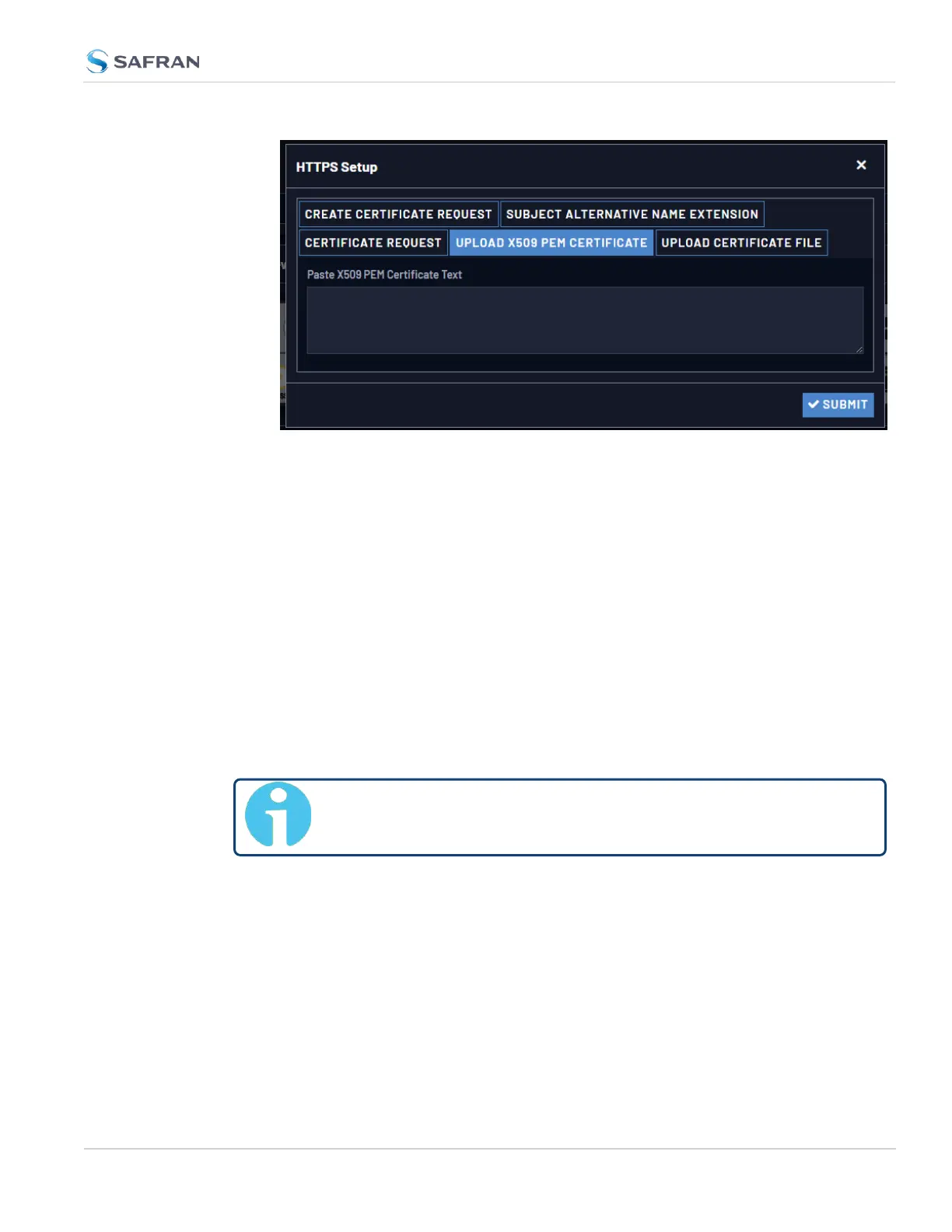
3. Copy the text of the Certificate that was issued to you by your Certificate
Authority, and paste it into the text field.
4. Click Submit to upload the Certificate to VersaSync.
NOTE: The text inside the text field under the Edit X.509 PEM Certificate tab is
editable. However, changes should not be made to a Certificate once it is impor-
ted; instead, a new Certificate should be requested. An invalid Certificate may res-
ult in denial of access to the VersaSync through the Web UI.
2.8.6.8 Uploading an HTTPS Certificate File
Once the HTTPS Certificate has been issued by your Certificate Authority, you
have to upload the Certificate file to VersaSync, unless it is a X.509 PEM-format
Certificate: In this case you may also upload the pasted Certificate text directly,
see "Uploading an X.509 PEM Certificate Text" on the previous page.
Note: For more information about Certificate formats, see "Sup-
ported Certificate Formats" on page80.
To upload an HTTPS certificate file to VersaSync:
1. Store the Public Keys File provided to you by the Certificate Authority in a
location accessible from the computer on which you are running the
WebUI.
2. In the WebUI, navigate to MANAGEMENT > NETWORK: HTTPS Setup.
3. Select the tab Upload Certificate File.
2.8 Configuring Network Settings
CHAPTER 2 • VersaSync User Manual Rev. 12
87



 To Next Page