3.1 The Time Management Screen
The Time Management screen is the point of entry for all SystemTime-related
settings that are user-configurable.
To access the Time Management screen:
1. Navigate to MANAGEMENT > OTHER: Time Management.
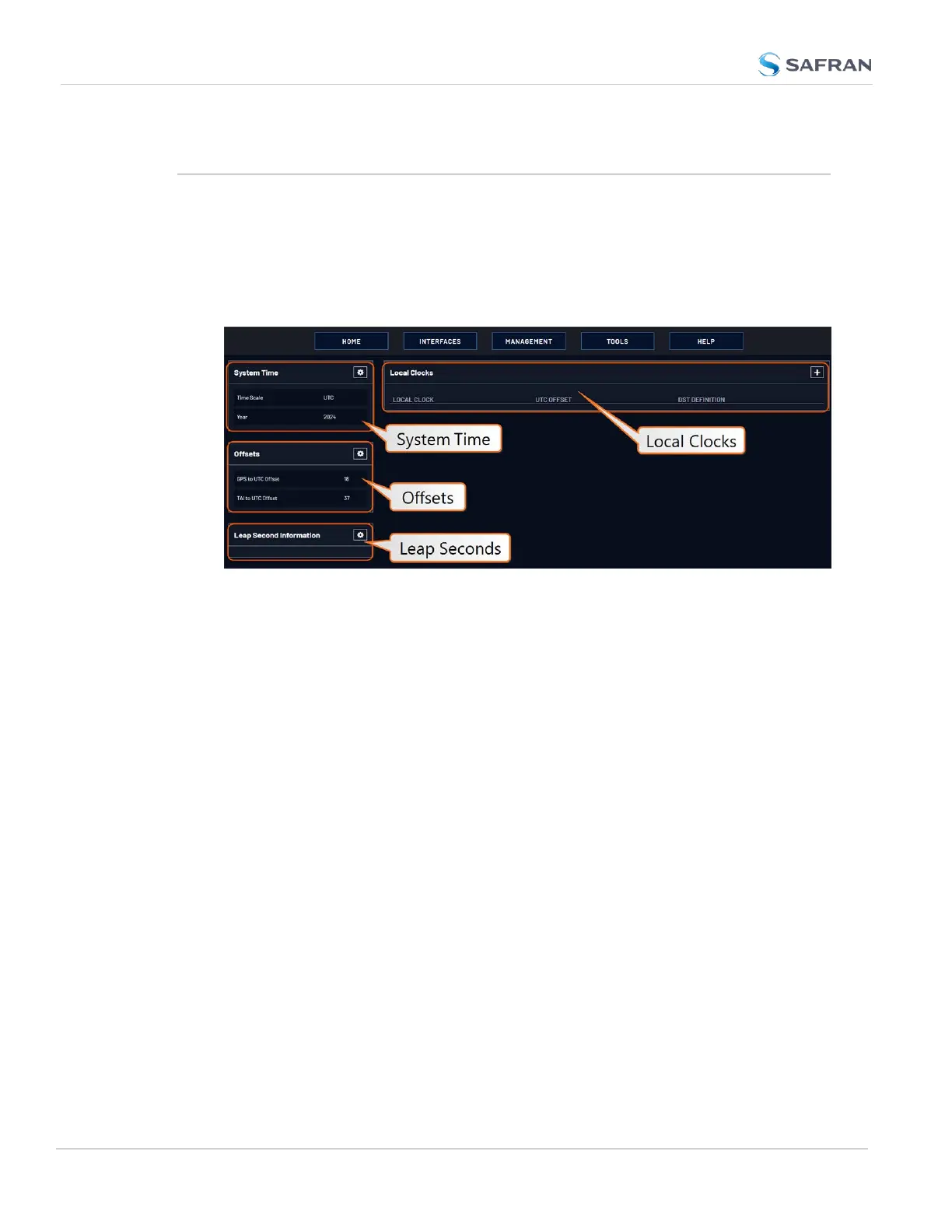
2. The Time Management screen opens. It is divided into 4 panels:
System Time panel
The System Time panel displays the time scale and the year, and allows access to
the Edit System Time window via the GEAR icon in the top-right corner. This win-
dow is used to select the time scale, and to manually set a user- time, if so
required.
See "System Time" on page158.
Offsets panel
The Timescales UTC, TAI, and the GPS- supplied time are offset by several
seconds, e.g. to accommodate leap seconds. The GPS offset may change over
time, and can be managed via the GEAR icon in the top-right corner of this panel.
Leap Second Info panel
From time to time, a leap second is applied to UTC, in order to adjust UTC to the
actual position of the sun. Via the Leap Second Info panel, leap second cor-
rections can be applied to VersaSync’s time keeping. It is also possible to enter
the exact day and time when the leap second is to be applied, and to delete a
leap second.
See also: "Leap Seconds" on page165
156
CHAPTER 3 • VersaSync User Manual Rev. 12
3.1 The Time Management Screen



 To Next Page