2.7.2.2 How to Configure an Output
To access the user-editable settings of an Output, choose one of these two meth-
ods:
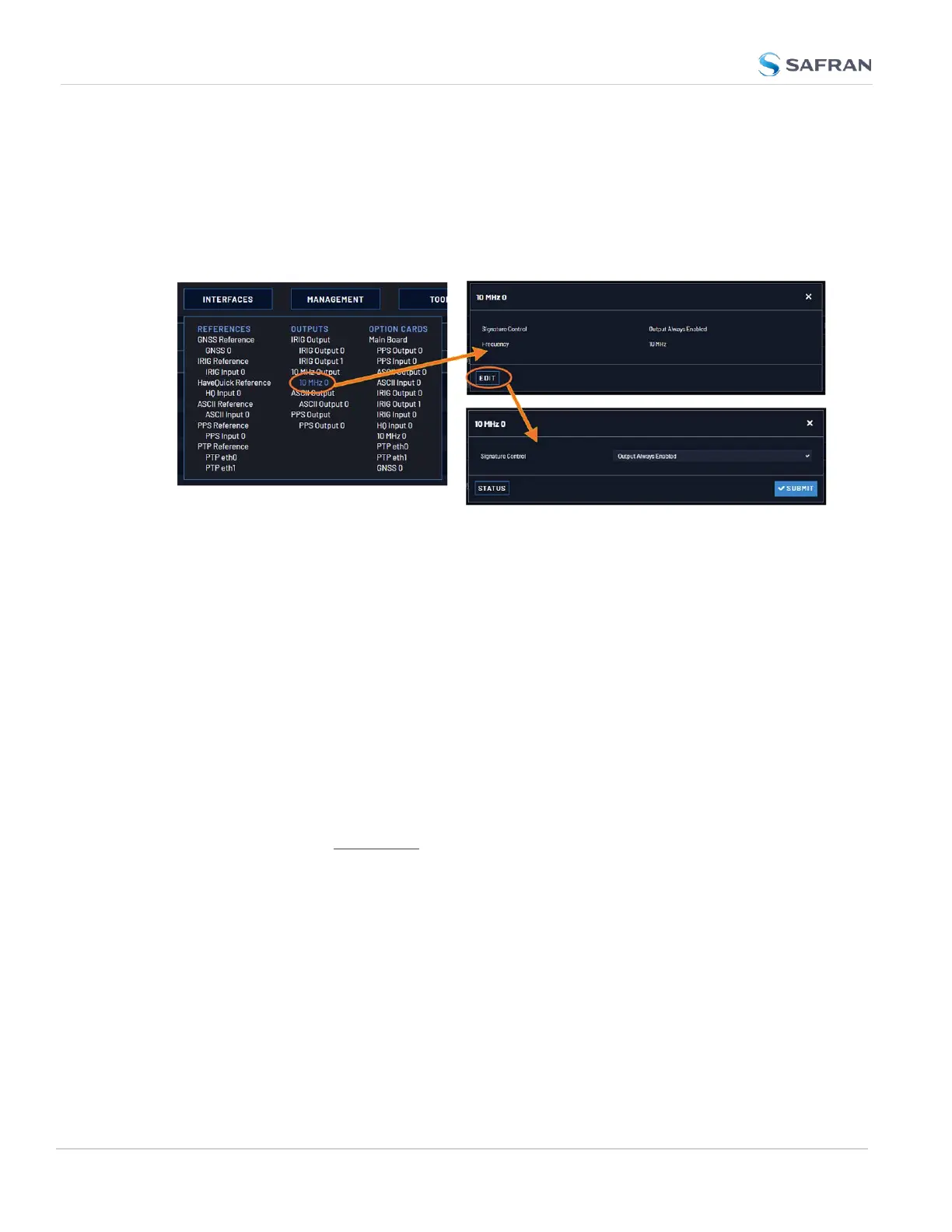
Configuring the settings of an output, method 1:
1. Under INTERFACES > OUTPUTS, click the desired output.
2. The Status window for the specific reference you selected will be displayed.
Click the Edit button in the bottom-left corner.
3. The settings window for the chosen output will be displayed. Edit the field
(s) as desired.
Configuring the settings of an output, method 1:Under INTERFACES
> OUTPUTS, click the desired output. The Status window for the specific ref-
erence you selected will be displayed. Click the Edit button in the bottom-
left corner. The settings window for the chosen output will be displayed.
Edit the field(s) as desired.
Configuring the settings of an output, method 2:
1. In the INTERFACES > OUTPUTS drop-down menu, click OUTPUTS, or one
of the output categories (not indented to the right)
2. In the Status window, click the GEAR button next to the desired output.
3. The settings window for the chosen output will be displayed. Edit the field
(s) as desired.
Note: Offset values for outputs are set in 20 ns increments and will round to the
nearest multiple of 20 if not set to one exactly.
2.7.3 Example: Configuring a 20 PPS Output
The instructions below explain how to configure a 20PPS output signal:
50
CHAPTER 2 • VersaSync User Manual Rev. 12
2.7 Configuring Inputs/Outputs



 To Next Page