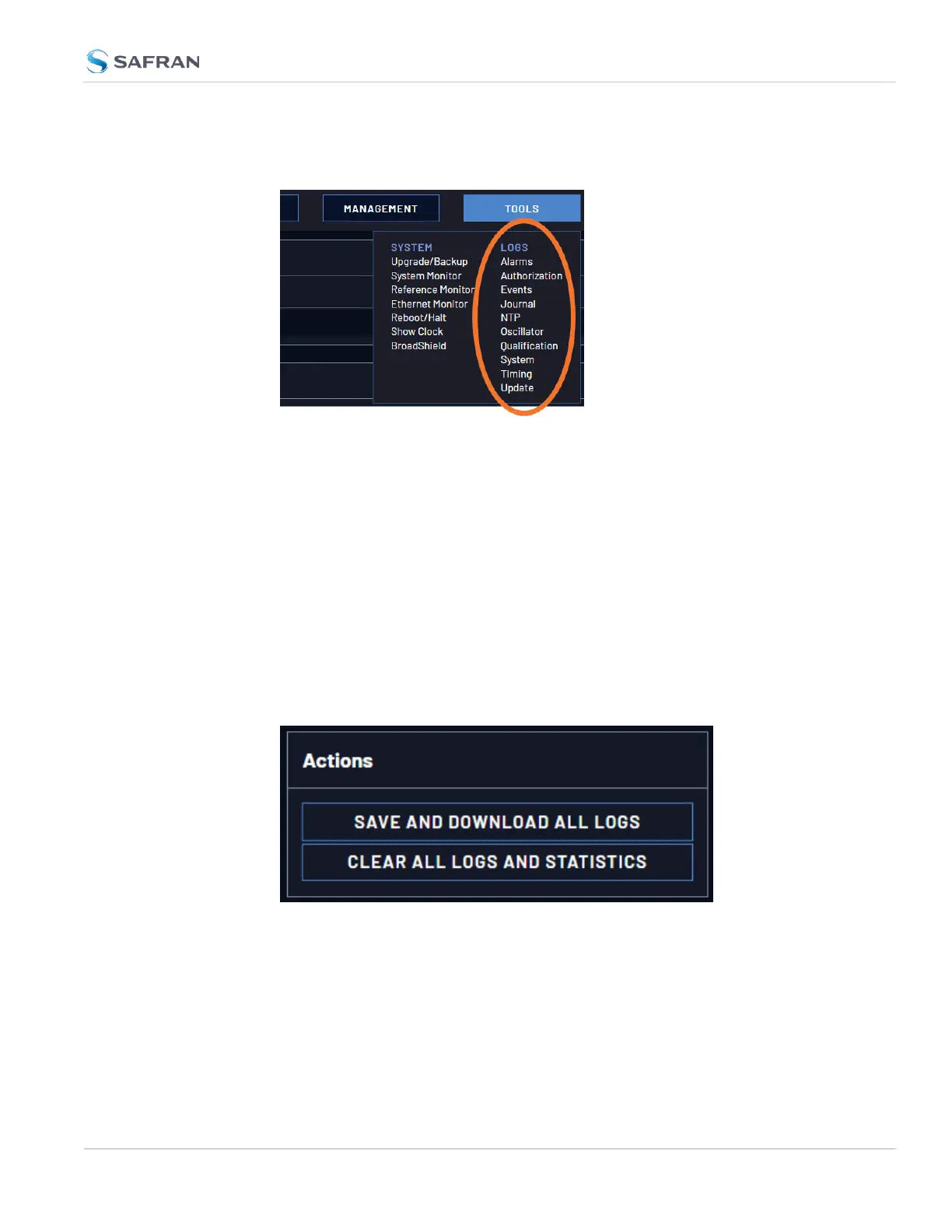
1. From the TOOLS drop-down menu, select the desired Logs category (for
example, “Alarms”, or “Events”) from the right-hand column.
4.6.2.4 Saving and Downloading Logs
The VersaSync Web UI offers a few convenient ways to save, bundle, and down-
load all logs in one simple step. This feature may be useful when archiving logs,
for example, or for troubleshooting technical problems: Safran Technical Sup-
port/Customer Service may ask you to send them the bundled logs to remotely
investigate a technical concern.
To save, bundle, and download all logs:
1. Navigate to MANAGEMENT > OTHER: Log Configuration.
2. On the left side of the screen, in the Actions panel, click on the Save and
Download All Logs button.
3. Select the log bundle save locaion. The file name is logs.tar.gz
4. If so asked by Safran Technical Support, attach the bundled log files (typ-
ically together with the oscillator status log, see: "Saving and Downloading
the Oscillator Log" on the next page) to your email addressed to
SafranTechnical Support.
4.6 Quality Management
CHAPTER 4 • VersaSync User Manual Rev. 12
287



 To Next Page