4.6.2.5 Setting up a Remote Log Server
Storing log files on a remote log server supports advanced logging functionality.
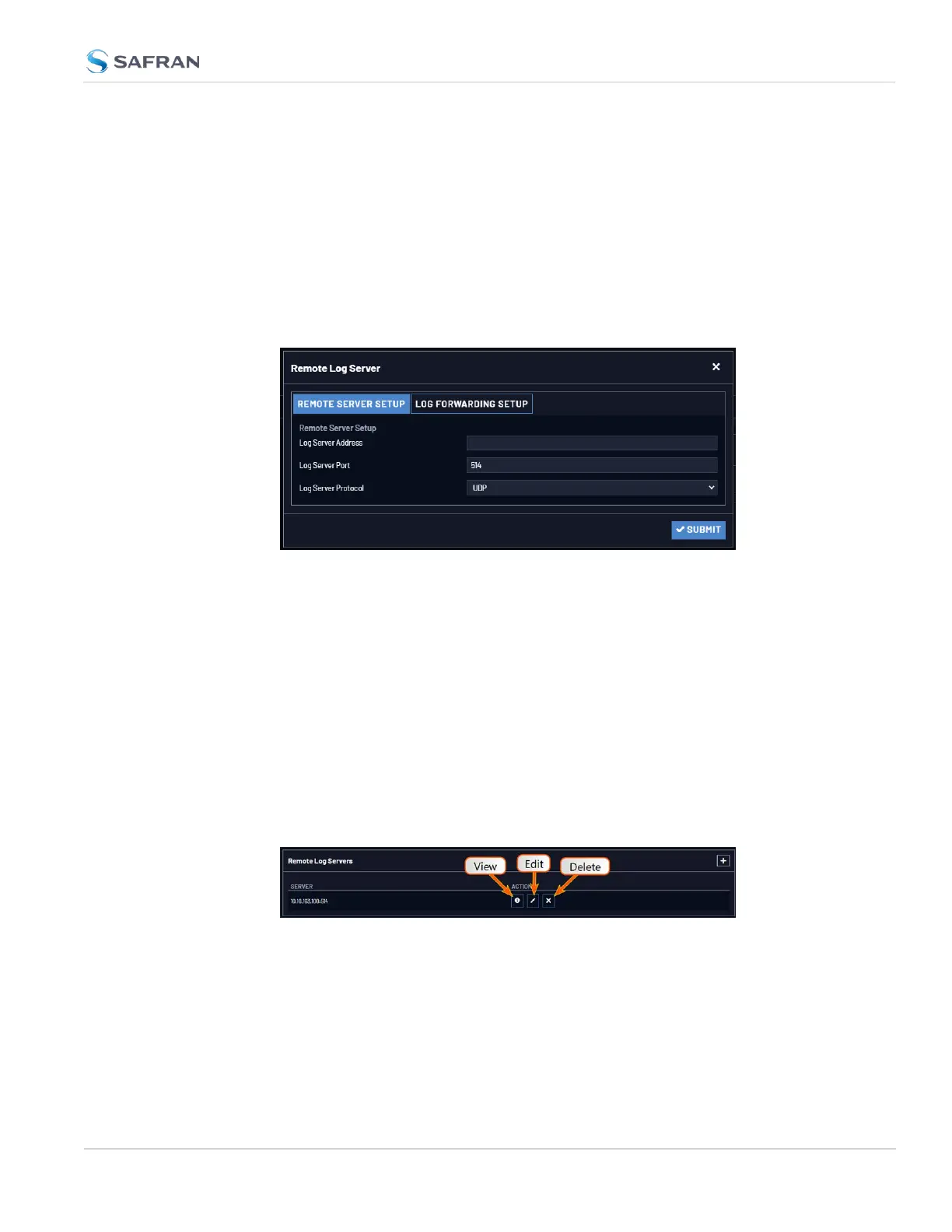
Adding a remote log server:
1. Navigate to MANAGEMENT > OTHER: Log Configuration.
2. In the Remote Log Server panel, click on the PLUS icon in the top-right
corner of the panel. The Add Remote Log Servers window displays.
3. Enter the IP address or host server name (e.g., “MyDomain.com”) you want
to use as a remote log server.
4. Click the Submit button.
5. Your remote log server will appear in the Remote Log Server panel.
6. This action will configure all logs to be sent to the remote server together.
Changing or deleting a remote log server:
1. Navigate to MANAGEMENT > OTHER: Log Configuration.
2. In the Remote Log Server panel locate the remote server you wish to
change or delete.
3. Choose the MINUS button to delete the remote log server. Confirm by click-
ing OK in the message window.
—OR—
4.6 Quality Management
CHAPTER 4 • VersaSync User Manual Rev. 12
289



 To Next Page