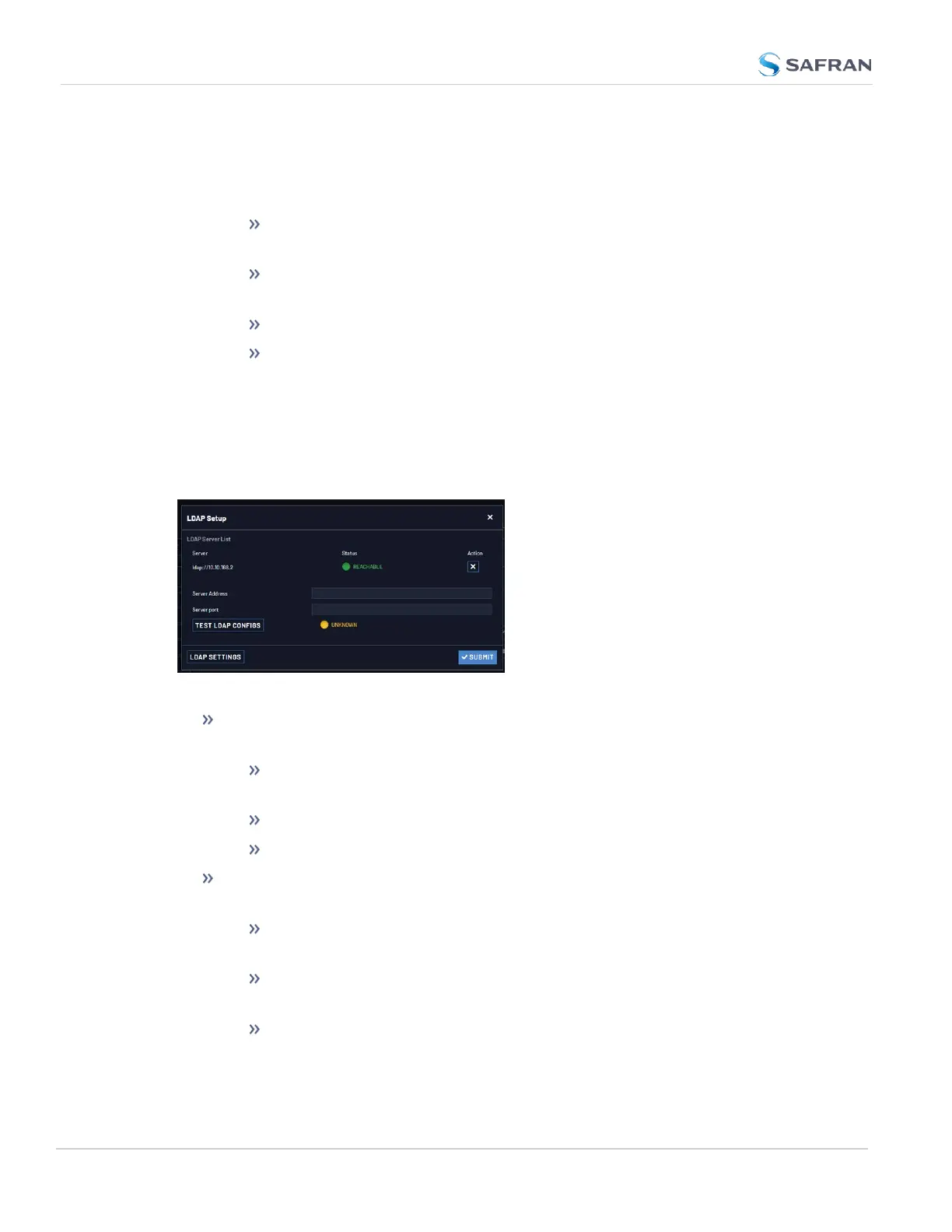
4. Click the LDAPServers button to add a server and identify the primary
server.
5. There will be 4 tabs to allow additional LDAPconfiguration:
Settings: This is where you set up the general LDAP Distinguished
Name and Bind settings.
Security: This is where you upload and manage the CA server cer-
tificate, CA client certificate and CA client key.
Group: This is where you enable/disable group-based authentication.
Advanced: This is where you set up your search filter(s) and login
attribute.
LDAP Servers Settings
Under the LDAP Servers popup window, you manage the LDAP server(s) to be
accessed:. It is necessary to add a server before other settings are configured.
Under the LDAP Servers tab, the window displays:
LDAP Server Status—Attempts to ping the server and will display one of
the following states:
DISABLED (yellow) —The Enabled checkbox under the Settings tab
as not been selected.
REACHABLE (green)—The server is reachable.
UNREACHABLE (red)—The server is unreachable.
Test LDAP Configs button -Performs an ldapsearch command with the con-
figured servers and settings. (Note: does not test TLS Certificates).
UNKNOWN (yellow) —The LDAP Config test has not been performed
yet.
LDAPCONFIGURATIONVALID (green)—The ldapsearch command
successfully authenticated with the server.
SERVERCANNOTBEREACHED (red)—The server cannot be
reached.
252
CHAPTER 4 • VersaSync User Manual Rev. 12
4.4 Managing Users and Security



 To Next Page