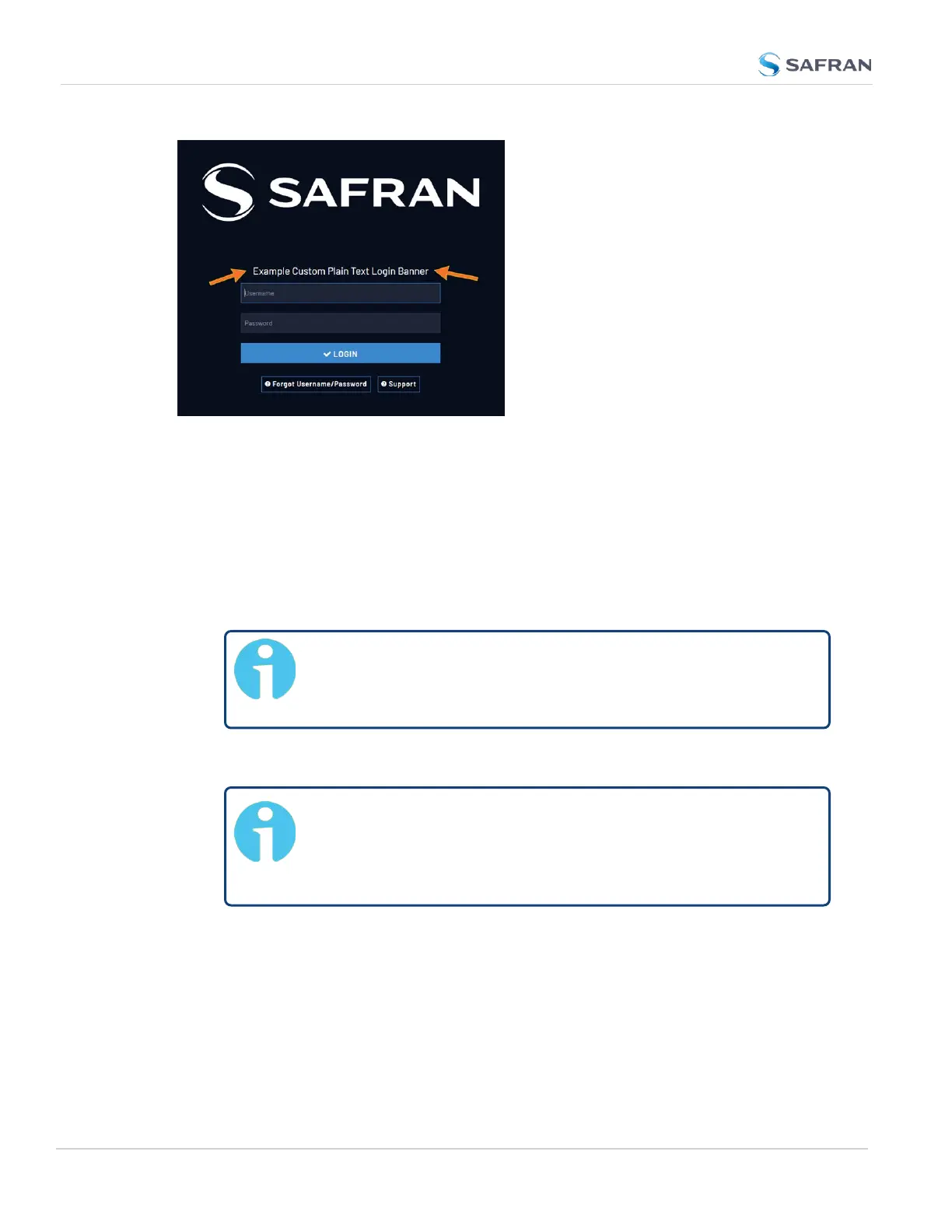
Figure 4-1: Login banner (example)
To configure a login banner:
1. Navigate to the MANAGEMENT > Network Setup screen.
2. In the Actions panel on the left, click Login Banner.
3. The Network Access Banner window will display. Check the box Enable
Custom Banner.
4. In the Plain Text Banner text box, type in your custom text.
Note: The Plain Text Banner is used to create a message for all
interactive login interfaces (Web UI, telnet, SSH, FTP, SFTP,
serial, etc.). It is not required to include HTML tags.
5. Optionally, you may also use the Web Interface Banner text box.
Note: Enabling and using the Web Interface Banner text box
will allow you to apply HTML formatting tags to your message
(e.g., colors). Note that this functionality is limited to browser-
based Web UI access.
6. To test your new banner, click Apply to see a preview at the bottom of the
window. OR, click Submit, and log out of the Web UI, and back in so as to
see the banner on the actual login page.
266
CHAPTER 4 • VersaSync User Manual Rev. 12
4.5 Miscellanous Typical Configuration Tasks



 To Next Page